> ## Documentation Index
> Fetch the complete documentation index at: https://tutorials.spellslate.com/llms.txt
> Use this file to discover all available pages before exploring further.
# Create your first project
# Create your first project
To get started with Spell Slate:
1. Click **Projects** in the navigation bar.
2. Click **New Project** (or the + button).
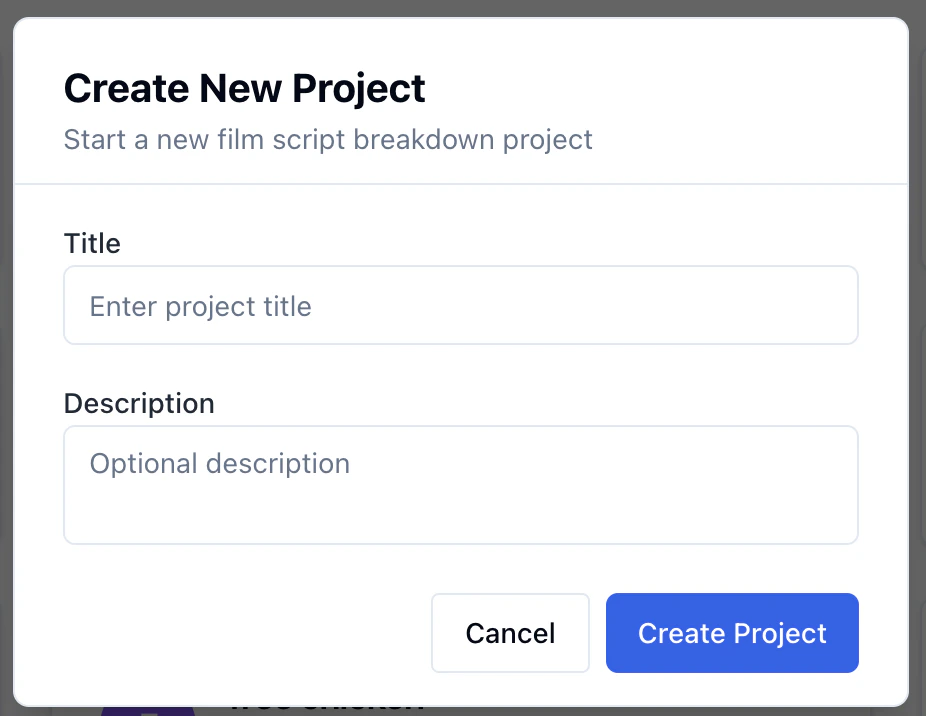
 3. Enter a project title and click **Slate It**. If you can create projects for more than one organization, choose the organization that should own the project before you create it.
 Your new project will open to the project home. To start writing, click **Writing** in the nav and choose **Script**. From there you can import a script, write in the Fountain editor, or start with a blank document. You can also start your outline first by choosing **Writing → Outline**.
On mobile, some heavy authoring tools are marked **Desktop only** in the project drawer. Tap one to see a quick explanation, then switch to desktop or tablet for those workflows.
Your new project will open to the project home. To start writing, click **Writing** in the nav and choose **Script**. From there you can import a script, write in the Fountain editor, or start with a blank document. You can also start your outline first by choosing **Writing → Outline**.
On mobile, some heavy authoring tools are marked **Desktop only** in the project drawer. Tap one to see a quick explanation, then switch to desktop or tablet for those workflows.