> ## Documentation Index
> Fetch the complete documentation index at: https://tutorials.spellslate.com/llms.txt
> Use this file to discover all available pages before exploring further.
# Locking the script
# Locking the script
> **Who can do this:** All plans. Locking and unlocking require the organization owner or an admin.
When the script goes out to departments, scene numbers have to stop moving. Wardrobe tags scene 24, the stripboard schedules scene 24, and both need that to still be scene 24 after the next rewrite. Locking freezes scene and cast numbers the way a numbered shooting draft does.
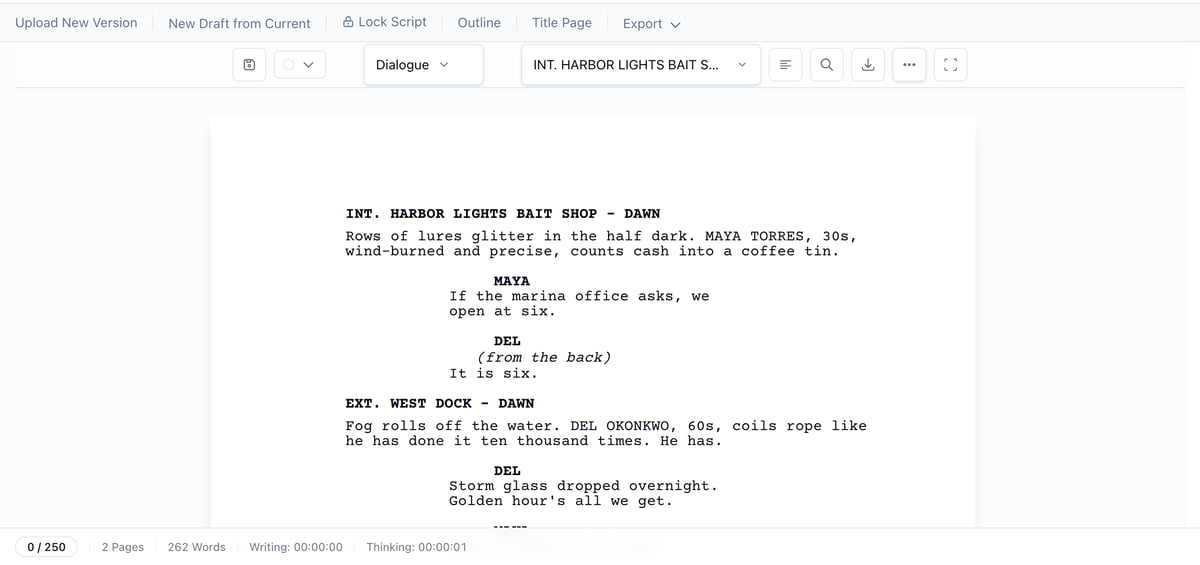
**Where to find it:** open the **Writing** menu, click **Script**, and look for **Lock Script** in the header row above the editor.
## Lock the script
1. Open your script from the **Writing** menu.
2. Click **Lock Script** in the header row. The button only appears when the script has scenes.
 3. Review the confirmation. It shows how many scenes will be numbered and how many cast members keep their current cast numbers.
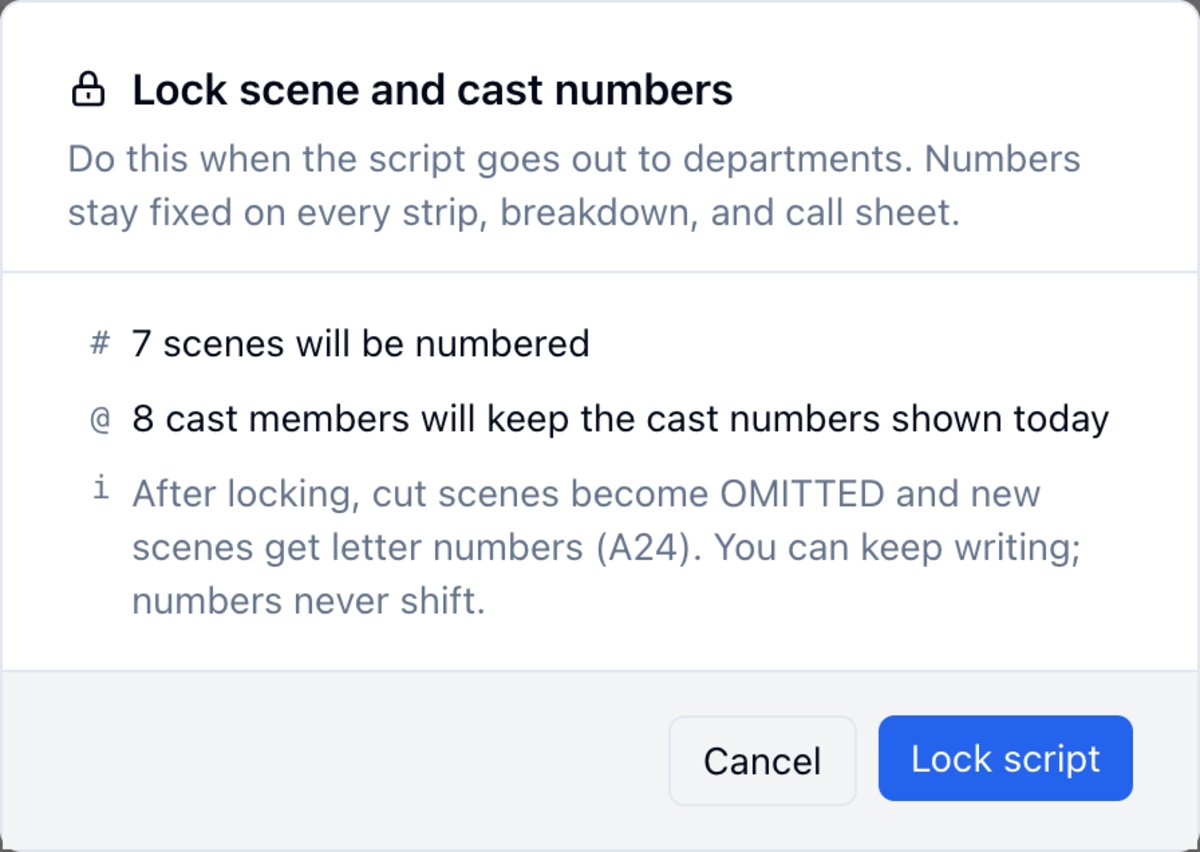 4. Click **Lock script**.
The header badge changes to **Locked** with your revision color, and scene numbers appear in both margins of the script, matching the printed shooting-script format.
4. Click **Lock script**.
The header badge changes to **Locked** with your revision color, and scene numbers appear in both margins of the script, matching the printed shooting-script format.
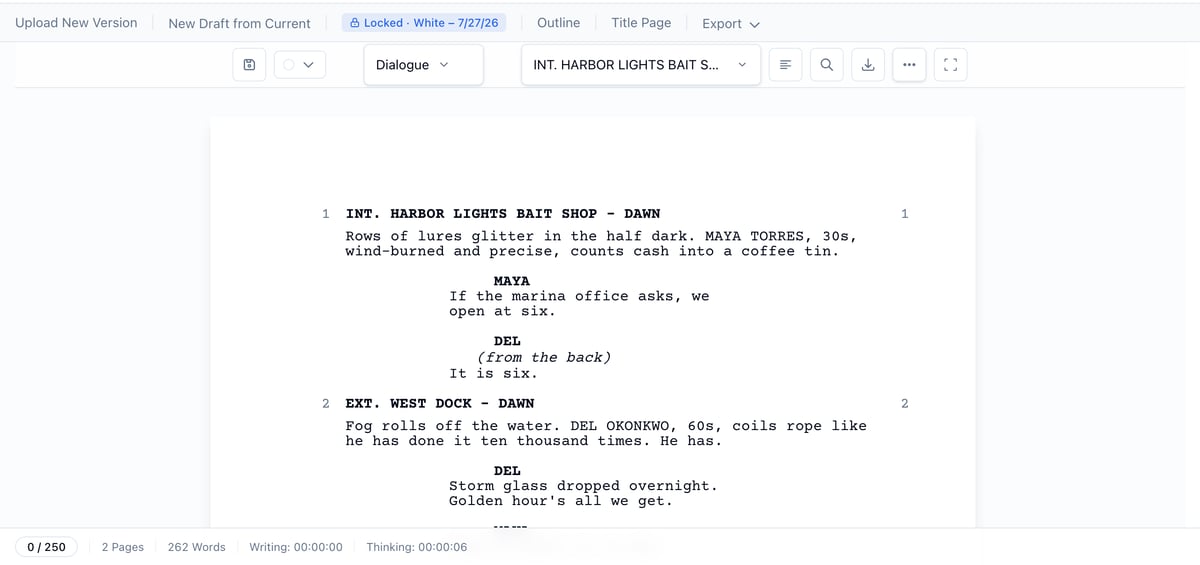 Locked numbers show everywhere a scene appears: the editor, the read view, breakdown, strips on the schedule, shot lists, and call sheets.
## Keep writing after locking
Locking does not stop you from editing. Text changes work exactly as before. The only thing that changes is how scenes are numbered:
* A new scene added between scene 2 and scene 3 becomes **A3**. Existing numbers never shift.
* A scene you cut becomes **OMITTED**. Its number is retired and never reused.
Both behaviors are automatic. There is nothing to configure.
## Unlock the script
Unlocking is rare. Only do it if locking was a mistake.
1. Click the **Locked** badge in the header row to open its menu.
2. Click **Unlock script…** and confirm.
Your scenes keep the numbers they have, but the numbers are no longer enforced. Future edits can renumber scenes.
## Related
* [Using the script editor](using-the-script-editor.md)
* [Import a script](import-script.md)
* [Breakdown](breakdown.md)
Locked numbers show everywhere a scene appears: the editor, the read view, breakdown, strips on the schedule, shot lists, and call sheets.
## Keep writing after locking
Locking does not stop you from editing. Text changes work exactly as before. The only thing that changes is how scenes are numbered:
* A new scene added between scene 2 and scene 3 becomes **A3**. Existing numbers never shift.
* A scene you cut becomes **OMITTED**. Its number is retired and never reused.
Both behaviors are automatic. There is nothing to configure.
## Unlock the script
Unlocking is rare. Only do it if locking was a mistake.
1. Click the **Locked** badge in the header row to open its menu.
2. Click **Unlock script…** and confirm.
Your scenes keep the numbers they have, but the numbers are no longer enforced. Future edits can renumber scenes.
## Related
* [Using the script editor](using-the-script-editor.md)
* [Import a script](import-script.md)
* [Breakdown](breakdown.md)