> ## Documentation Index
> Fetch the complete documentation index at: https://tutorials.spellslate.com/llms.txt
> Use this file to discover all available pages before exploring further.
# Printing your shot list
# Printing your shot list
> **Who can do this:** Anyone who can open the shot list can print it, on every project and every plan. Changing which columns print needs project edit access, which the Free plan gives on your first project and Supporter on all.
Paper still wins on a lot of sets. The Shot List PDF is a print of the View as you have it set up, so you decide what goes on the page before you press Export, not after.
Find it under **Visual** → **Shot List** → **View Shot List**, then **Export**.
## Choose what prints
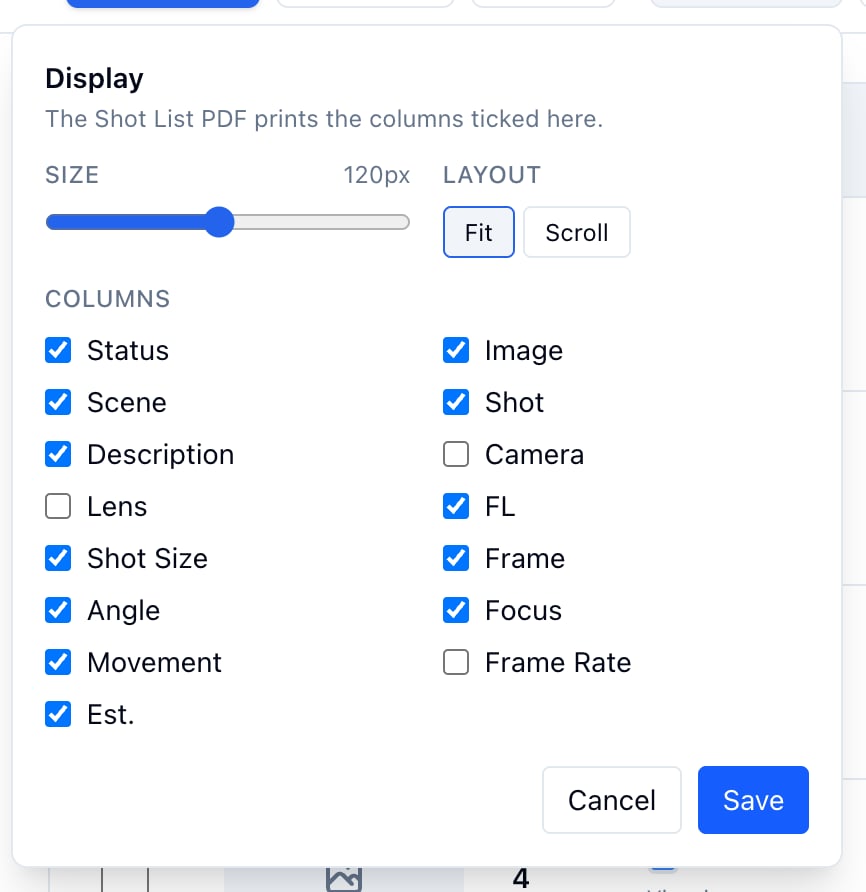
1. Click **Display**.
2. Untick the columns the page does not need.
3. Click **Save**.
The PDF prints the columns ticked here, in this order. Camera, lens, and frame rate are the usual ones to drop for a paper list. **FL** has its own tick, so the focal length can stay when **Lens** goes. Column choices are saved for the project, so the next print matches. The **Size** slider and **Fit** or **Scroll** only change the screen.
 ## Print a scene as a table
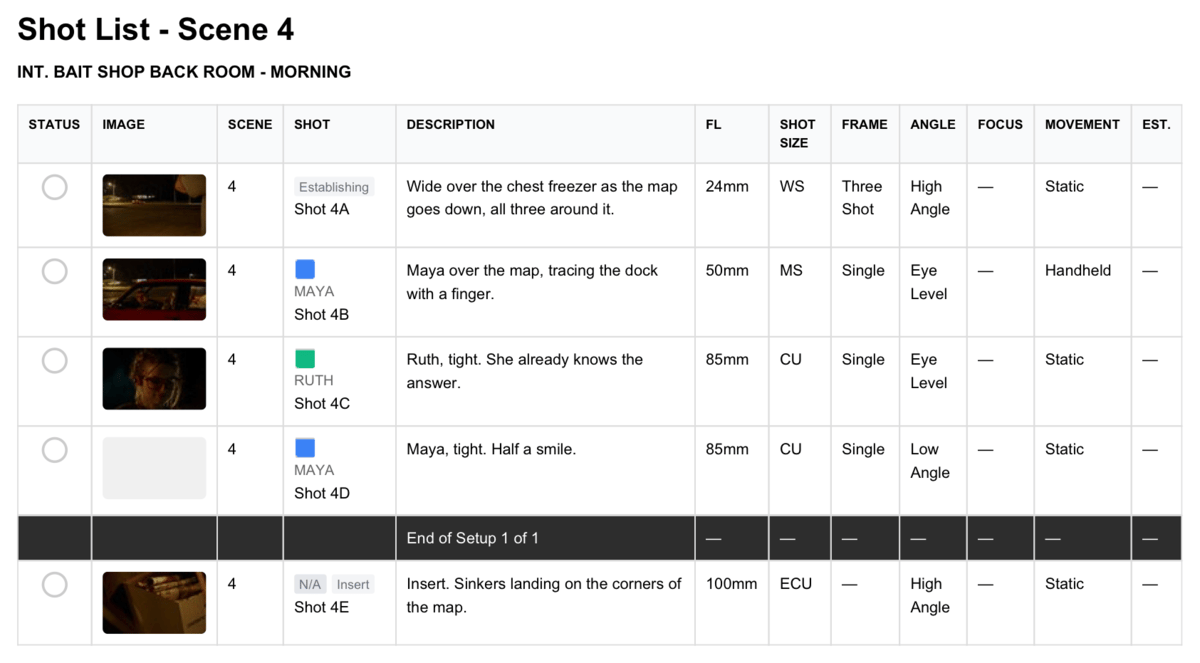
1. Open the scene in the View.
2. Set **View Type** to **List View**.
3. Click **Export**, then **Shot List PDF**.
Banners and setup markers print as rows between the shots. Cut shots never print.
## Print a scene as a table
1. Open the scene in the View.
2. Set **View Type** to **List View**.
3. Click **Export**, then **Shot List PDF**.
Banners and setup markers print as rows between the shots. Cut shots never print.
 ## Print it as cards
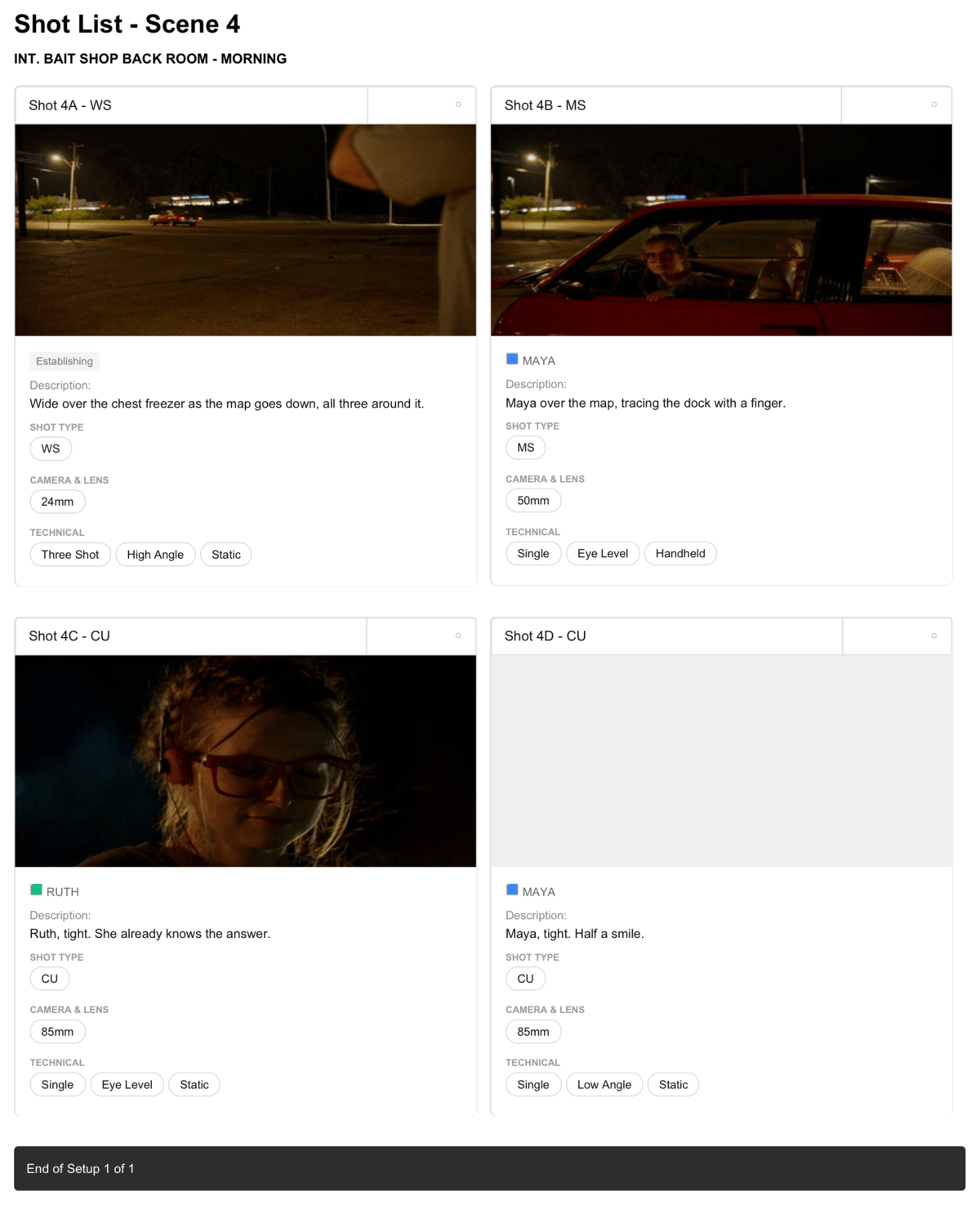
1. Set **View Type** to **One Column** or a column count.
2. Click **Export**, then **Shot List PDF**.
The page follows the layout: one card per row, or a grid with the same number of columns. Reference images print on the cards when the **Image** column is ticked.
## Print it as cards
1. Set **View Type** to **One Column** or a column count.
2. Click **Export**, then **Shot List PDF**.
The page follows the layout: one card per row, or a grid with the same number of columns. Reference images print on the cards when the **Image** column is ticked.
 ## Print a day or everything
* On **All Shots**, **Export** offers **Shot List PDF (all scenes)**, every shot in script order.
* With a day picked in **Shoot day**, the PDF is that day, with its setups.
## Print what was shot
**Export** → **As Shot** is the lined script with only the shots marked filmed or retake. See [Using your shot list on the shoot day](/using-shot-list-on-the-shoot-day).
## Related
* [Managing shot lists](/managing-shot-lists)
* [View, export, and share](/view-export-and-share)
* [Reference images and storyboards](/reference-images-and-storyboards)
This documentation is built and hosted on [Mintlify](https://mintlify.com), a developer documentation platform.
## Print a day or everything
* On **All Shots**, **Export** offers **Shot List PDF (all scenes)**, every shot in script order.
* With a day picked in **Shoot day**, the PDF is that day, with its setups.
## Print what was shot
**Export** → **As Shot** is the lined script with only the shots marked filmed or retake. See [Using your shot list on the shoot day](/using-shot-list-on-the-shoot-day).
## Related
* [Managing shot lists](/managing-shot-lists)
* [View, export, and share](/view-export-and-share)
* [Reference images and storyboards](/reference-images-and-storyboards)
This documentation is built and hosted on [Mintlify](https://mintlify.com), a developer documentation platform.