> ## Documentation Index
> Fetch the complete documentation index at: https://tutorials.spellslate.com/llms.txt
> Use this file to discover all available pages before exploring further.
# Tasks and notes
# Tasks and Notes
> **Who can do this:** All plans. On Free, Tasks and Notes are available in your first project only.
## Tasks
On a shoot, the to-do list lives in texts, call sheet margins, and someone's memory. Tasks keeps it in the project, next to the script and schedule it came from.
Find **Tasks** in the project nav. Your own assignments across every project are on the homepage under **My Tasks**.
Two kinds of tasks feed the same list:
* **Project todos**: standalone tasks with an assignee, notes, and comments.
* **Card todos**: todo cards on any board (project, scene, character, item). One card can hold several items, each with its own assignee.
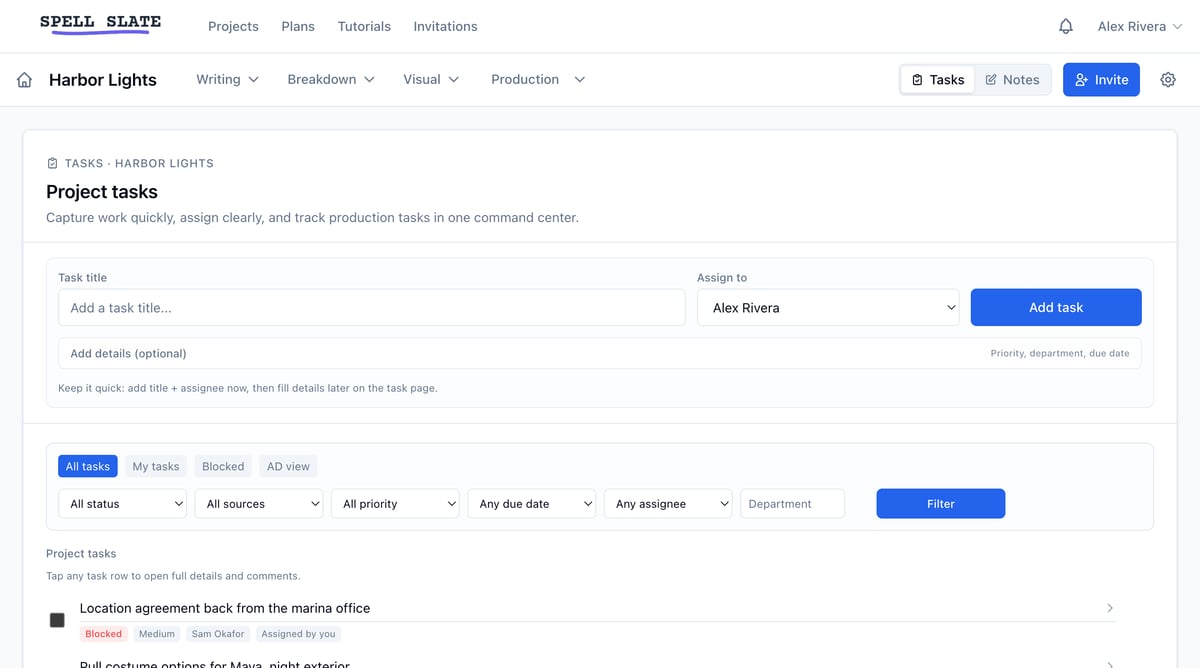 ### Create a project todo
1. Open **Tasks** in the project nav.
2. Enter a **Task title** and pick who to **Assign to**. Priority, department, and due date are optional.
3. Click **Add task**.
### Create a project todo
1. Open **Tasks** in the project nav.
2. Enter a **Task title** and pick who to **Assign to**. Priority, department, and due date are optional.
3. Click **Add task**.
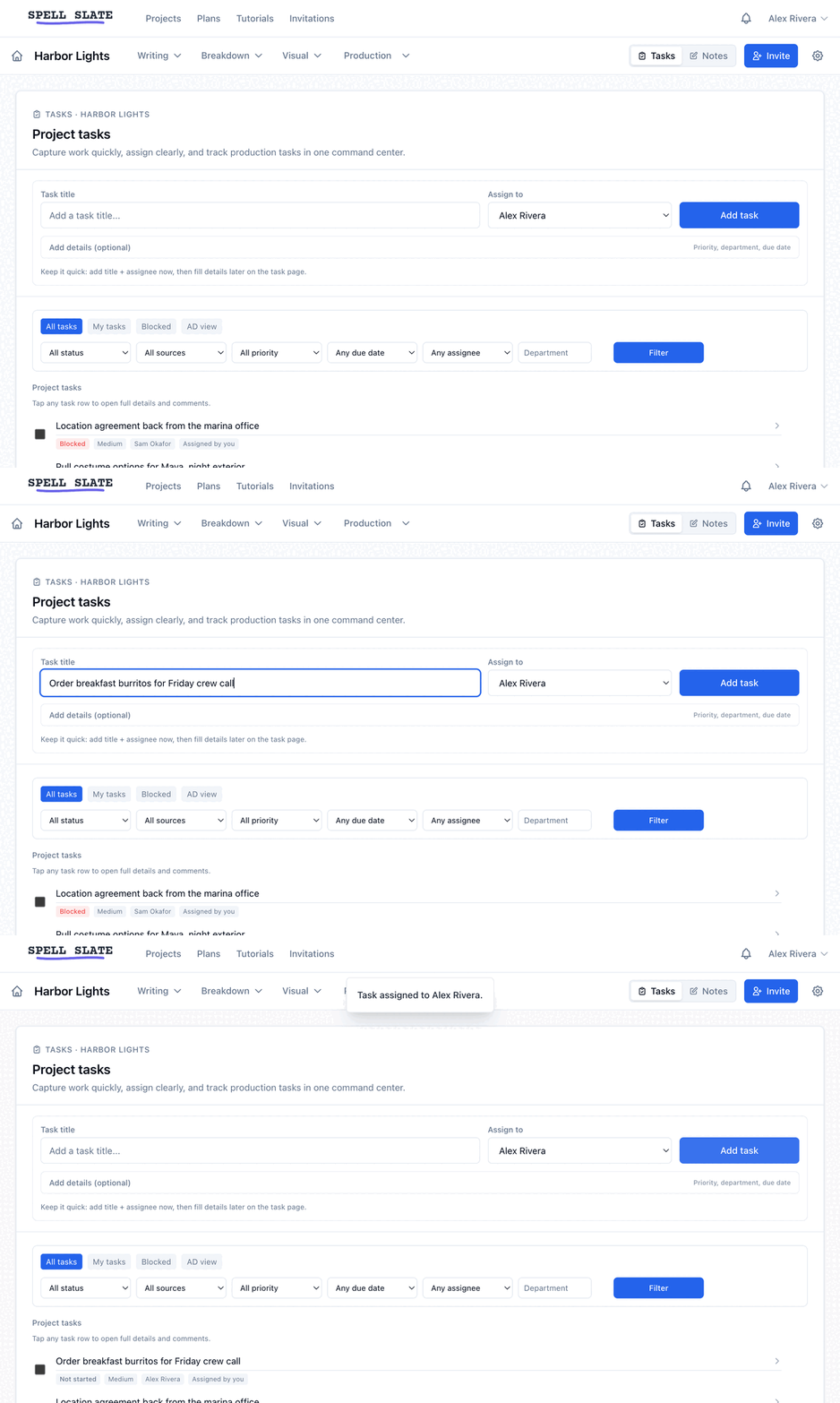 Due dates can be today or later, never in the past. Status moves through `Not started`, `In progress`, `Blocked`, and `Done`. Only the assignee, the creator, and org admins or the owner can change a task's status.
What the assignee sees: an email with the task's status, priority, department, due date, and blocked reason when there is one. If someone else edits the task later, the assignee gets an update email. When a task moves to `Done`, the creator gets an in-app notification.
### Create a card todo
1. Add a card to any board and set **Card type** to **Todo**.
2. Add items inside the card and assign each one.
Card items appear in the project Tasks list and in My Tasks, next to the project todos. Toggle completion on the board, or open an item for full detail: priority, department, due date, blocked reason.
### Comment on a task
Click the comment icon on a task or card item to open the slide-out thread panel. It is the same panel used on boards.
### Find tasks fast
* Saved views: `All tasks`, `My tasks`, `Blocked`, `AD view`.
* Filters: status, source, priority, due window, assignee, department.
## Notes
Every production has a pile of notes that belong to no scene in particular: the pickup list, what the location owner said about parking, shot ideas from the drive home. Notes is where those live, next to the script instead of in your phone.
Find **Notes** in the project nav. Notes save as you type. Select text to make it **bold**, *italic*, or underlined. Type or paste a web address and it becomes a link.
Due dates can be today or later, never in the past. Status moves through `Not started`, `In progress`, `Blocked`, and `Done`. Only the assignee, the creator, and org admins or the owner can change a task's status.
What the assignee sees: an email with the task's status, priority, department, due date, and blocked reason when there is one. If someone else edits the task later, the assignee gets an update email. When a task moves to `Done`, the creator gets an in-app notification.
### Create a card todo
1. Add a card to any board and set **Card type** to **Todo**.
2. Add items inside the card and assign each one.
Card items appear in the project Tasks list and in My Tasks, next to the project todos. Toggle completion on the board, or open an item for full detail: priority, department, due date, blocked reason.
### Comment on a task
Click the comment icon on a task or card item to open the slide-out thread panel. It is the same panel used on boards.
### Find tasks fast
* Saved views: `All tasks`, `My tasks`, `Blocked`, `AD view`.
* Filters: status, source, priority, due window, assignee, department.
## Notes
Every production has a pile of notes that belong to no scene in particular: the pickup list, what the location owner said about parking, shot ideas from the drive home. Notes is where those live, next to the script instead of in your phone.
Find **Notes** in the project nav. Notes save as you type. Select text to make it **bold**, *italic*, or underlined. Type or paste a web address and it becomes a link.
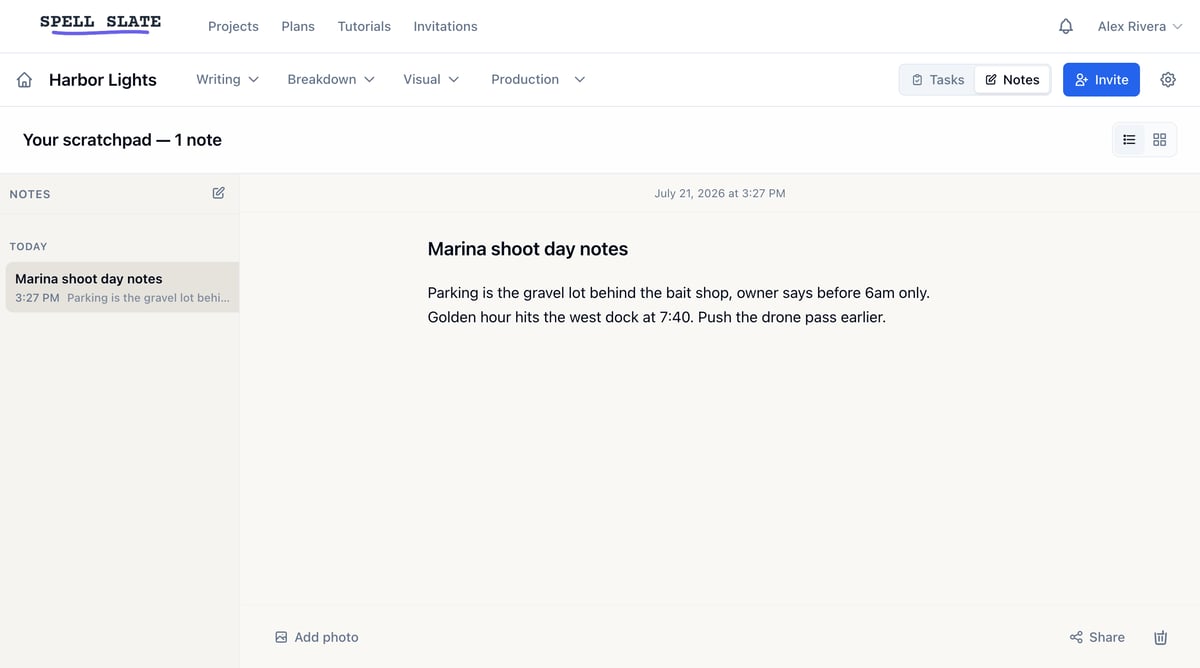 ### Add photos
Photos sit inline with your text, like in Apple Notes.
* Click **Add photo** at the bottom of the note. Pick one or more images. They are added at the end of the note.
* Drag an image into the note to place it where you drop it.
* Paste an image to place it at your cursor.
### Add photos
Photos sit inline with your text, like in Apple Notes.
* Click **Add photo** at the bottom of the note. Pick one or more images. They are added at the end of the note.
* Drag an image into the note to place it where you drop it.
* Paste an image to place it at your cursor.
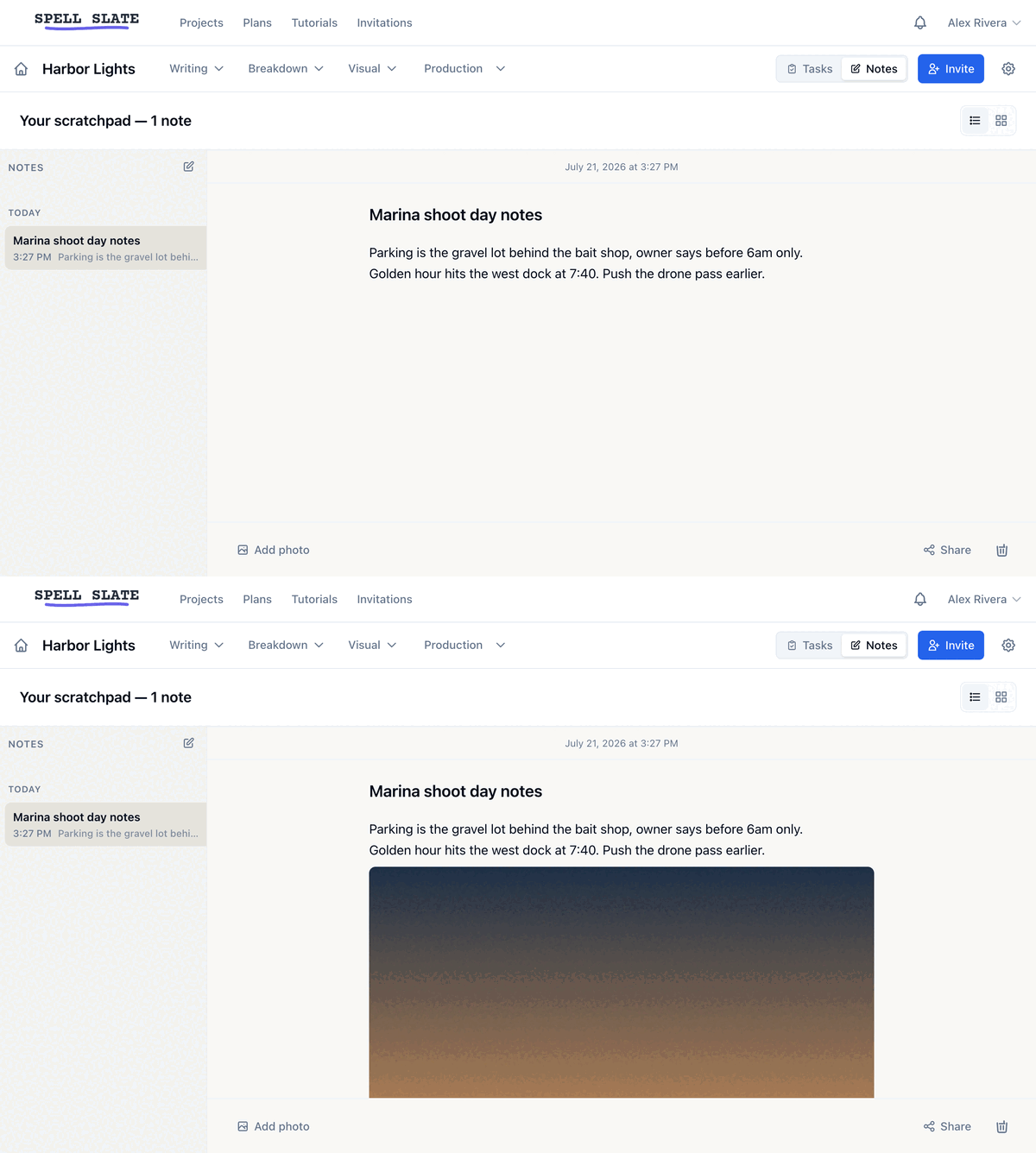 Click a photo to select it. Press **Delete** to remove it. If you do not see **Add photo**, ask your admin for media edit access.
### Share a note
Notes start private to you. Only you can delete your note or change who it is shared with.
1. Open the note and click **Share**.
2. Check the teammates you want, or check **Everyone on this project**.
3. Pick **Can view** or **Can edit** for each person.
4. Click **Save sharing**.
Click a photo to select it. Press **Delete** to remove it. If you do not see **Add photo**, ask your admin for media edit access.
### Share a note
Notes start private to you. Only you can delete your note or change who it is shared with.
1. Open the note and click **Share**.
2. Check the teammates you want, or check **Everyone on this project**.
3. Pick **Can view** or **Can edit** for each person.
4. Click **Save sharing**.
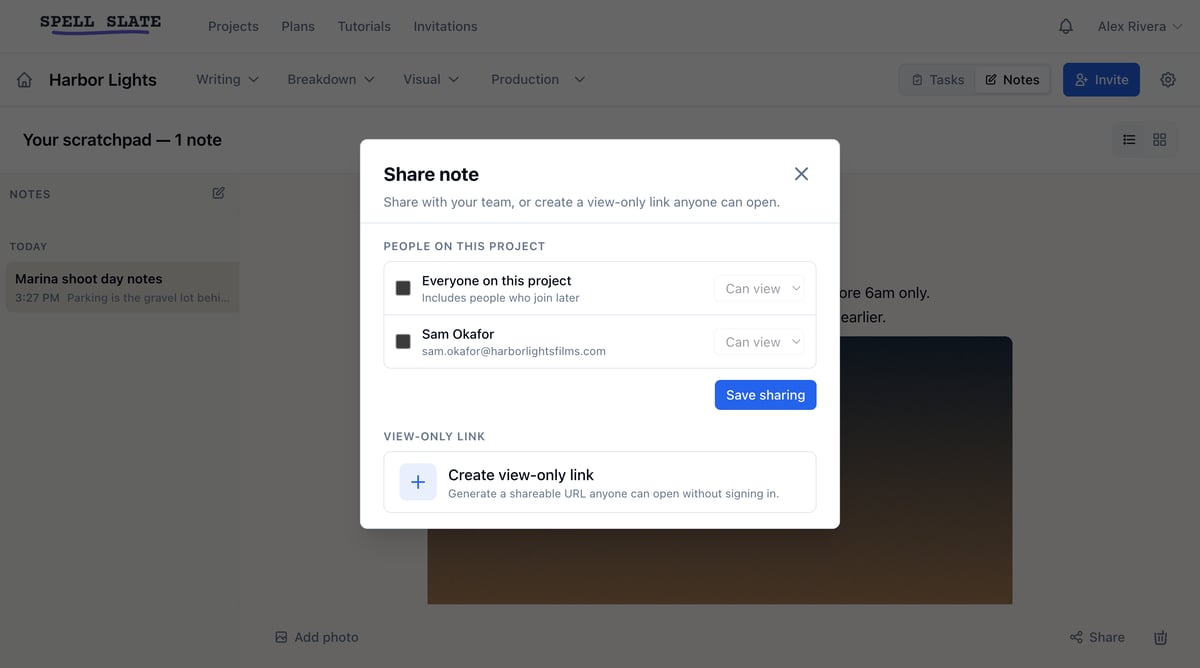 Each person gets an email and an in-app notification, and the note appears in their **Shared with Me** section. The **View-only link** in the same window still works for people outside your team.
### Edit together
Two people can edit a shared note at the same time. You will see who else has the note open, and a colored marker on the line they are editing. Changes appear as they type. If you both edit the same line at once, the last edit wins.
Each person gets an email and an in-app notification, and the note appears in their **Shared with Me** section. The **View-only link** in the same window still works for people outside your team.
### Edit together
Two people can edit a shared note at the same time. You will see who else has the note open, and a colored marker on the line they are editing. Changes appear as they type. If you both edit the same line at once, the last edit wins.