Breakdown

Main breakdown view

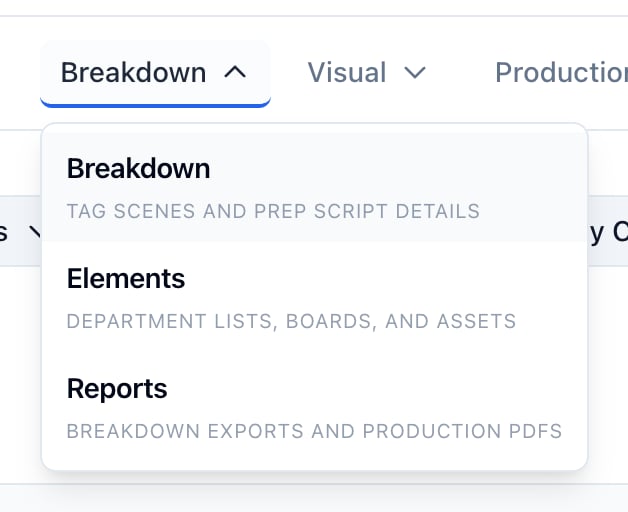
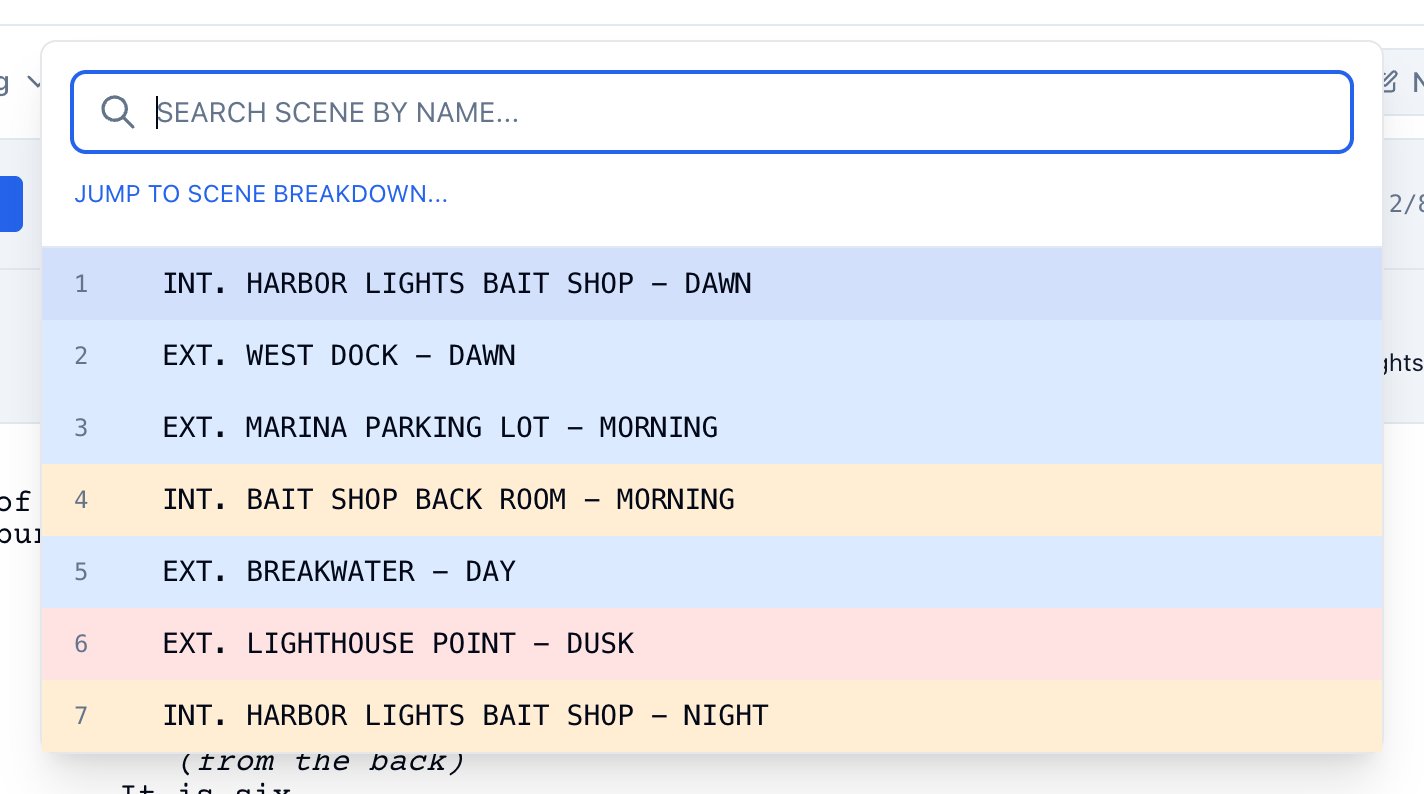
A scene-by-scene table of your script with filters. Each row is a scene; you can see slugline, INT/EXT, time of day, location, character count, element count, and open the scene for detailed breakdown. This is the main hub for script breakdown: jump to any scene, filter by category or location, and open the per-scene view to add or edit elements and production notes. Click Breakdown in the project nav (the dropdown), then click Breakdown in the dropdown. Do not confuse with Elements or Reports, which are other items in the same dropdown.
  1. Open the project and click Breakdown in the nav.
  2. Choose Breakdown from the dropdown.
  3. Use the scene table: click a row or View to open that scene’s breakdown.
  4. Use filters (category, characters, locations, scenes) to narrow the list.
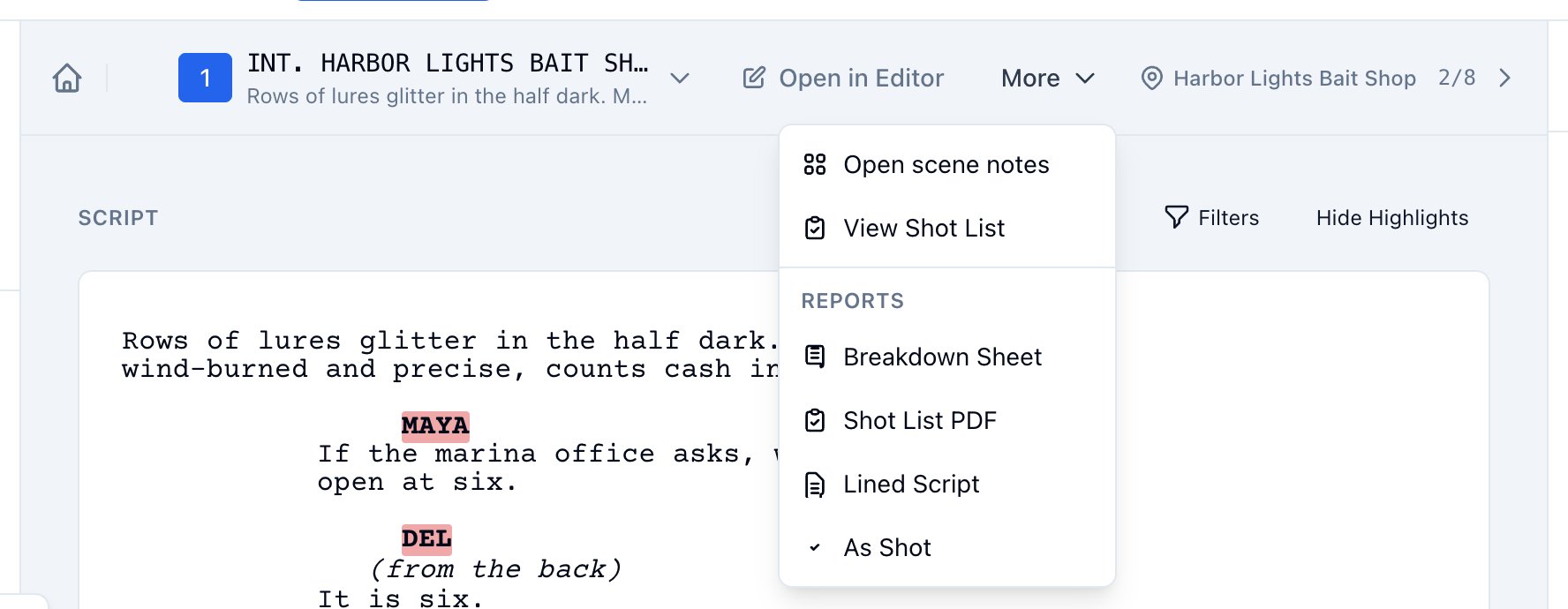
  5. Use “Go to scene” or similar to jump from breakdown to the script or editor for that scene.
First-time users often miss that Breakdown is a dropdown. Click the word “Breakdown” to open the menu, then select Breakdown for the main table. Elements is the overview by category; Reports is where you get PDFs and production reports.

Scene breakdown (per-scene)

The detailed view for one scene: slugline, INT/EXT, time of day, location, character list, script text, production notes (scene notes), and the list of breakdown elements (props, wardrobe, etc.). You can add elements by highlighting script text and tagging it, or by adding without selecting text. This is where you attach props, wardrobe, vehicles, and other elements to specific scenes and add production notes the crew will see. Open a scene from the main Breakdown table (click a row or View), or from the Script read view (scene list), or from a breakdown category page by opening a scene that has that element. Edit slugline, INT/EXT, time of day, or location inline if needed. Add or remove characters; use merge if the same character appears under different names. In the script text, highlight a phrase and use the tagging flow to create an element (e.g. prop, wardrobe) tied to that text. Or use Add Element without selecting text and fill in the details. Fill in Production notes (scene notes) if your workflow uses them. Open the Add Element panel to add more elements or change type. Use the element list to edit or delete. “Highlight to tag” means select text in the scene, then use the modal or panel to choose category and save. “Add without selecting text” creates an element with no script range; you can add a note or label. Changing an element’s type (e.g. from Props to Set Dressing) is done from the element list or the Change type control, not by re-tagging.

Elements (breakdown by type)

An overview of all breakdown categories: Props, Set Dressing, Costumes, Vehicles, Animals, Stunts, SFX, VFX, Makeup & Hair, Special Equipment, Extras, Camera Notes, Sound Notes, Characters, Locations. From here you open category-specific pages and boards for items, characters, and locations. Departments often work by category (e.g. “all props” or “all wardrobe”); Elements gives one place to see every category and jump to the right list or board. Breakdown dropdown → Elements. Click Breakdown in the nav, then Elements. Use the overview to see which categories have items. Click a category to open its page (table/list of items and which scenes they appear in). From a category page or from an item/character/location row, open the board for that item, character, or location to add notes, links, images, todos, or cost info. “View all reports” from Elements takes you to the Reports hub.

Breakdown category pages

One page per category plus Characters and Locations. Each page lists the elements in that category and which scenes they are in. You can add, edit, merge, and filter. Open a category from BreakdownBreakdown (then sidebar or links) or BreakdownElements (then click a category). Open the category, use the table or list, add or edit elements, open boards for an item/character/location. For characters and locations, use Merge when the same person or place appears under different names. Merging keeps one primary record and moves all references to it; the other records are removed. Filters on category pages help when you have many scenes or elements.