Tagging elements in a script breakdown
Who can do this: Free plan on your first project, Supporter on all projects. Tagging, renaming, and removing need breakdown edit access (owners, admins, and members with Edit breakdown). Anyone with project access can read a scene’s elements.The import found your scenes, characters, and locations. Everything a department has to bring, the coffee tin, the ferry, the rain shell, is still sitting in the action lines. Tagging is reading the script with a highlighter, except the highlights turn into lists. Find it under Breakdown → Breakdown, then click a scene’s heading.
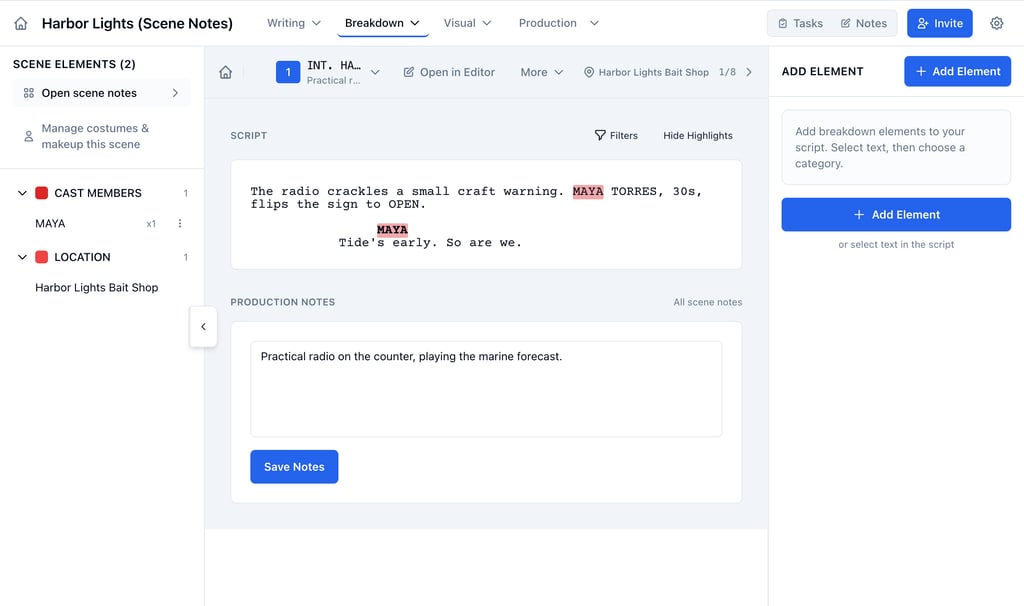
Read the scene page
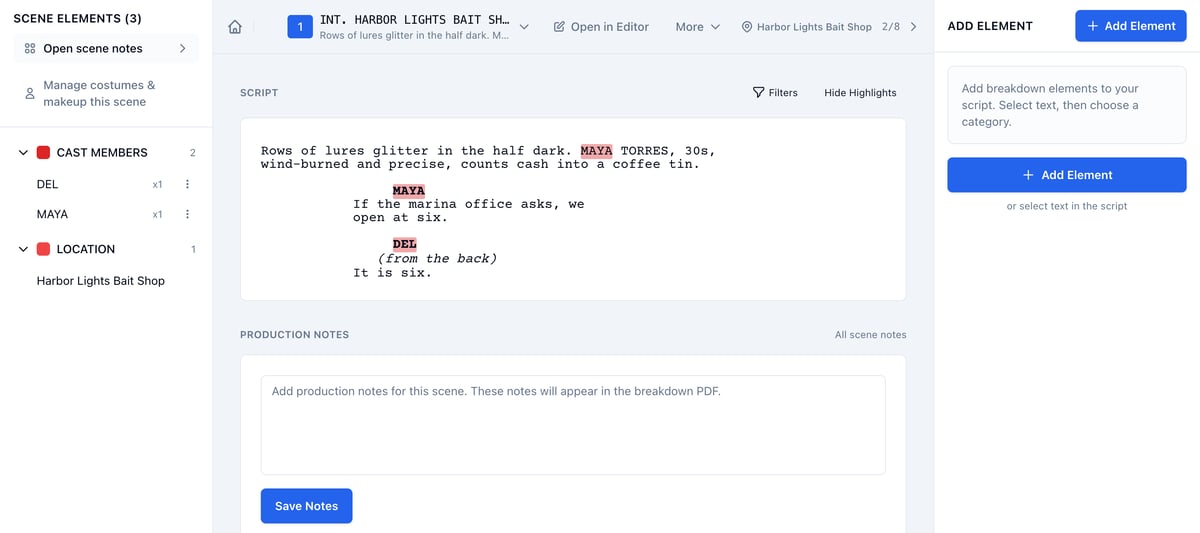
- Scene Elements, on the left, lists what is in this scene, grouped by category.
- The Script is in the middle, with every tagged word highlighted in its category’s color. Characters are highlighted from the start.
- Add Element, on the right, is where a tag gets its name and category.
Tag a word in the script
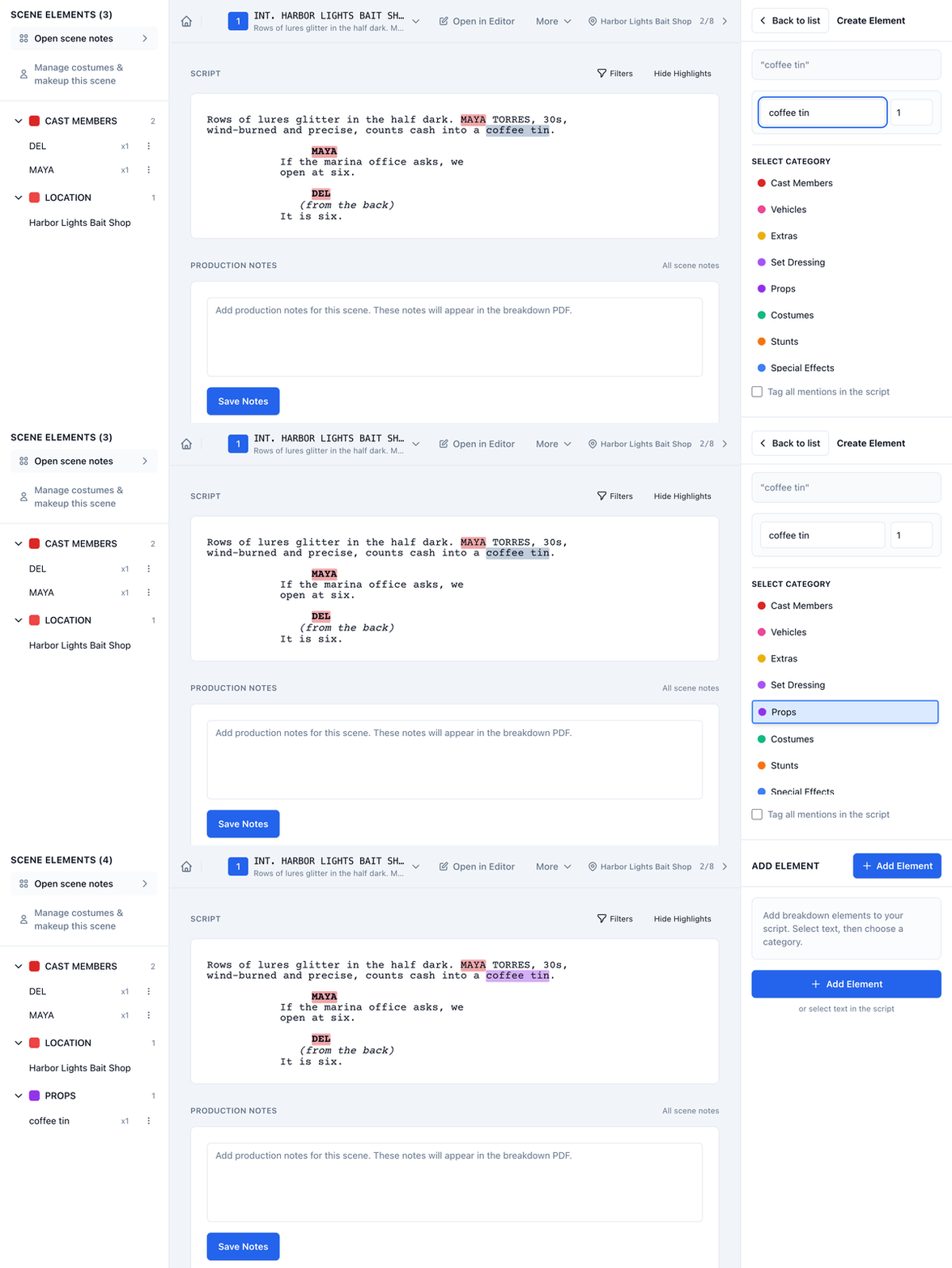
- Select the words in the script.
- In Create Element, correct the name or the quantity if you need to.
- Click a category under Select Category.
- Click Add to breakdown.
Tag every mention at once
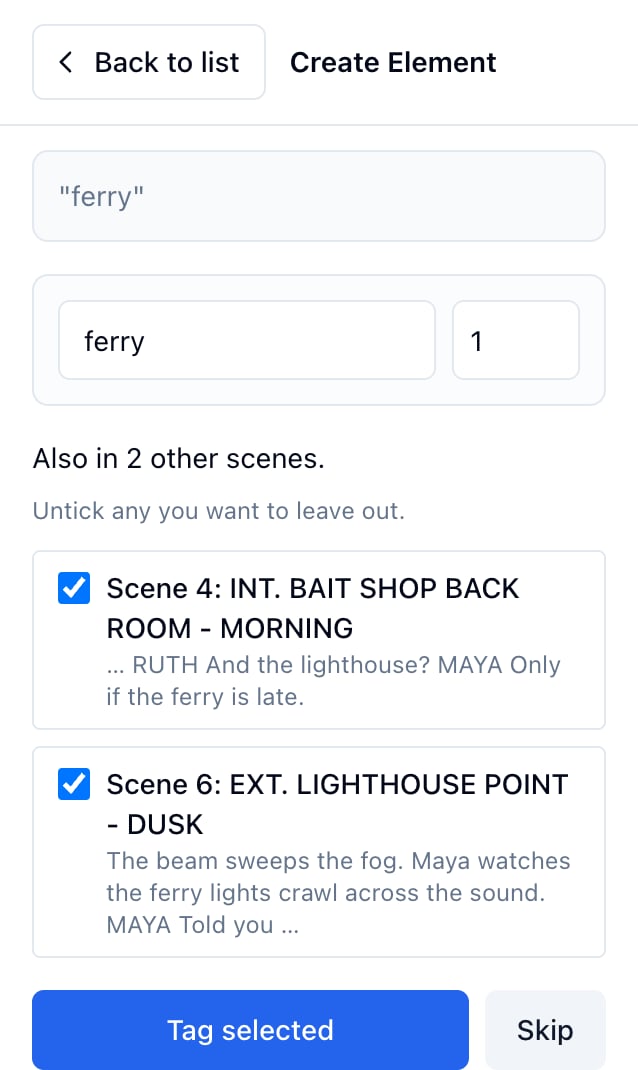
- Select the words and click a category.
- Tick Tag all mentions in the script.
- Click Add to breakdown.
- Untick any scene you want to leave out.
- Click Tag selected.
Add an element the script does not name
- Click Add Element.
- Type a name, set the quantity, and click a category.
- Click Add to breakdown.
Rename, retype, or remove an element
Work from the element’s row in Scene Elements.- Hover the row and click the pencil to rename it. The script keeps its own words. See How to rename an element.
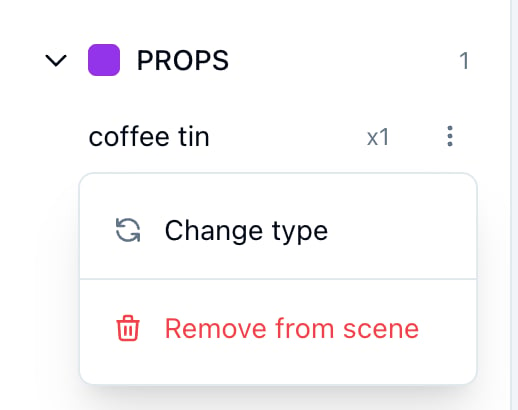
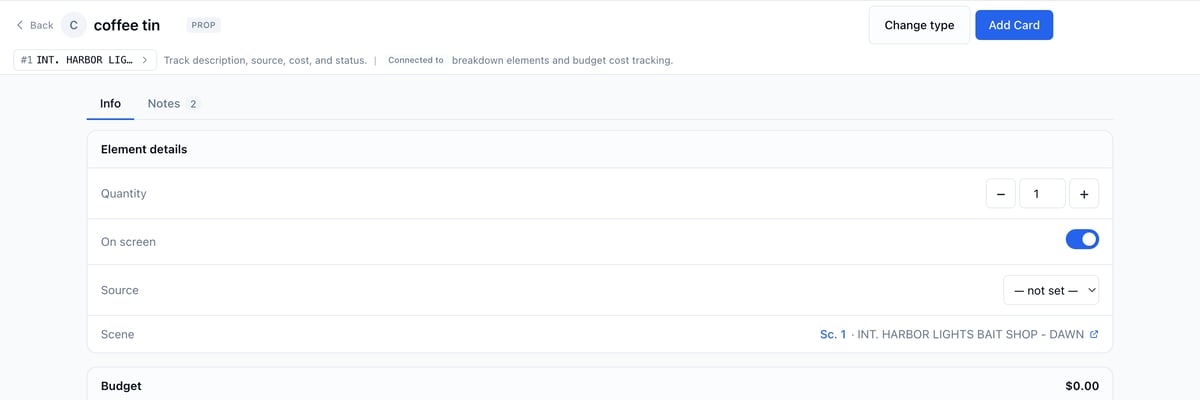
- Click the three dots, then Change type, to move it to another category in every scene it is tagged in. See How to change element type.
- Click the three dots, then Remove from scene. If the element has a board with cards, the confirmation warns that they go with it.
Show only some highlights
Click Filters and untick the categories you do not want to see in the script. Hide Highlights clears them all; click it again to bring them back.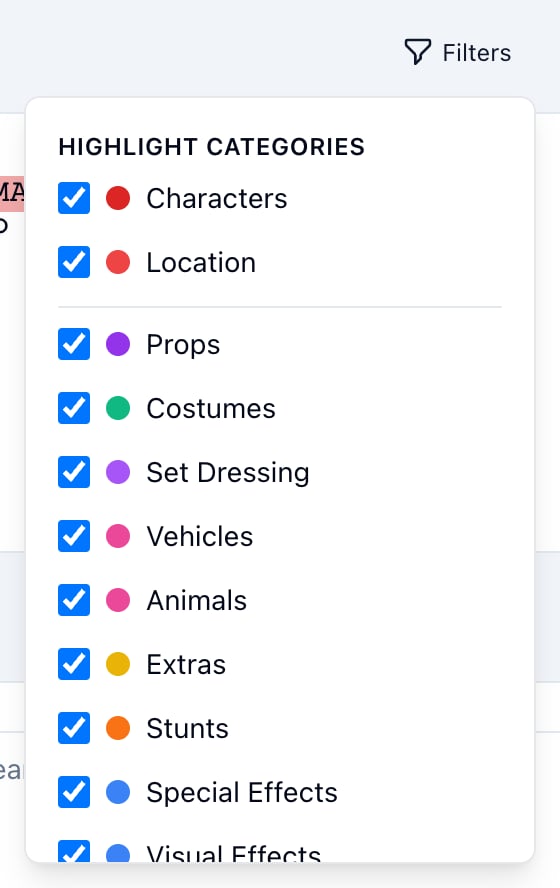
Tag extras with a headcount
For Extras, the quantity is the headcount. Tagfishermen with a quantity of 3 and the sidebar shows x3. Casting those slots happens on the extras board; see Managing extras.
Keep notes on the scene
The Production Notes box under the script saves to the scene’s board and prints on its breakdown sheet. All scene notes opens the board. See Managing scene boards.