

Using the script editor
Spell Slate’s script editor uses Fountain format behind the scenes, a plain-text screenplay standard. You type scene headings, action, dialogue, and character names using simple syntax. The editor formats everything automatically. This page explains the editor interface, element types, keyboard rules, and hot keys. For Fountain syntax details, see Fountain formatting and script elements.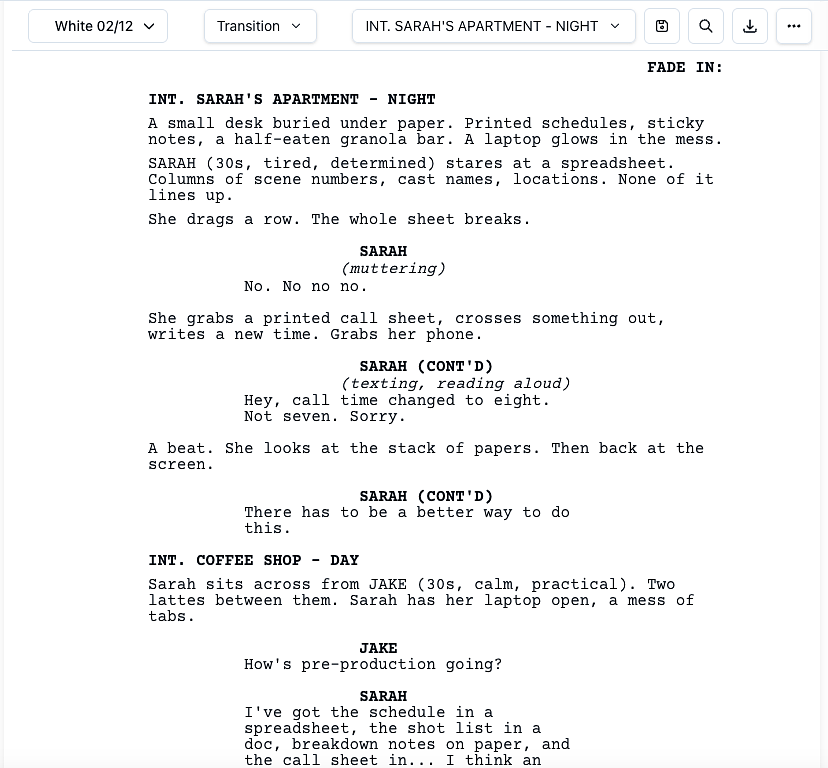
Element types
What you type maps to screenplay elements. The editor recognizes them and applies the correct formatting.- Scene Heading:
INT. KITCHEN - DAY. Starts a new scene. Type “int”, “ext”, or “int/ext” plus space and it auto-converts to INT., EXT., INT/EXT.

- Action: Stage directions and description. Normal paragraph text.

- Character: Who’s speaking. Type in CAPS, centered. Use Tab from an empty action line to start a character.

- Dialogue: What they say. Indented under the character name. Press Enter after the character name to go here.

- Parenthetical:
(whispering). An aside in dialogue. Use Tab from dialogue to add one. Parentheticals use standard screenplay indent, set slightly inside the character cue.

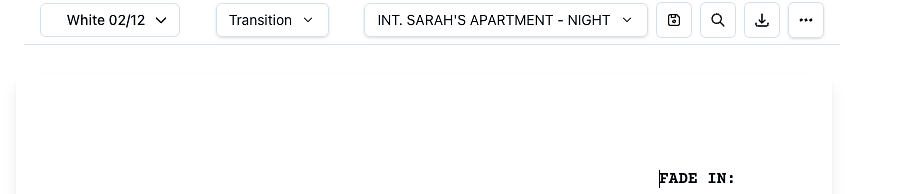
- Transition: CUT TO, FADE IN. Right-aligned. Use Tab from an empty character line to insert one.
Enter and Tab rules
Enter and Tab move you between element types. This is the core of fast screenplay writing. Enter key:- Scene heading → Action (and saves scene/location to breakdown if the slugline is complete)
- Character → Dialogue (and saves character to breakdown)
- Parenthetical → Dialogue
- Dialogue → Action. Use Shift+Enter for a new line within the same dialogue block.
- Transition → Scene heading
- Action → New Action (or an empty action becomes Character)
- Action (empty) → Character
- Action (empty) after an interrupted dialogue block by the same speaker → Tab still creates a normal blank Character line. If you type the same speaker cue again, the editor auto-adds
(CONT'D). - If you confirm the same interrupted speaker from Character autocomplete, the accepted suggestion also auto-adds
(CONT'D). (CONT'D)assist only triggers after action/parenthetical interruptions. It does not trigger after scene heading or transition interruptions.- Action (with content) → New Action, then next Tab → Character
- Character (empty) → Transition
- Dialogue (empty) → Parenthetical ()
- Dialogue (with content) → Parenthetical after the dialogue
- Parenthetical → Dialogue
Focus mode
Click the viewfinder icon (four corner brackets) in the top-right of the toolbar, or press Cmd/Ctrl + Shift + F, to enter focus mode. The top navigation and project navigation hide, giving the script editor the full height of the screen.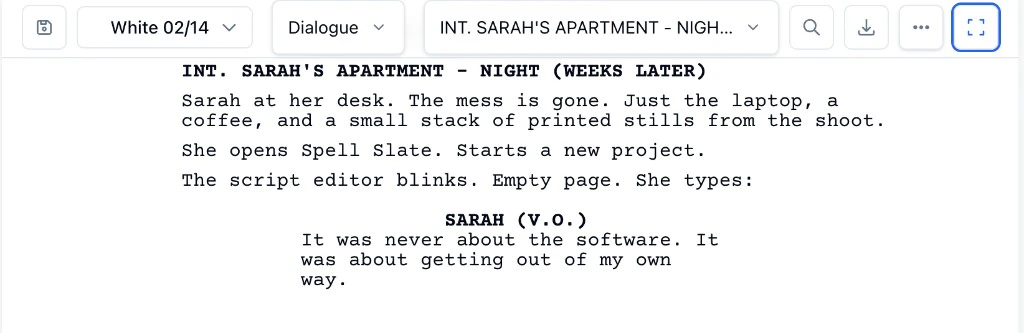
Page width and preview consistency
Spell Slate keeps screenplay pages at a fixed screenplay width in the script editor, lined script view, and shot list builder preview. This keeps line length and spacing consistent between writing, reviewing, and coverage work. On smaller laptop screens, the script area scrolls horizontally instead of resizing the page width.Hot keys
- Cmd/Ctrl + S: Save script
- Cmd/Ctrl + F: Find & Replace
- Cmd/Ctrl + Shift + F: Toggle focus mode
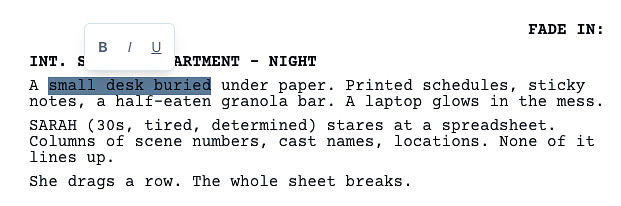
- Cmd/Ctrl + B: Toggle bold on selected text in Action or General
- Cmd/Ctrl + I: Toggle italic on selected text in Action or General
- Cmd/Ctrl + U: Toggle underline on selected text in Action or General
- Cmd/Ctrl + Enter: Insert manual page break
- Cmd/Ctrl + Z: Undo
- Cmd/Ctrl + Shift + Z or Cmd/Ctrl + Y: Redo
- Escape: Close Find & Replace panel
- Backspace on empty parenthetical
(): Remove parenthetical; cursor moves to end of character line
Element type shortcuts
Press Cmd/Ctrl + 1 through 8 anywhere in the editor to convert the current block, Final Draft style:- 1: Act
- 2: Scene Heading
- 3: Action
- 4: General
- 5: Character
- 6: Parenthetical
- 7: Dialogue
- 8: Transition
Find & Replace
Click the magnifying glass in the toolbar or press Cmd/Ctrl + F. You can:- Search and replace across the script
- Filter by element type (Scene Heading, Action, Character, Dialogue, etc.)
- Match case or whole words only
- Replace one or all. Use Undo (Cmd/Ctrl + Z) to restore after Replace all.
PDF continuation markers
When dialogue is split across a manual page break or automatic page overflow, PDF export adds standard continuation cues:(MORE)at the end of dialogue on the previous pageCHARACTER (CONT'D)at the top of the next page before continued dialogue
(MORE)/(CONT'D) split expected on export) so you can see likely export behavior before generating a PDF.
Autocomplete
As you type, the editor suggests:- Scene headings: INT, EXT, INT/EXT, etc.
- Locations: After the scene prefix (e.g. INT. KIT… → KITCHEN). Uses your breakdown locations and ones from the script.
- Time of day: After the hyphen in a slugline: DAY, NIGHT, DAWN, DUSK, CONTINUOUS, LATER.
- Characters: In a character element, shows existing characters filtered by what you type.
Scene heading tips
- Type “int”, “ext”, “int/ext”, “ext/int”, or “i/e” followed by space or a period. The editor converts it to INT., EXT., INT/EXT., EXT/INT., or I/E.
- A complete slugline (location + dash + time of day) + Enter saves the scene and location to your breakdown.
- Supported prefixes: INT, EXT, INT/EXT, EXT/INT, I/E.
Related
- Locking the script: freeze scene and cast numbers when the script goes out to departments.