Script Outline

The outline is a planning workspace that lives alongside your script. Use it to map out your story structure before you write, or to chart what you have after a draft exists. Where to find it: Open a project and click Writing in the nav, then Outline.

Choosing a structure

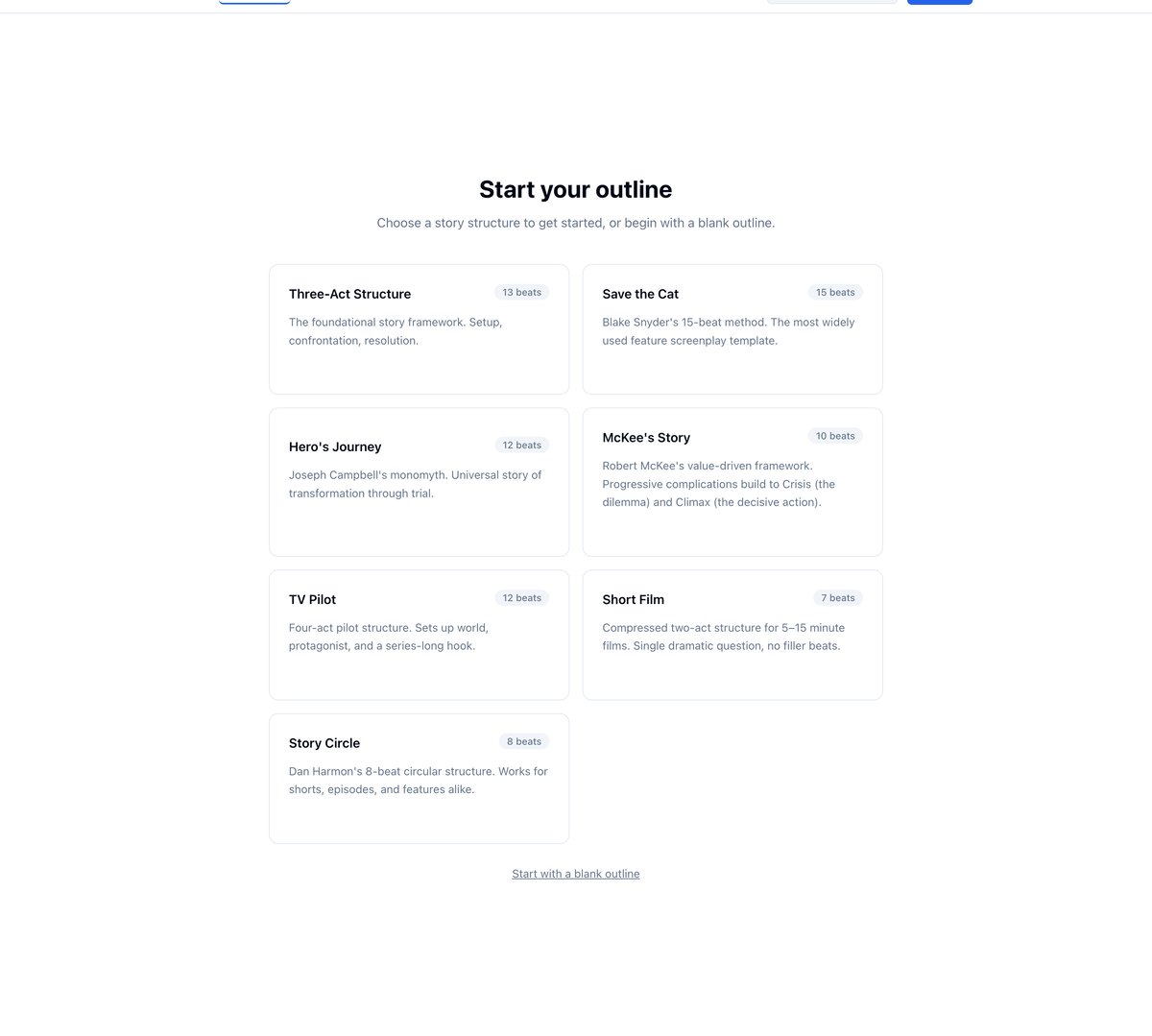
When you open the outline for the first time, you choose a starting point:
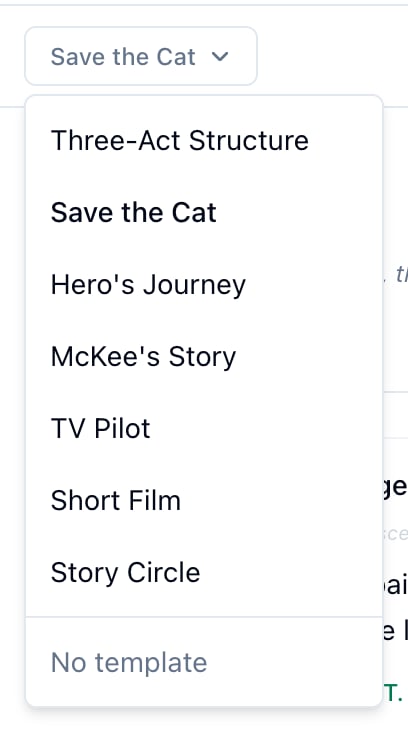
  • Three-Act Structure - The classic setup, confrontation, and resolution framework. Good for features and shorts of any genre.
  • Save the Cat - Blake Snyder’s 15-beat sheet. Scene by scene guidance for where each major moment should land and roughly what page it falls on.
  • Hero’s Journey - Joseph Campbell’s 12-stage mythic structure. Works well for adventure, coming-of-age, and anything with a transformational arc.
  • McKee’s Story - Robert McKee’s value-driven framework. Structures the story around a central life value and builds through progressive complications to a Crisis (the dilemma) and Climax (the decisive action).
  • TV Pilot - Adapted beat sheet for a pilot episode, including cold open, A and B story setup, and act breaks.
  • Short Film - A compressed two-act structure for films between 5 and 15 minutes. Built around a single dramatic question with no filler beats: hook, setup, inciting incident, rising action, crisis, climax, and final beat.
  • Story Circle - Dan Harmon’s 8-beat circular structure. The protagonist begins in their comfort zone, descends into unfamiliar territory, pays a price for what they find, and returns transformed. Works for short films, TV episodes, and features.
  • Blank outline - Start with nothing and build your own structure.
Pick one and click it. The outline populates with beats from that template. Each beat shows a name, guidance text, and an empty area for your version.

Filling in beats

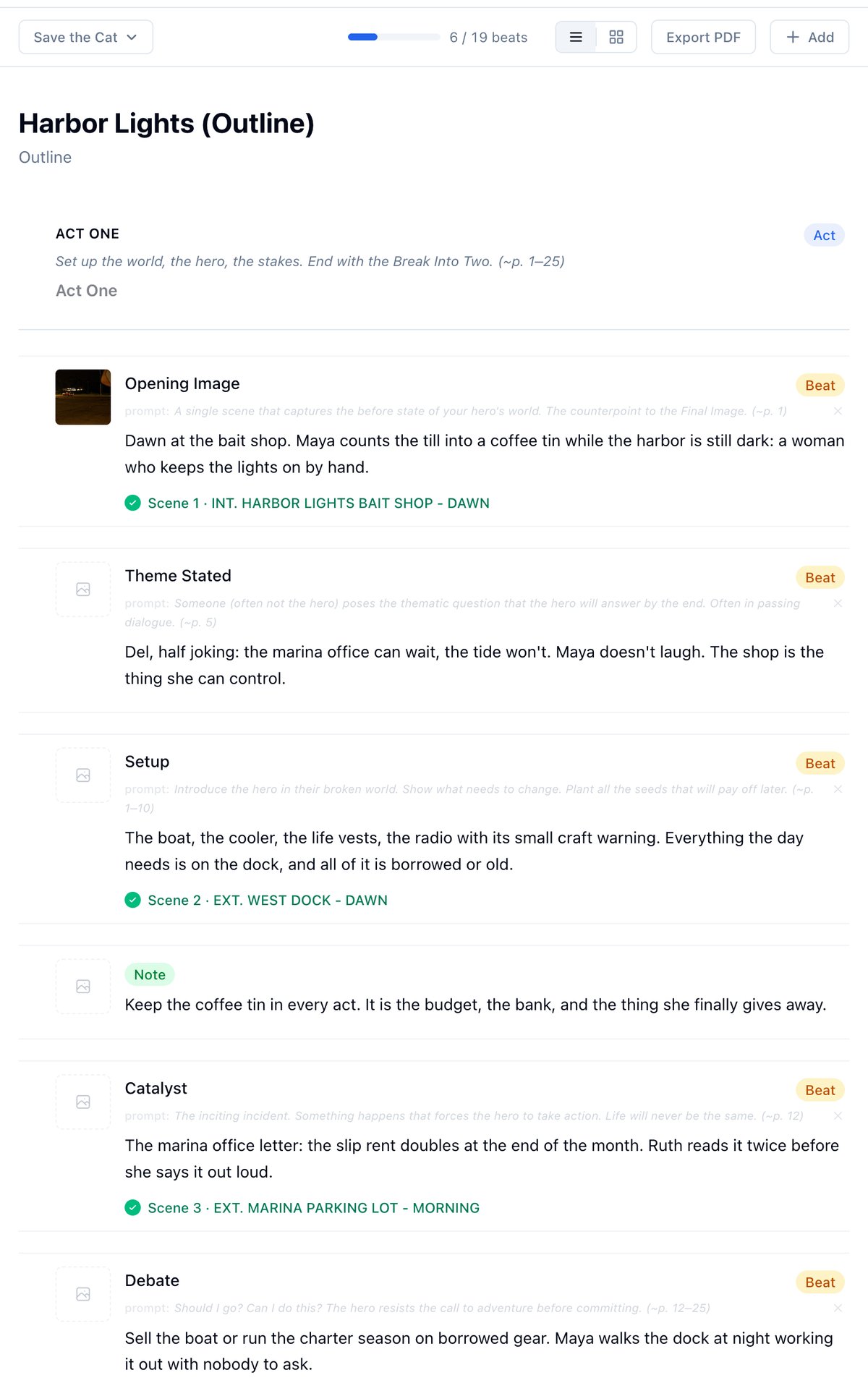
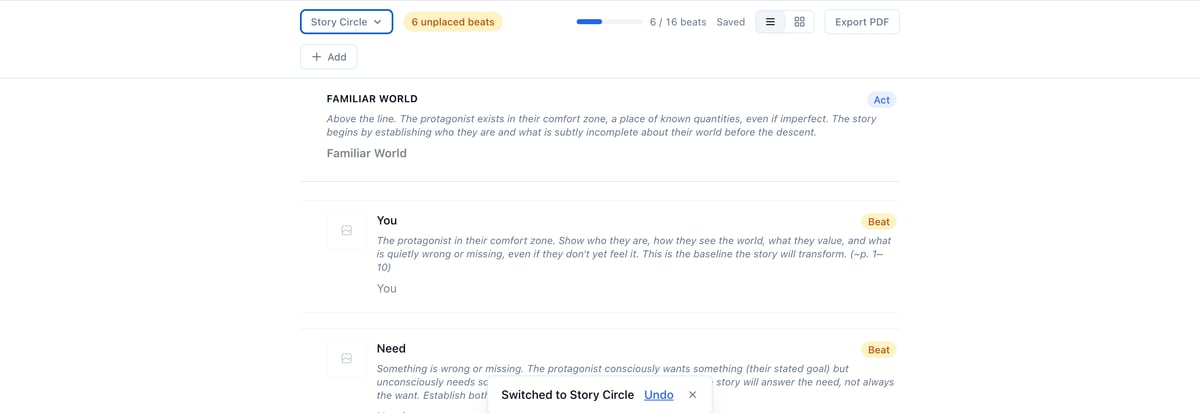
Click into any beat and start typing your version of that beat. The template guidance text fades as you write. The progress bar in the toolbar tracks how many template beats you have filled in versus the total. As you fill in beats, the count goes up. To add a beat between two existing beats, hover over the gap between them and click the + that appears. To add a beat at the end, use the Add button in the toolbar or the Add element button at the bottom of the page.

Element types

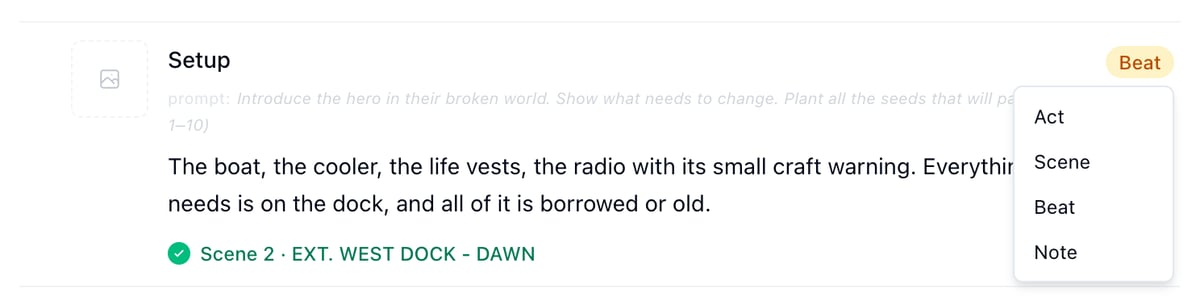
Each element has a type. Click the colored pill on any element to change it:
TypeWhen to use
ActMajor structural divisions (Act I, Act II, etc.)
SceneA specific scene or sequence
BeatA story beat or plot point within a scene or act
NoteReminders, questions, or anything that does not fit the above
Press Tab while focused on an element to cycle through types. Use Shift+Tab to cycle backward.

List view and card view

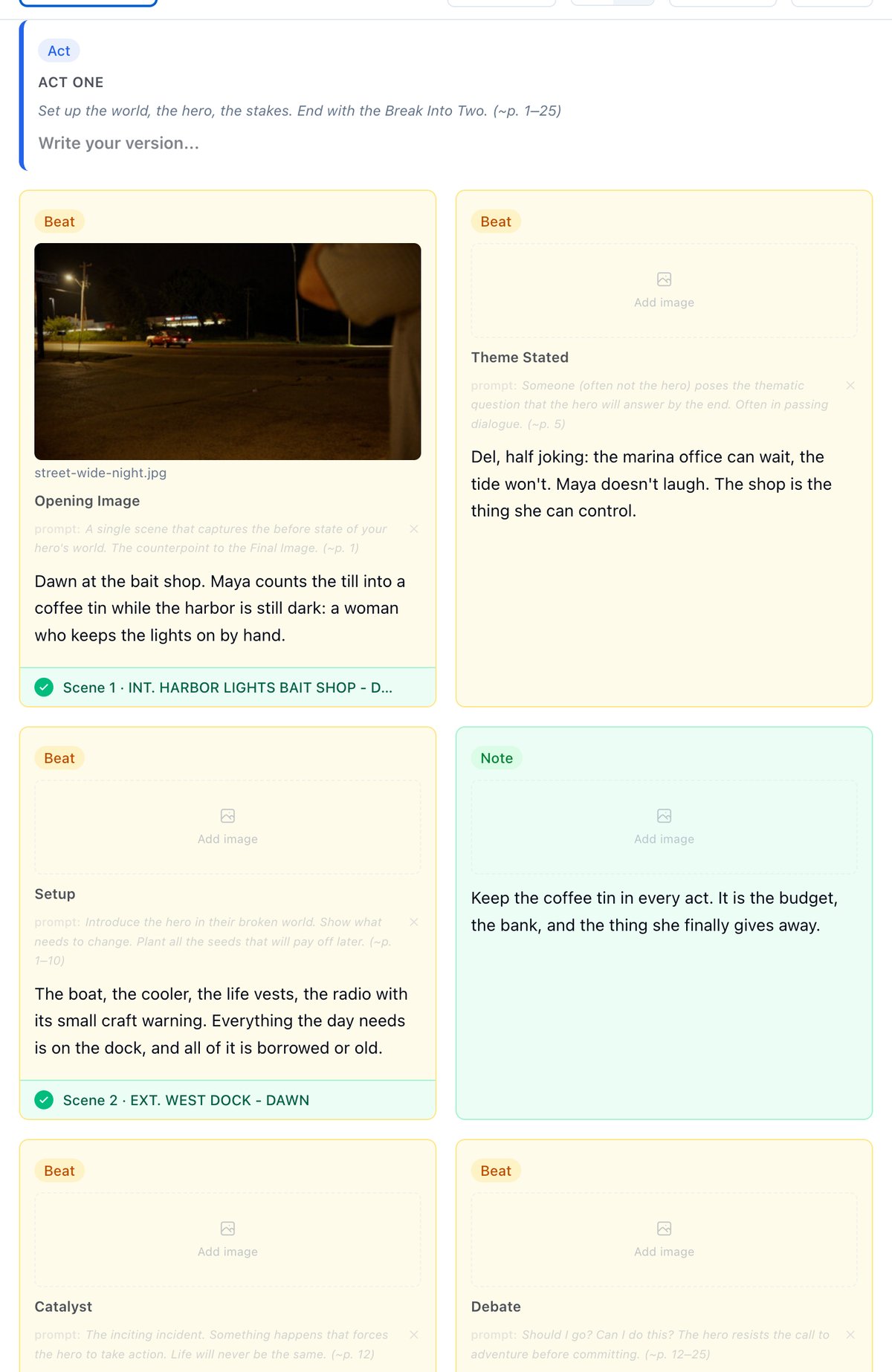
The toolbar has two view options. The list icon shows all elements as a linear document. The grid icon shows elements as color-coded cards: amber for beats, blue for scenes, green for notes, and full-width banners for acts. Card view is useful for getting a visual overview of your structure. Both views are fully editable. Your preference is saved automatically.

Switching templates

To try a different structure after you have started writing, open the template selector in the toolbar and pick a new one. Your written beats are not deleted. They move to the bottom of the outline as unplaced beats, and a badge shows how many need to be placed. Drag an unplaced beat to the right position in the outline, or start typing in it. Either action clears the unplaced status. You can also undo a template switch immediately after it happens using the Undo toast that appears at the bottom of the screen.

Reordering elements

In list view, drag the handle on the left of any element to move it. In card view, drag any card to a new position. The outline saves automatically after reordering.

Adding images to beats

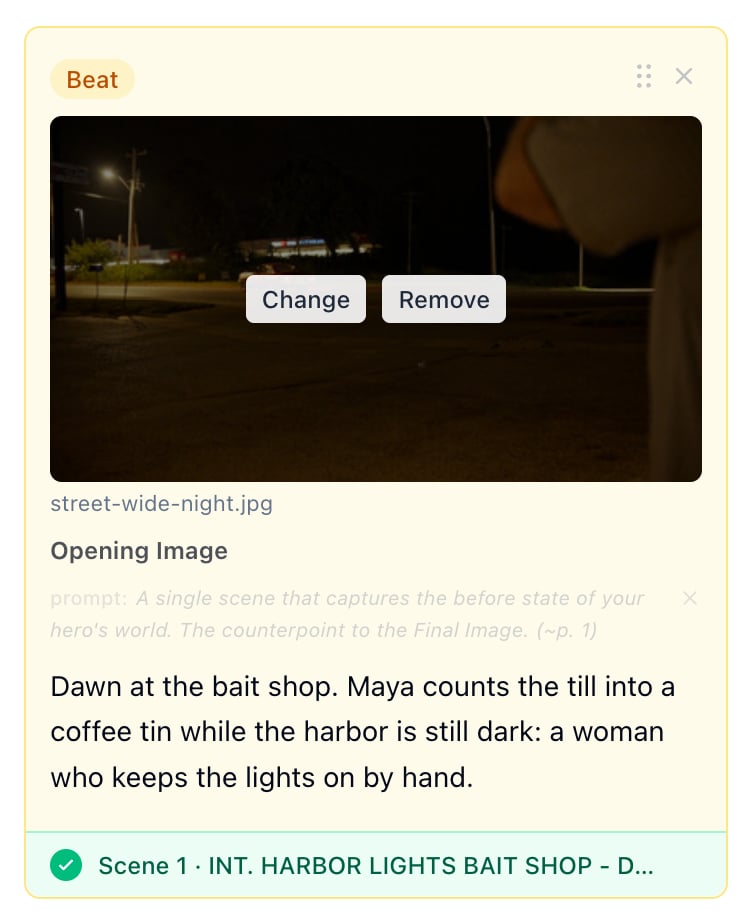
Each beat can have one image attached to it. Use this to pin a reference photo, a mood frame, a location shot, or any visual you want to keep alongside that moment in the story. In card view, each card shows a full-width image area below the beat text. If no image is attached, the area shows a dashed placeholder with an “Add image” label. Click the placeholder to open the image picker. In list view (row mode), a small square thumbnail appears on the left side of each row. If no image is attached, a small dashed icon is shown. Click it to open the picker.

Adding an image

There are two ways to add an image to a beat:
  • Click the image area or placeholder to open the image picker. From there, choose an existing image from your project library or switch to the Upload tab to upload a new file.
  • Drag and drop an image file directly onto the image area of a beat card.
The image is stored in your project’s media library and tagged as a reference image.

Changing or removing an image

Hover over a beat’s image to reveal the overlay controls:
  • Change opens the picker so you can swap the image for a different one.
  • Remove detaches the image from the beat. The file stays in your media library; only the link to this beat is removed.
In row view, the same controls appear as small icon buttons on hover.

Renaming the image

In card view, a small text field appears directly below the image. Click it to edit the label. The label is the image’s filename in your media library. Changes save when you click away.

Storage

Beat images count toward your project’s media storage limit, the same as any other uploaded image. You can also attach images that are already in your library without using extra storage. Images added through the outline appear in the Media Gallery under the Reference tag.

Linking beats to script scenes

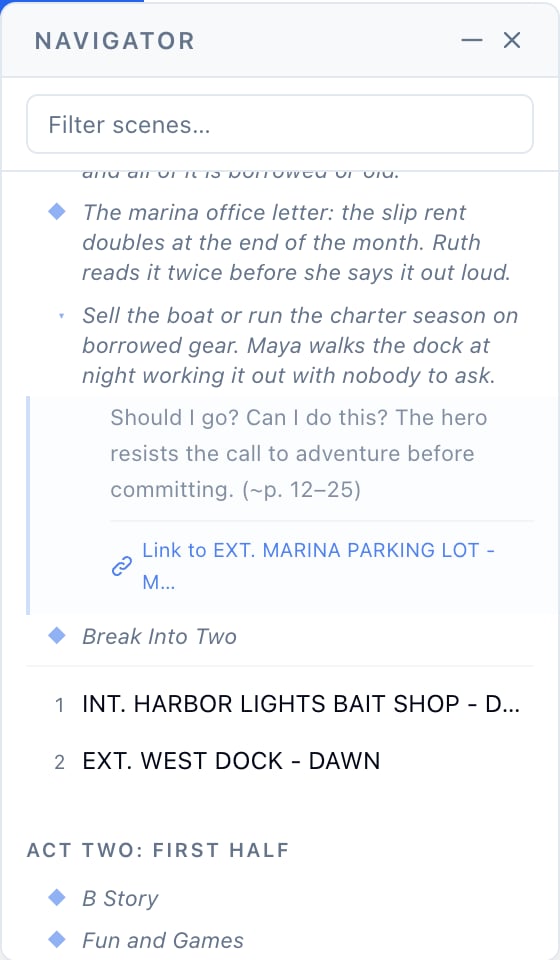
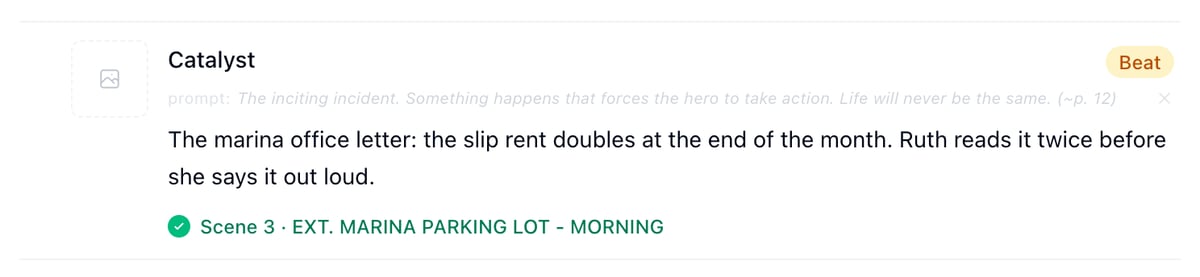
Once you have a script, you can mark a beat as written by linking it to the scene where it happens. Open the script editor and click the Navigator button to open the outline panel on the right side of the screen. The panel shows your acts, beats, and scenes together. Scroll to any beat and expand it by clicking the beat name. When the beat is expanded and you are on a scene in the script, a Link to Scene X button appears. Click it to connect that beat to the current scene. The panel records the link and shows a checkmark next to the beat: Scene 5 - INT. WAREHOUSE - DAY. Back in the outline, covered beats show a small green footer with the scene number and heading. This gives you a quick view of which structural beats you have already written and which still need work. To remove a link, hover the covered beat in the outline and click the x that appears on the right of the scene label. The link is removed and the beat returns to its uncovered state. Note: When you link a scene to a template beat, that beat becomes yours. It moves out of the template’s placeholder state and into your outline as a written beat, with the template guidance still available for reference.

The script navigator panel

The navigator panel is a floating panel in the script editor that shows your outline alongside your script as you write. To open it, click the Navigator button in the script editor toolbar (the outline icon). The panel appears on the right side of the editor and can be moved by dragging the header. The panel shows your outline structure: acts at the top, with beats listed under each act, and the script scenes grouped within each act based on where they fall in the story. As you scroll through the script, the current scene highlights automatically in the panel. Click any scene in the panel to jump to it in the script. Click a beat to expand it and read the full guidance or your notes. Click again to collapse it. Use the search bar at the top to filter scenes by heading. Use the minimize button (the dash icon in the panel header) to collapse the panel to just its title bar while keeping it open. Use the x to close it entirely. The panel remembers whether it was open or minimized between sessions. If you have not created an outline yet, the panel shows a prompt with a link to the outline page.

Exporting and connecting to your script

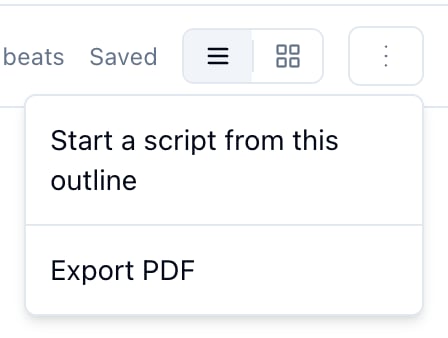
Before you have a script, the More actions menu (three-dot button in the toolbar) has two options:
  • Start a script from this outline - Creates a new script using your act headers and scene cards as the skeleton. Opens in the script editor ready to write.
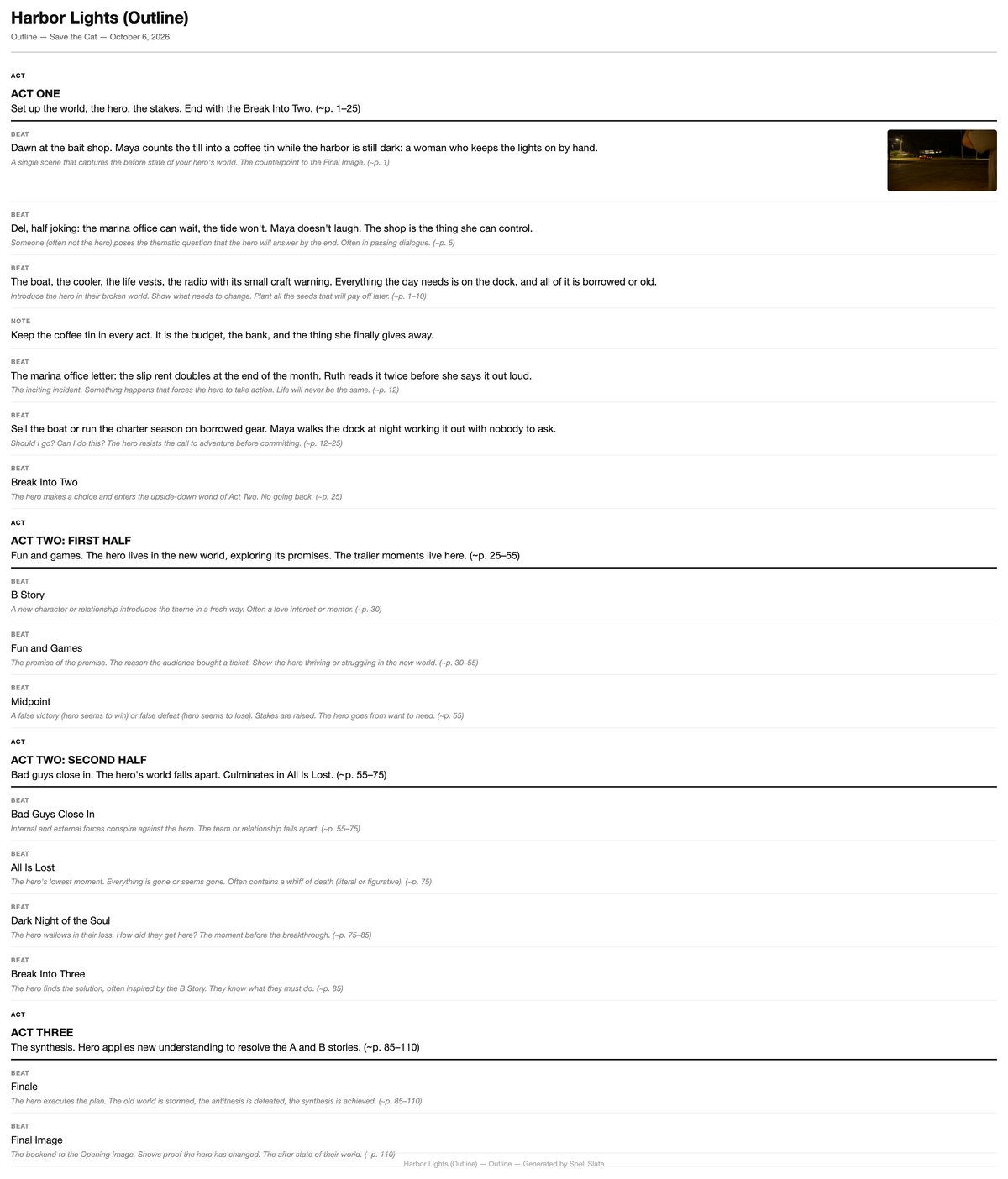
  • Export PDF - Downloads a printable PDF of your outline.
Once a script exists, the menu shows only Export PDF. Use the outline panel in the script editor to navigate between the two.

Availability

The outline is available on all plans for your first project. Upgrade to Solo or higher to use the outline on all projects.