Equipment
Who can do this: Free plan on your first project, Supporter on all projects. Adding, editing, and removing equipment needs the organization owner, an admin, or a member with Edit shot lists.The camera package is the one rental that touches every department: the shot list names it, the call sheet packs it, and the budget pays for it. The Equipment page is where that package lives. Where to find it: open Production and click Equipment.
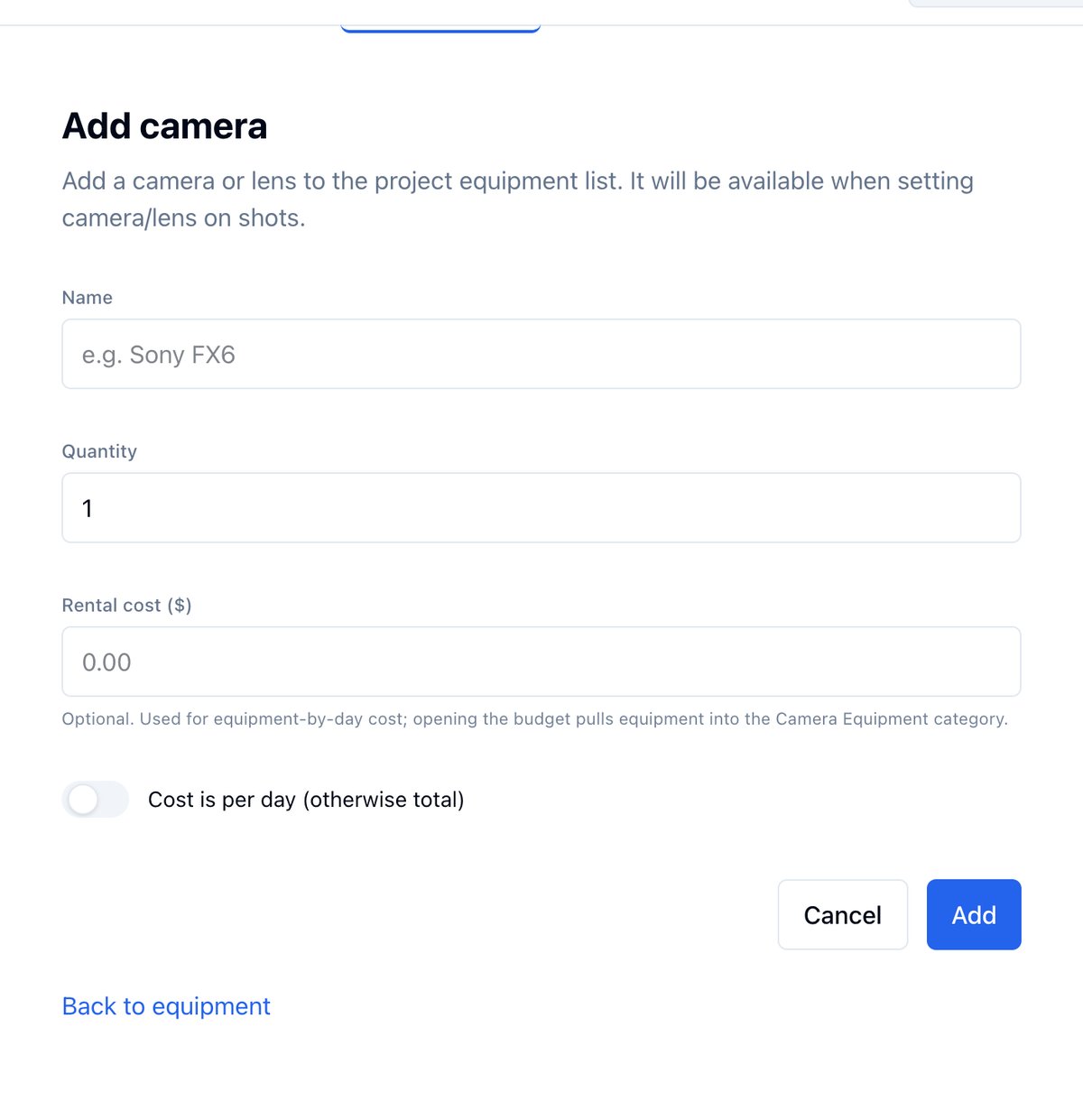
Add a camera or lens
- Click Add camera or Add lens.
- Enter the Name, such as Sony FX6 or 24-70mm.
- Set the Quantity.
- Enter the Rental cost ($) and turn on Cost is per day (otherwise total) if the rate is daily.
- Click Add.
Change quantity, rate, and labels from the list
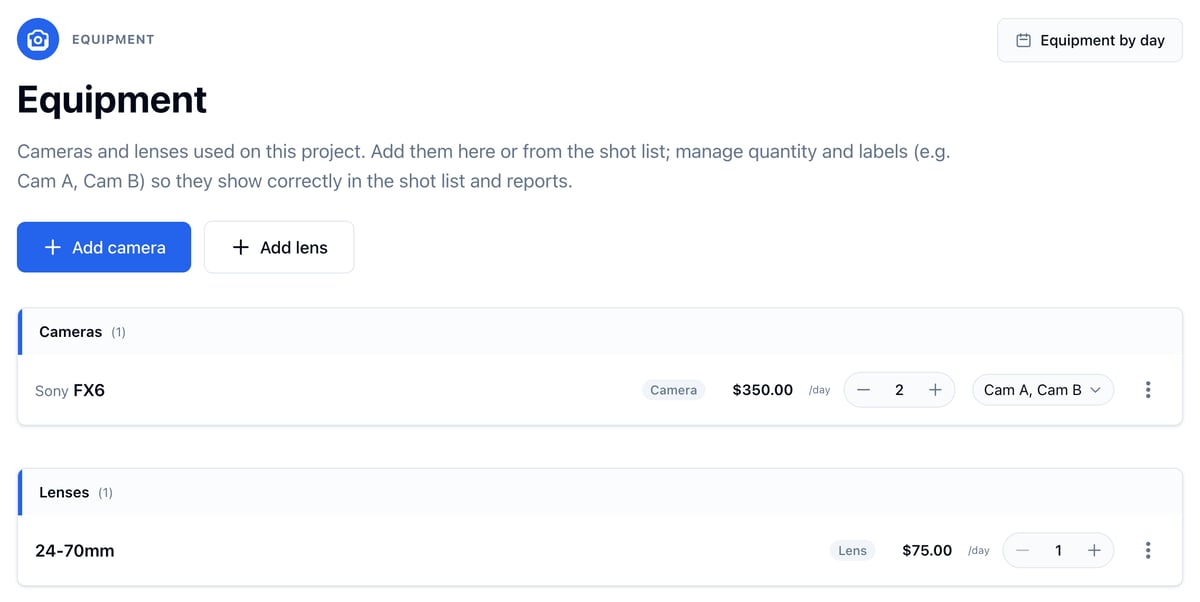
- Use − and + to change the quantity.
- Click the rate, type a new one, and press Enter.
- For a camera with more than one unit, open the labels menu and pick a label for each unit. Labels are unique within the project, so two cameras cannot both be Cam A.

Remove a camera or lens
Open the ⋮ menu on the row and click Remove. If shots use it, you are told how many, and those shots lose the camera or lens when you confirm.See what each day needs
Click Equipment by day at the top of the page. It appears once the project has a schedule.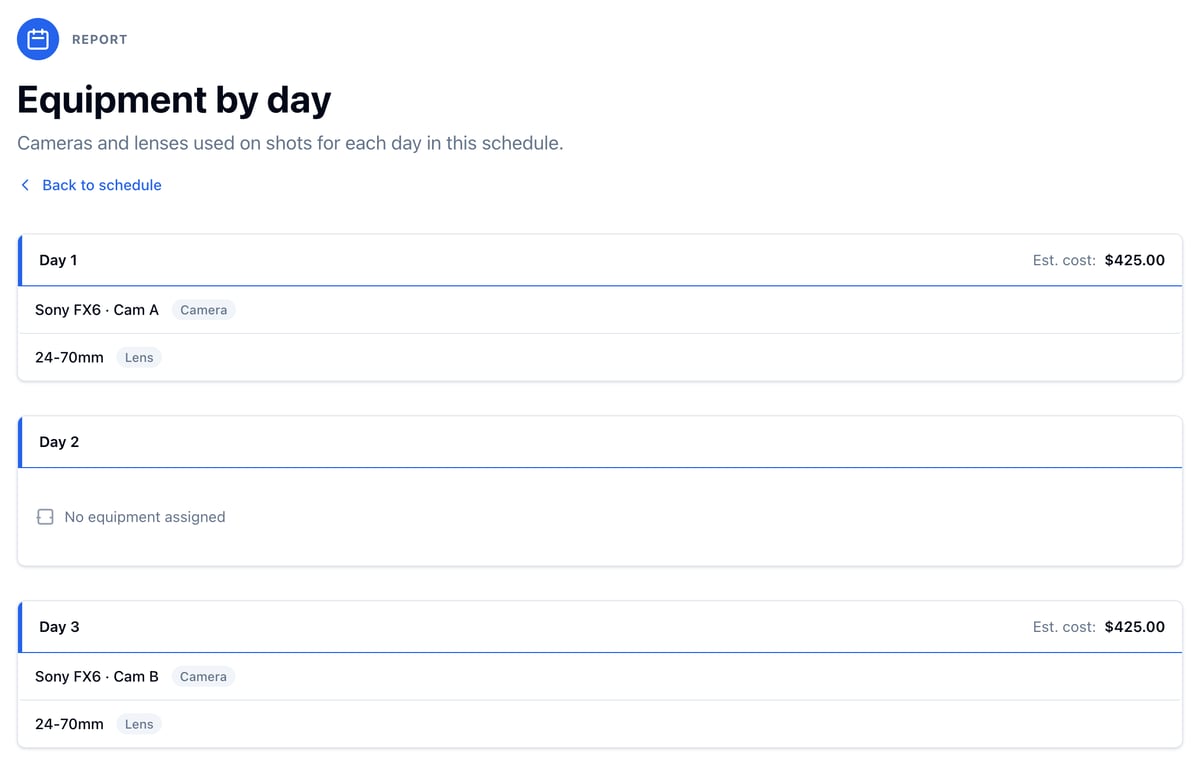
Example: a one-camera day
Only Cam A works on Day 1 and only Cam B on Day 3, so each day’s estimate is one body plus the lens, $425.00. Day 2 has no shots with a camera set, so it shows no equipment. That is the day to send the second body back, or the shot list that still needs a camera.Equipment on the budget
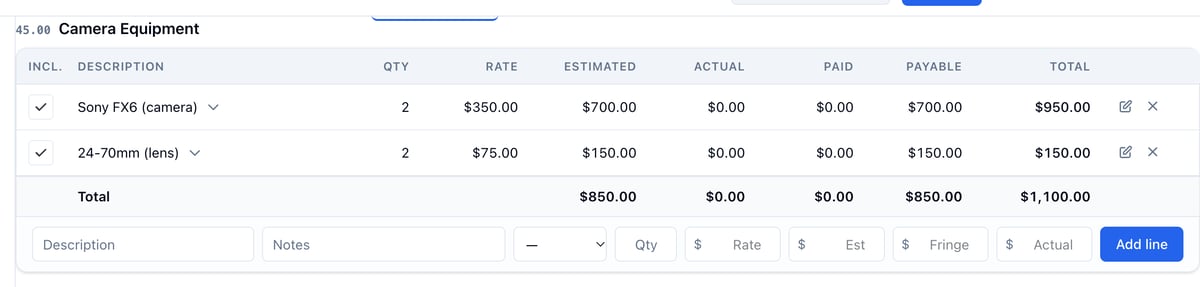
Opening the budget, or clicking Pull from breakdown, gives each camera and lens a line in 45.00 Camera Equipment. A per-day rental becomes a daily line whose Qty is the number of shoot days it appears on in the shot list, so the estimate is days × rate. A total becomes a flat line for that amount.