

Elements
Who can do this: Free plan on your first project, Supporter on all projects. Anyone with project access can open every list here. Adding, renaming, retyping, merging, and removing elements need breakdown edit access.The scene table answers “what is in scene 12?”. Elements answers the other question every department asks: “what do we need, across the whole script?”. One list per category, each element once, with the scenes it is in. Find it under Breakdown → Elements in the project nav.
Read the All Elements page
Every category is a card. A tagged one shows how many elements it holds; one with nothing tagged yet says so. Cast Members and Locations fill from the script the moment it is imported. The rest fill as you tag; see Tagging elements in a script breakdown.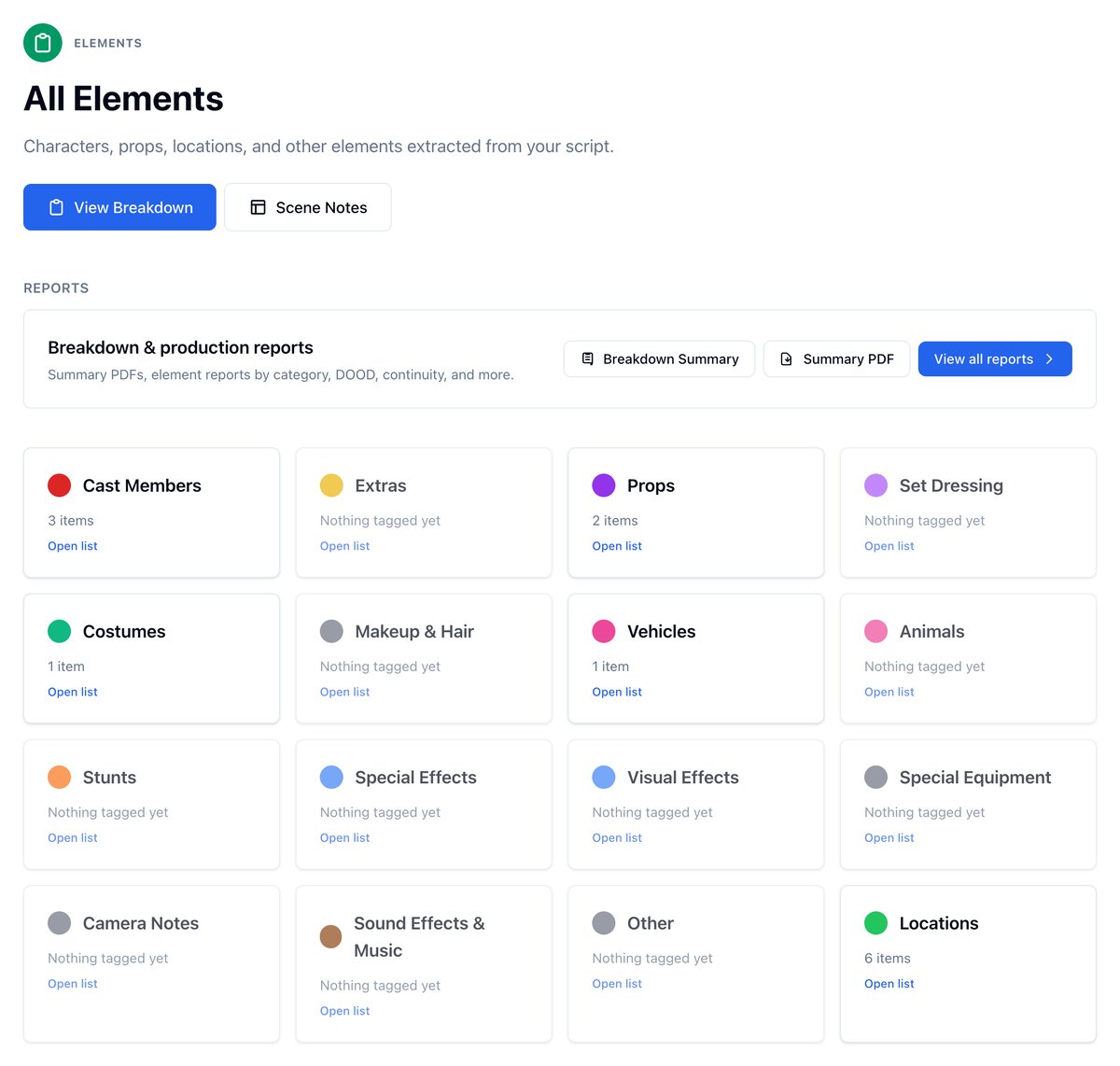
- Click a card to open that category’s list.
- View Breakdown goes back to the scene table. Scene Notes lists every scene’s board.
- The reports card opens the Breakdown Summary, the Summary PDF, or View all reports for the department lists. See Reports.
Read a category list
Each row is one element, however many scenes it is tagged in, with a link to its board, a link to the script, and its scene count. The sidebar on the left lists every category with its count, so you can move between departments without going back to All Elements.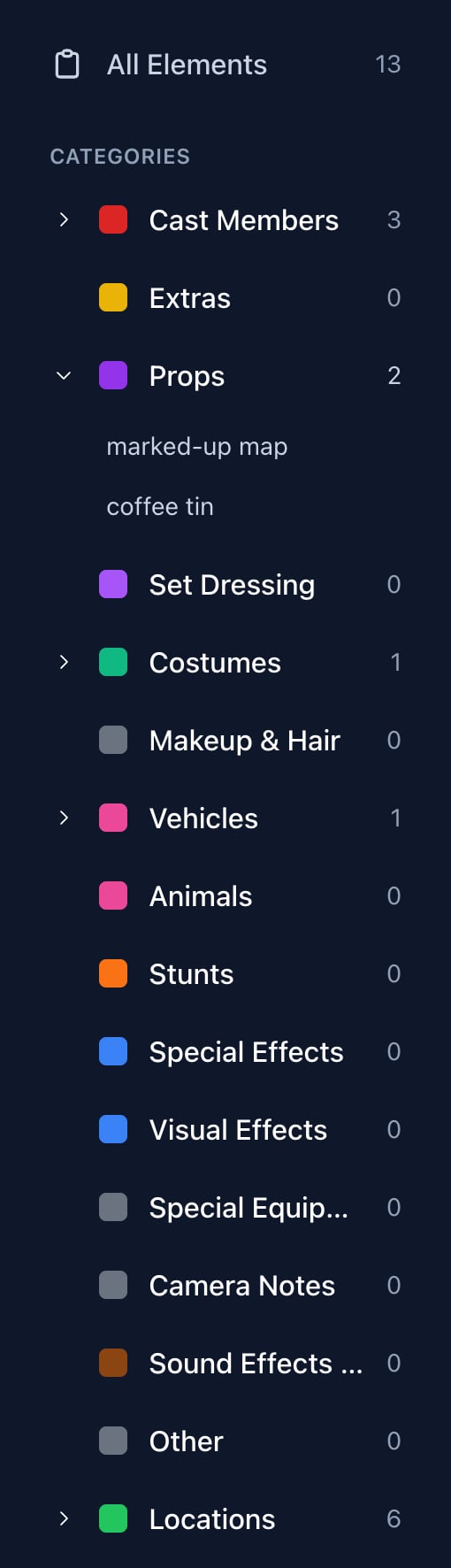
- Managing characters: cast IDs, casting, sides, and character boards.
- Managing locations: location boards, scouting, agreements, and call sheet addresses.
- Managing extras: headcounts, rosters, and background talent on call sheets.
- Managing props: the element list, boards, cost tracking, and Merge Items. Set Dressing, Animals, Stunts, Special Effects, Visual Effects, Special Equipment, Camera Notes, Sound Effects & Music, and Other work the same way.
- Managing costumes and Managing makeup and hair: the character each garment or look belongs to, and continuity.
- Managing vehicles: the Vehicle Specifications card.
Fix what the tagging got wrong
- Wrong name. Elements take their name from the script. Hover the name in any list and click the pencil. See How to rename an element.
- Wrong category. Change type from the element’s row on a scene, or its board, moves it in every scene. See How to change element type.
- Two names for one thing. Merge Items on a category list, Select then Merge on Cast Members, Merge Locations on Locations. See Merging duplicate characters or locations.