

How to change element type
Who can do this: Free plan on your first project, Supporter on all projects. Changing a type needs project edit access. Members with view access do not see Change type.The ferry got tagged as a prop. It is a vehicle, and it belongs on the transport list, not the prop master’s. Change type moves an element to the right category in every scene at once, without untagging it and tagging it again. Find it on a scene’s breakdown page (Breakdown → Breakdown, then click a scene’s heading) and on each element’s board.
Change the type from a scene
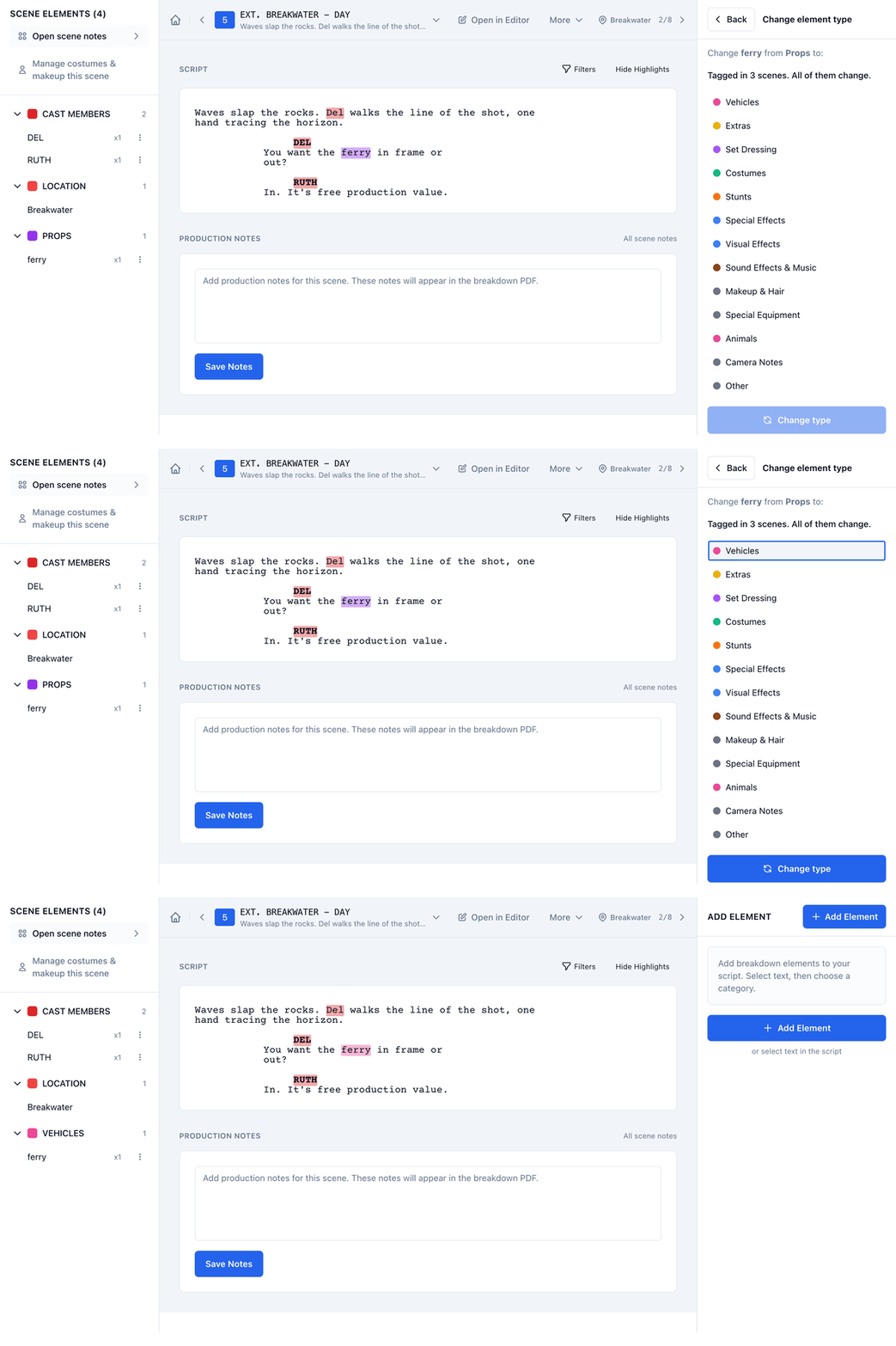
- In Scene Elements, click the three dots on the element’s row.
- Click Change type.
- In Change element type, click the category the element belongs in.
- Click Change type.
Check how many scenes the change covers
A change applies to the element everywhere it is tagged, not only in the scene you are on. When more than one scene has it, the panel says how many before you choose: Tagged in 3 scenes. All of them change.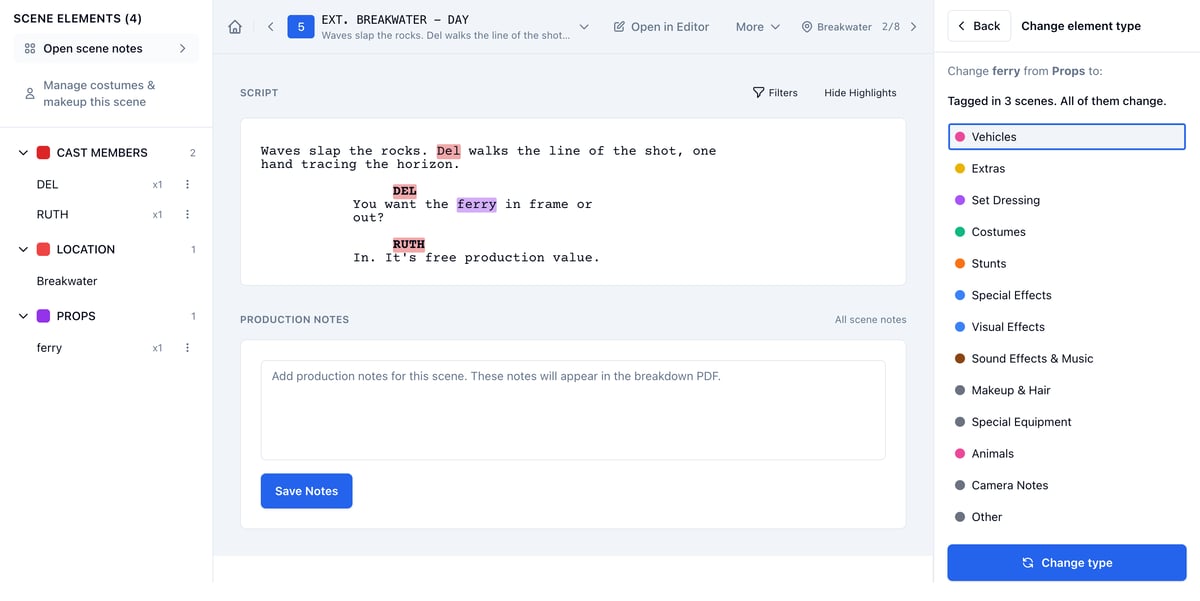
Change the type from the element’s board
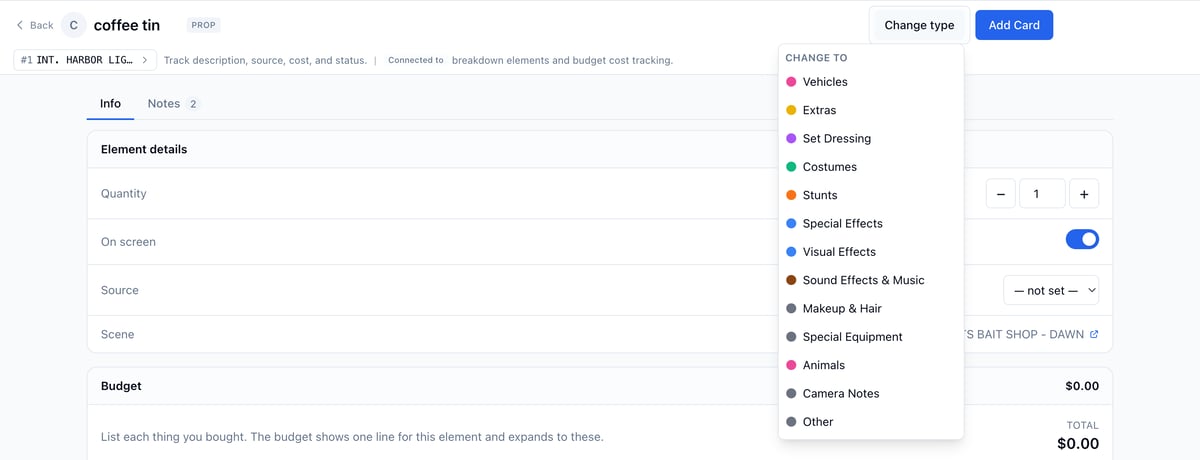
- Click the element’s name in Scene Elements, or in its category under Breakdown → Elements, to open its board.
- Click Change type.
- Click the category.
Move it onto a category that already has it
If the new category already has an element with the same name, the two become one element, and that cannot be undone. The panel says so when you click that category: Vehicles already has “ferry”. The two become one element, and that cannot be undone. On a board, the same line sits under the category in the menu, and you are asked to confirm.- The name the category already had stays.
- Where both were tagged in the same scene, the scene keeps one row of it. A row with costs entered, a roster, or a quantity or source filled in is never the one dropped, so two of those both stay.
- The cards from both boards end up on one board. A board that has costs entered, or an extras roster, is left as it is, so two of those both stay.
What comes along
- The element keeps its name, its quantity, its script highlights, and its board with every card on it.
- Its budget line moves to the new category’s department, with its amounts, payments, and notes as they were. The message says where it went: Its budget line moved to Transportation.
- The board’s tabs follow the new category. A costume has Continuity where a prop has Info; a camera note has Notes only.
- Breakdown sheets and element reports list it under the new category the next time you open or export them.
- A costume keeps its character and costume change while it is away, so changing it back to Costumes restores them.