Boards and cards
Who can do this: All plans. Anyone with project access can read a board and comment on its cards. Adding, editing, moving, and deleting cards needs edit access for that part of the project: breakdown for elements, characters, locations, and scenes; crew for crew members; schedule for a Day Bible. Moodboard cards need the Moodboards feature: your first project on Free, all projects on Supporter.Every scene, character, location, element, and crew member has a board. It is where the things that do not fit in a field go: the fitting time, the marina’s number, the reference photo for the lantern, the checklist for the rain rig. What belongs on a call sheet or in the budget flows there from the board. Find a board from the thing it belongs to: click an element or a cast member under Breakdown → Elements, click Open scene notes on a scene’s breakdown page, or click View Board on a crew member. Each shoot day has one too: Day Bible in the schedule sidebar.
Read a board
A board opens on the tab that matters most for its kind: Info for an element, Info for a character, Overview for a location, Notes for a scene. The Notes tab holds the cards, with a count of how many there are. Every board starts with a few cards for its kind. A character’s has Cast Member, Ancillary Costs, and Talent Notes; a scene’s has Production Notes, Shooting Notes, and the rest listed in Managing scene notes. A starter card shows a gray prompt until someone writes in it.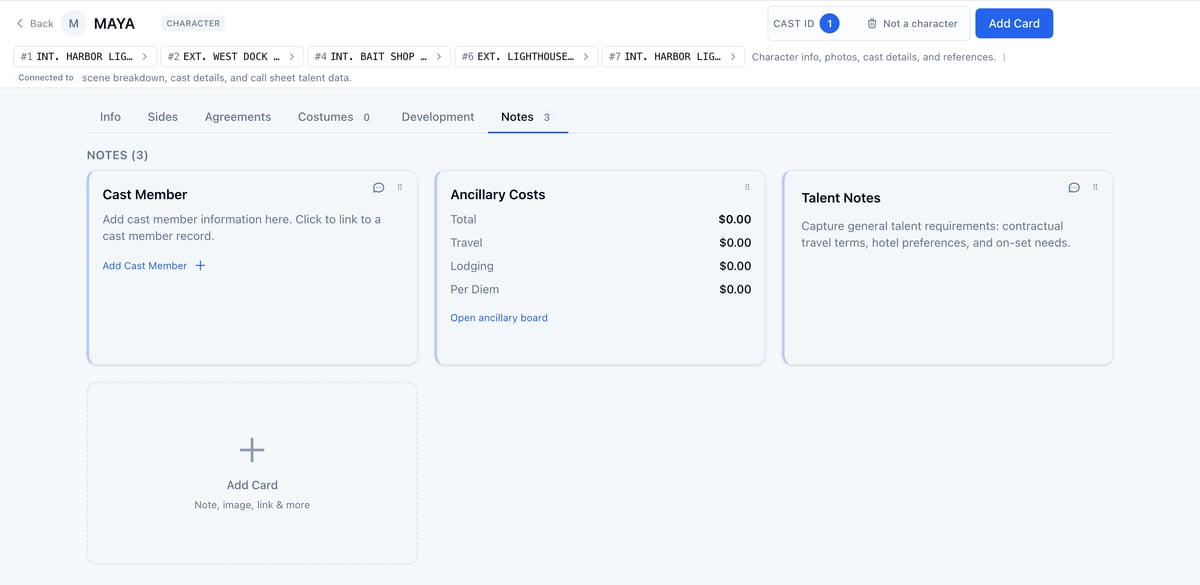
Add a card
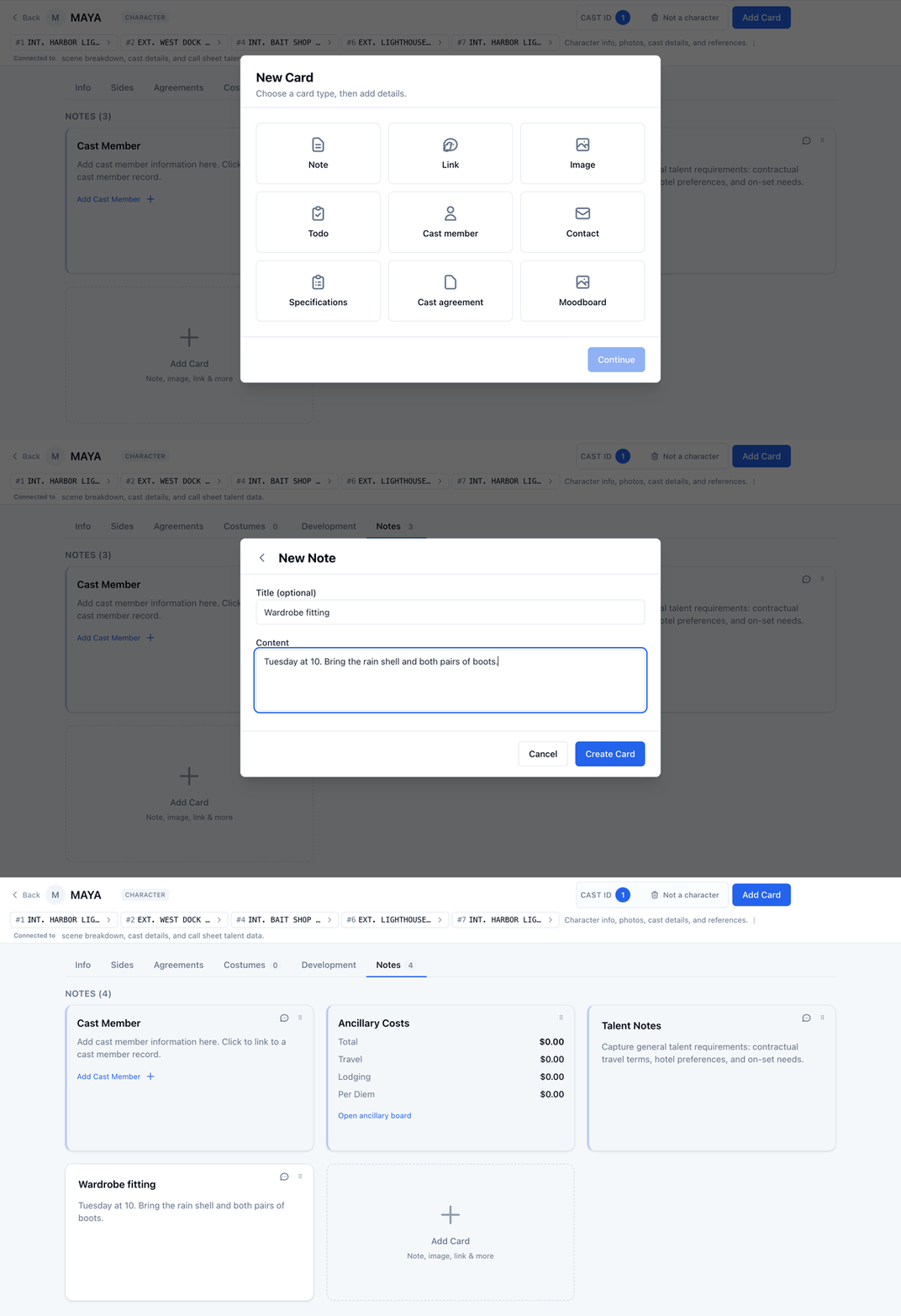
- Click Add Card, in the header or the dashed space at the end of the cards.
- Click a card type.
- Click Continue.
- Give it a title and whatever the type asks for.
- Click Create Card.
Pick the right card type
The picker offers only the types that make sense on this board.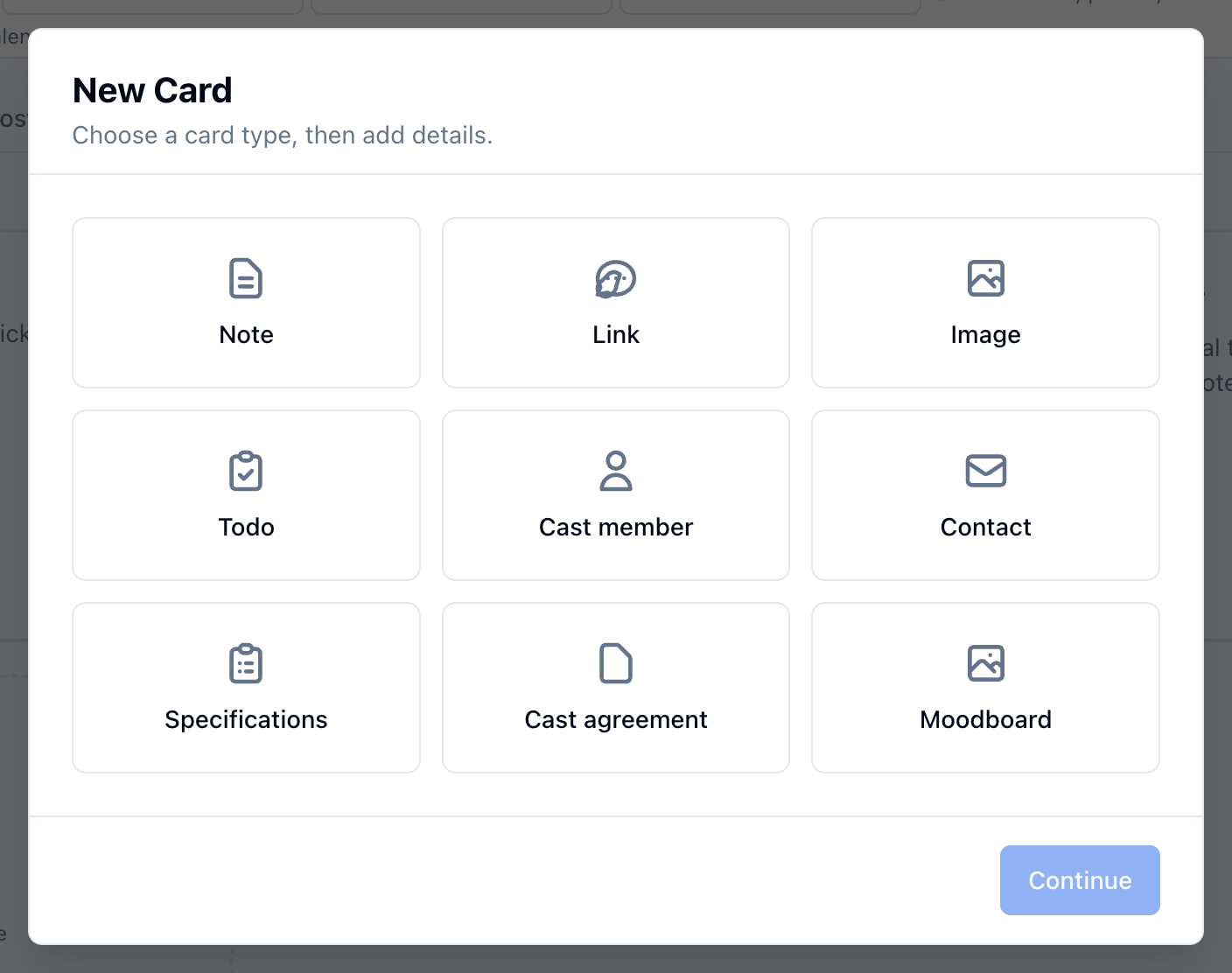
- Note, Link, Image: on every board.
- Todo: a checklist. Each item can be assigned and discussed on its own. See Tasks and notes.
- Contact: a name, phone, email, and address. On a location board, the Parking and Nearest Hospital contacts print on the call sheet for that location. See Managing locations.
- Specifications: elements and characters. Measurements, sizes, and the details a department needs.
- Cast member and Cast agreement: characters only. Casting is done from the Info tab; see Managing characters.
- Extra: extras boards only. One card per background actor, and the card adds them to your contacts. See Managing extras.
- Crew agreement: crew members only.
- Location candidate: a location’s Scout Locations tab.
- Moodboard: a page of images and text, laid out by hand. See Moodboards.
Edit, move, or delete a card
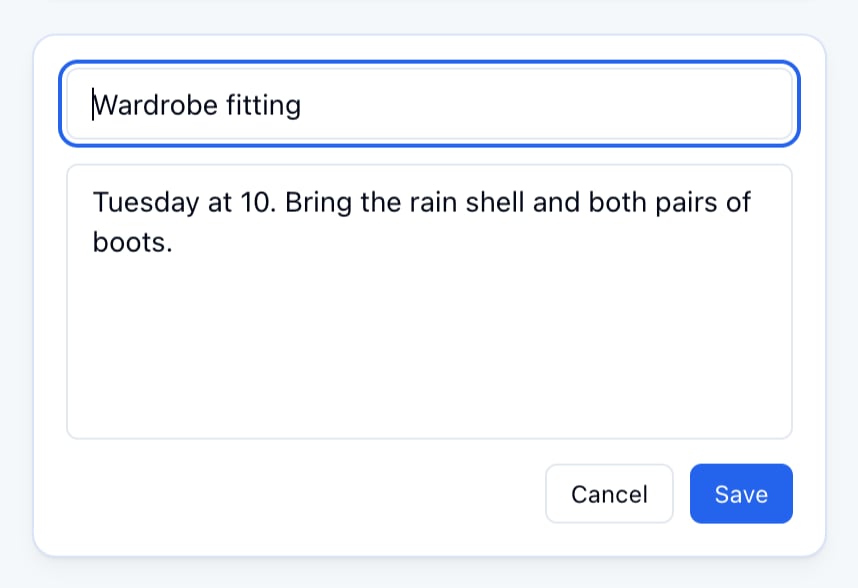
- Click a card to edit it in place. Save keeps the change; Cancel or Escape leaves it.
- Drag a card to move it.
- Click the × in a card’s corner to delete it. You are asked first.
Comment on a card
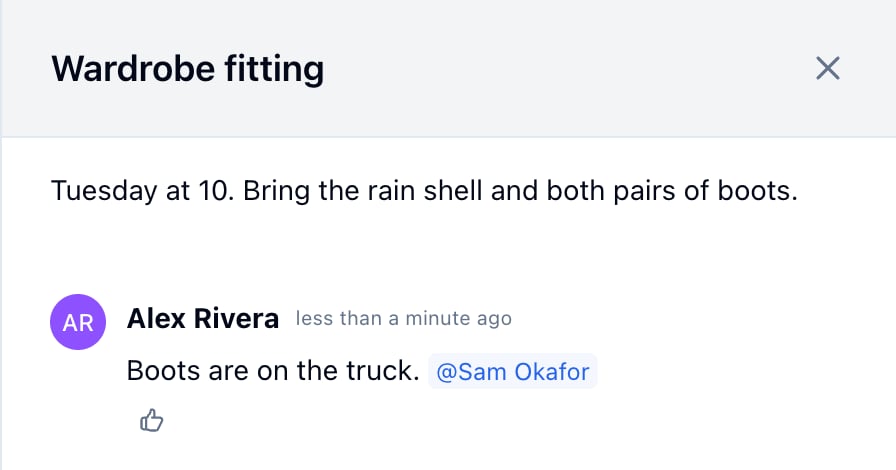
- Click the speech bubble in the card’s corner. The card’s comments open in a panel on the right.
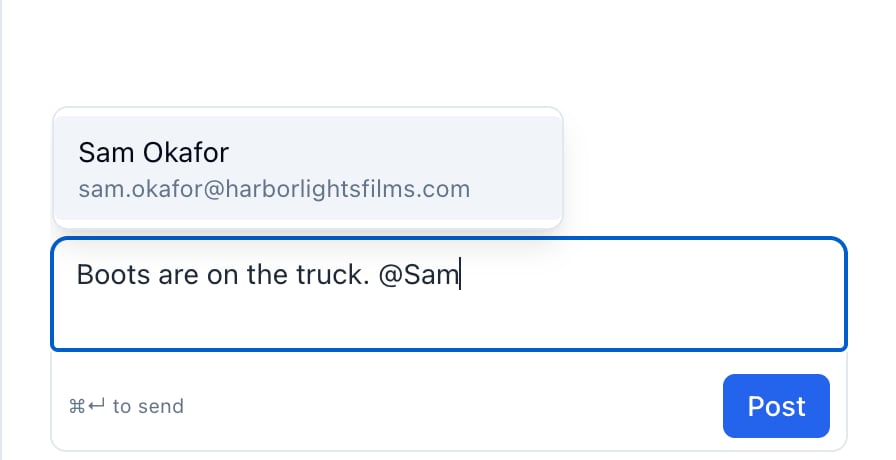
- Type the comment. Type @ and part of a teammate’s name to pick them from the list.
- Click Post, or press Cmd+Enter (Mac) or Ctrl+Enter (Windows).