Managing characters
The Characters list in the breakdown shows every character extracted from your script and how many scenes each one appears in. From there you open each character’s board to set a Cast ID, cast an actor, download sides, and keep notes, images, and references.Where to find characters
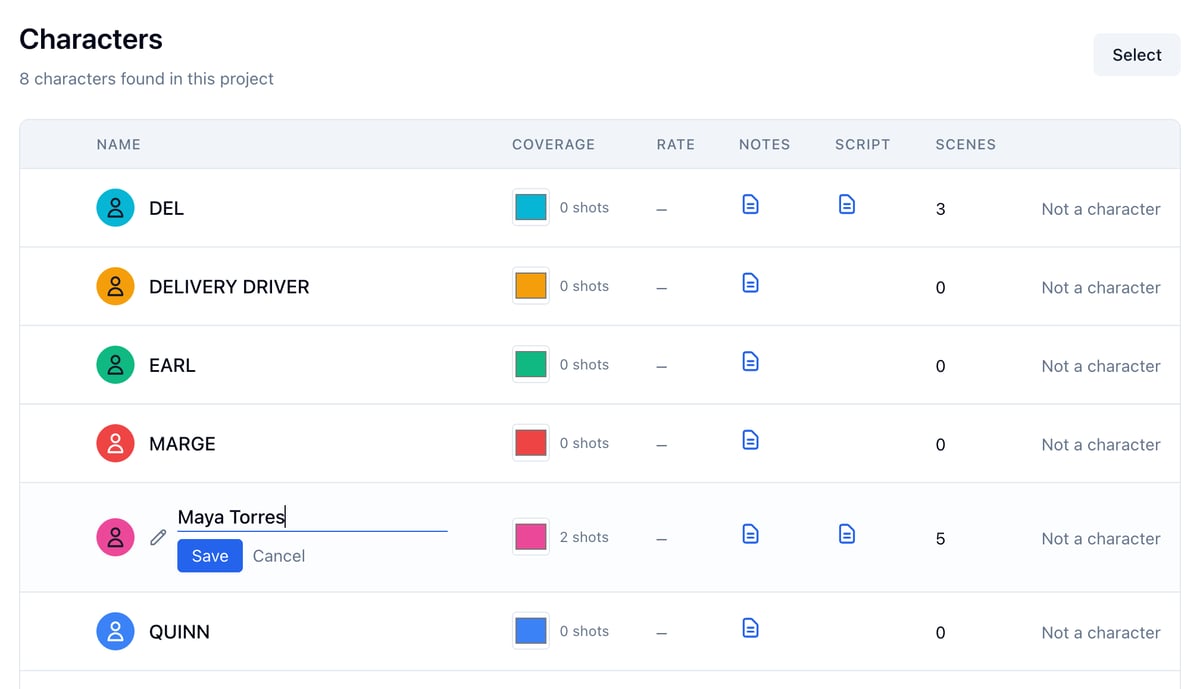
In the project nav, click Breakdown, then Elements. Under Cast Members, click Open hub. Each row shows the character’s name, coverage color and shot count, rate, links to their board and their first scene in the script, and how many scenes they appear in.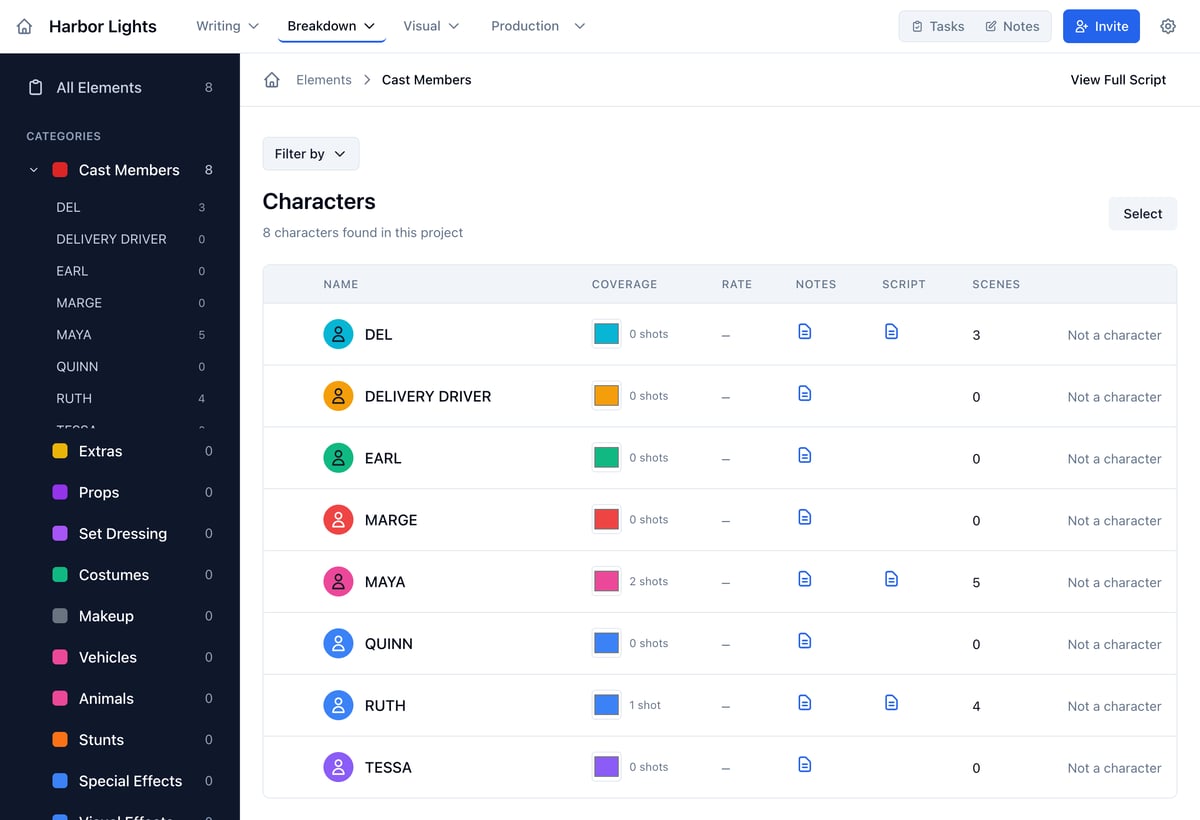
Adding a character manually
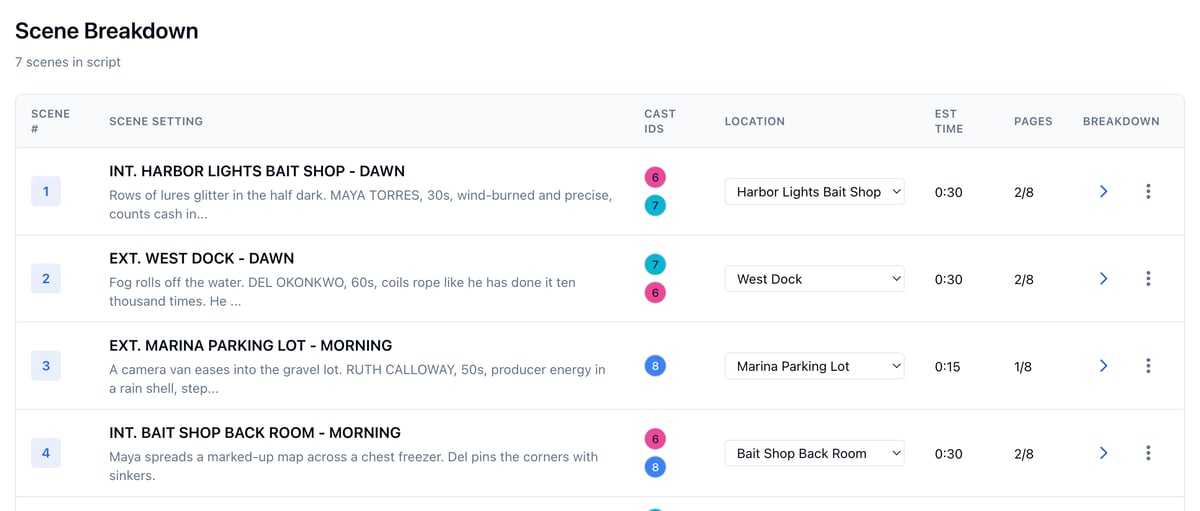
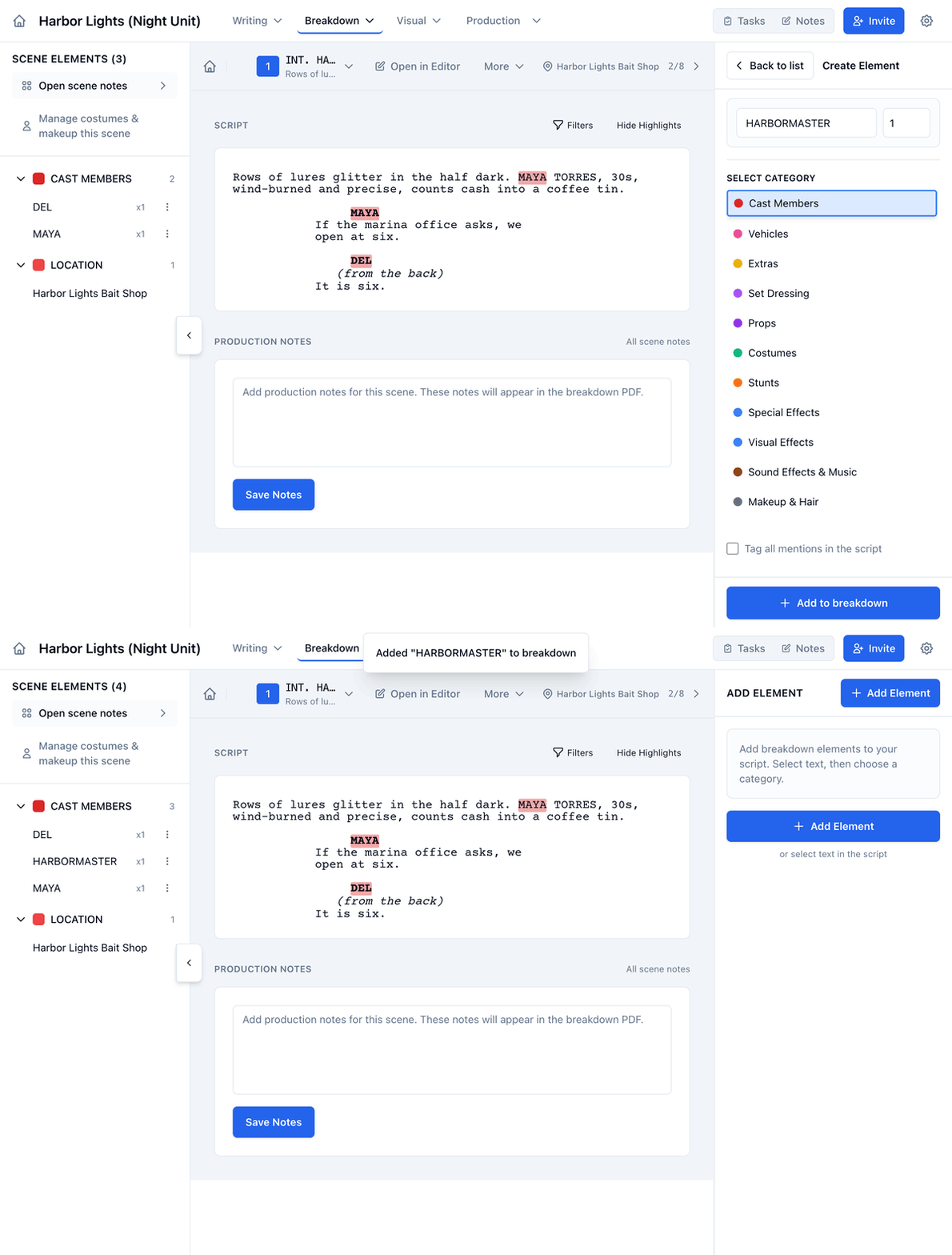
Characters are extracted automatically when you import or parse a script. To add someone without a dialogue cue, such as a harbormaster who is only mentioned, add them from a scene they appear in:- Open Breakdown and click the arrow in a scene’s Breakdown column.
- In the right panel, click Add Element.
- Type the character’s name.
- Under Select Category, click Cast Members.
- Click Add to breakdown.
Cast ID numbers
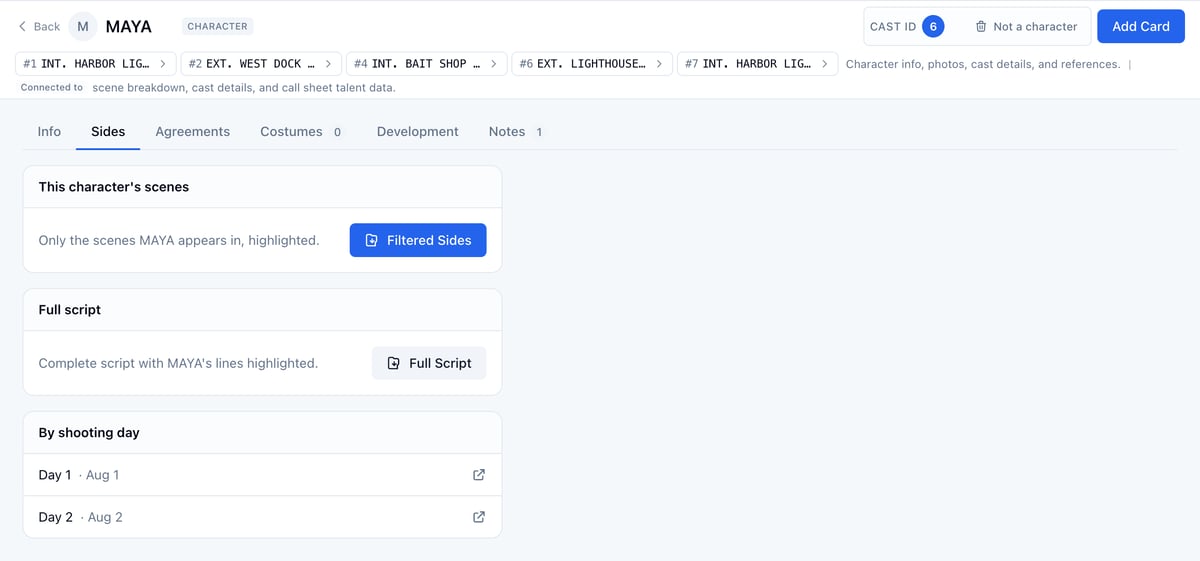
Every character has a Cast ID, the numbered badge shown in the breakdown table, the stripboard, and the call sheet. By default, IDs are assigned in order of first appearance in the script. To change a Cast ID:- Go to Breakdown and click any Cast ID badge to open that character’s board.
- In the board header, find Cast ID.
- Click the number (or Set ID…) to open the stepper.
- Use the - and + buttons, or the up and down arrow keys, to choose a number. Click away or press Enter to save. Press Escape to cancel.

Renaming a character
Characters take their name from the dialogue cue in the script, so the cast list can read “JOHN” when the production calls the role “Jonathan Mills”. Rename it from the Characters list or from the character’s board. From the Characters list:- Open Breakdown → Elements → Cast Members.
- Hover the character name and click the pencil icon next to it.
- Type the new name and press Enter, or click Save.
Character boards
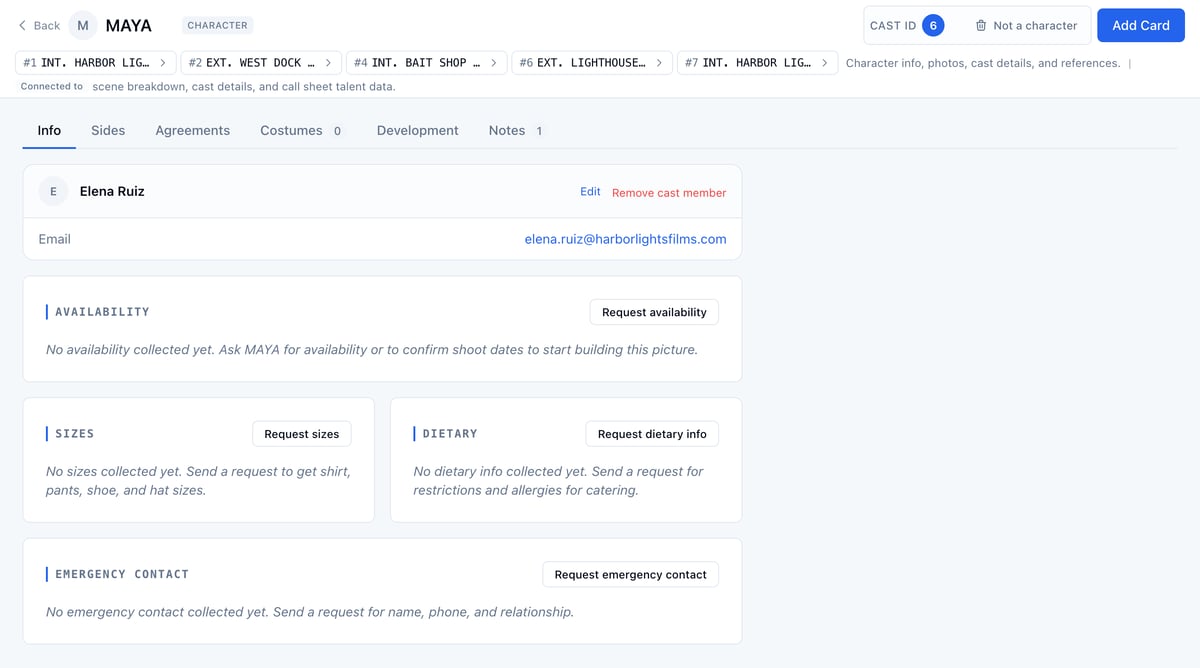
Each character has a board that holds everything about the role. To open a character board: click the character’s name on the Characters list, or a Cast ID badge on the Breakdown table. The board is split into tabs:- Info shows the actor playing the role, plus requests for availability, sizes, dietary needs, and an emergency contact.
- Sides holds script PDFs for the actor. See Downloading character sides.
- Agreements holds the actor’s signed talent agreement.
- Costumes lists the wardrobe and makeup items for this character, grouped by costume change.
- Development holds profile, characteristics, backstory, and arc cards.
- Notes holds the cards you add.
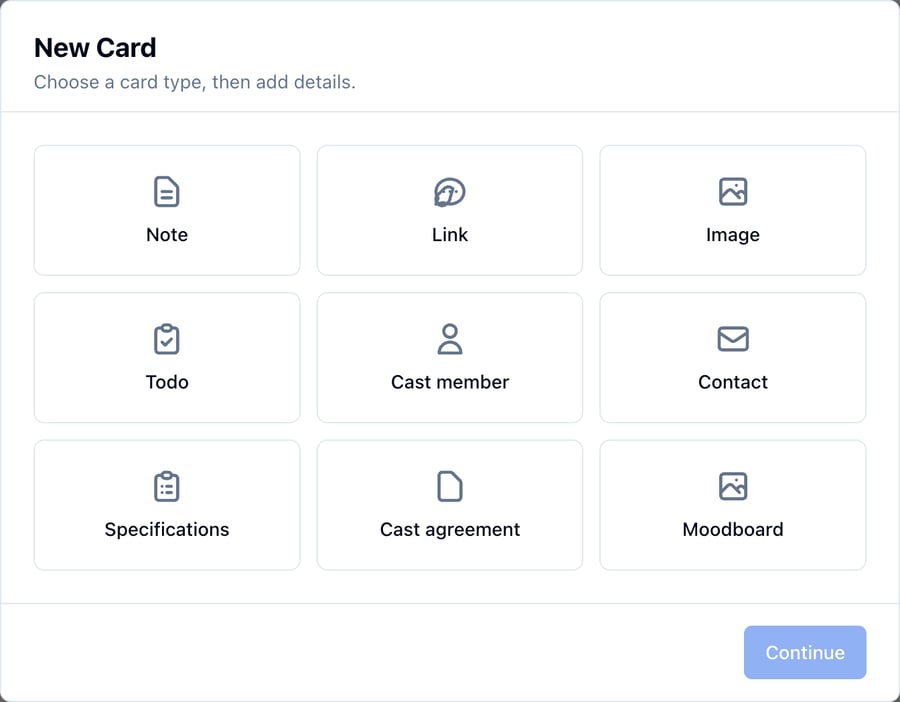
Assigning a cast member
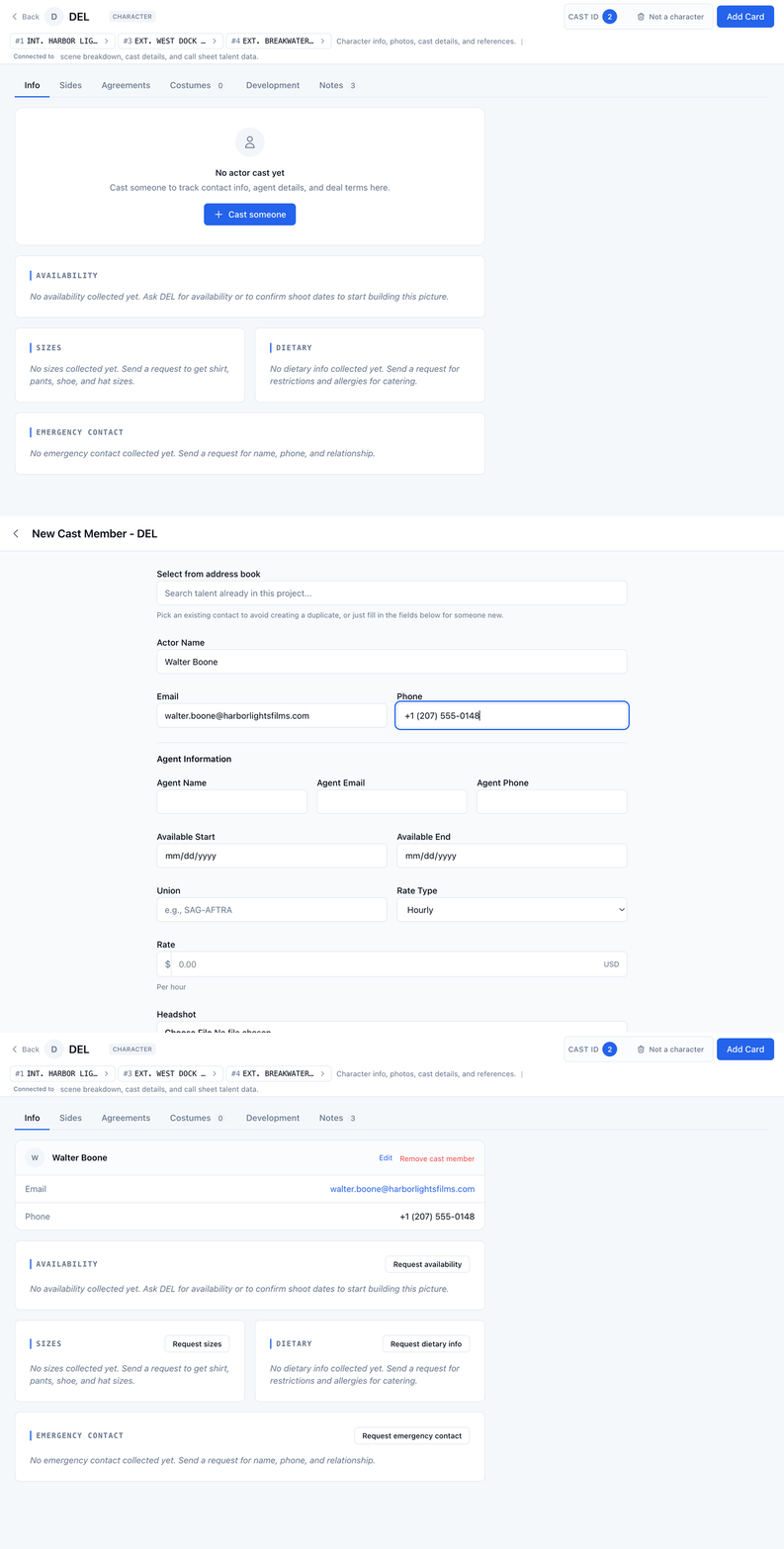
- Open the character’s board. The Info tab shows No actor cast yet.
- Click Cast someone.
- Pick someone under Select from address book, or enter the actor’s name, email, and phone. Agent details, available dates, union, and rate are optional.
- Click Save Cast Member.
Downloading character sides
Open the character’s board and click the Sides tab.- Filtered Sides downloads only the scenes the character appears in, with their lines highlighted.
- Full Script downloads the whole script with the character’s lines highlighted.
- By shooting day lists each day the character works. Click a day to open that day’s sides.
Merging duplicate characters
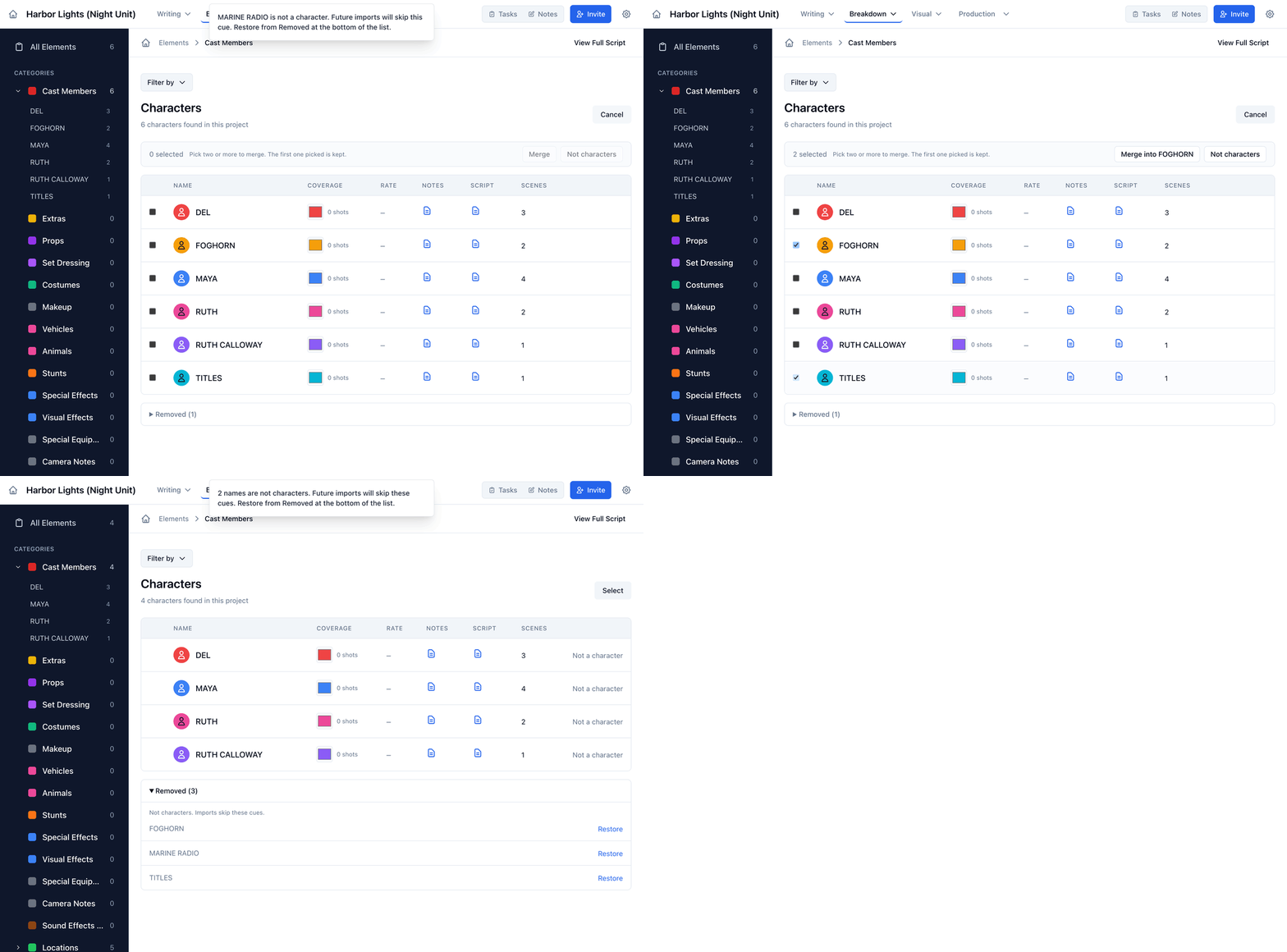
If the same character was extracted under two slightly different names (e.g. “DETECTIVE MILLS” and “MILLS”), you can merge them so all scene references point to one record. Open the Characters list and click Select. Tick both entries. The first one you tick is kept, and pointing at Merge into outlines it. Then click Merge into that name. See Merging duplicate characters or locations for step-by-step instructions.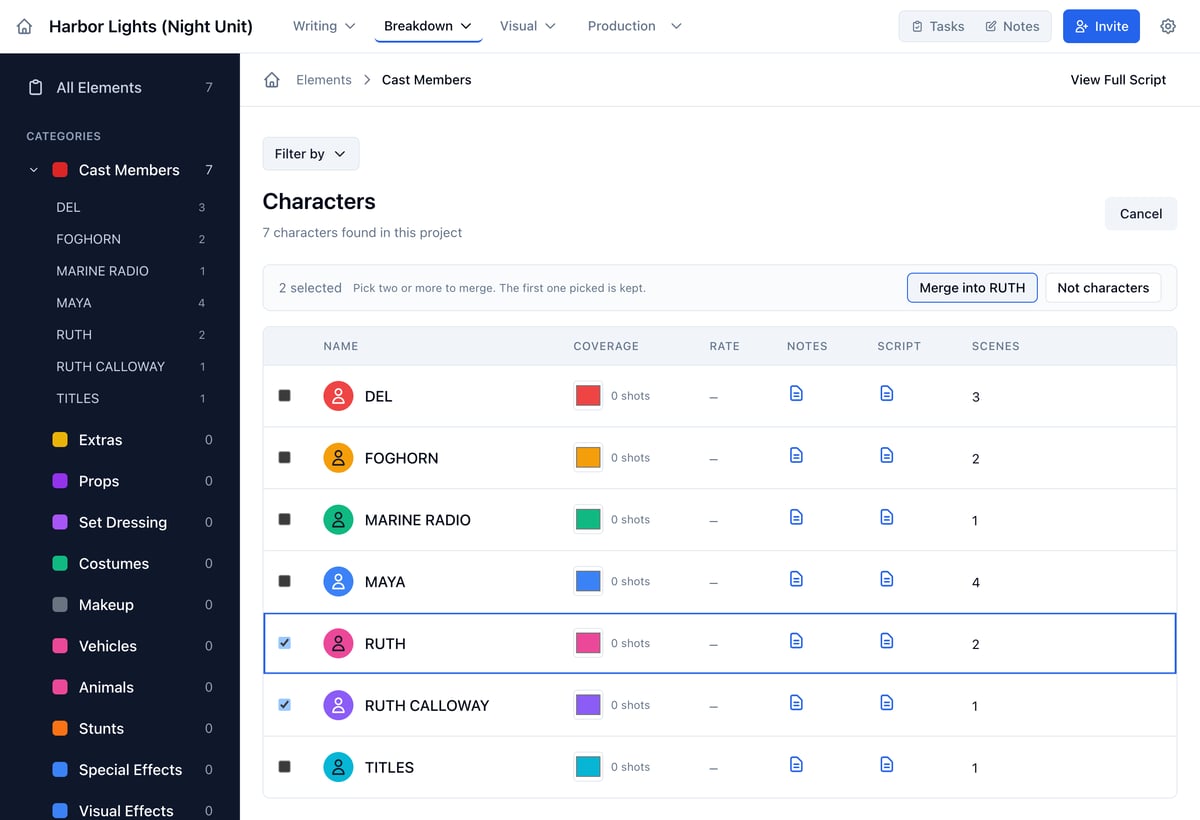
Marking a name as not a character
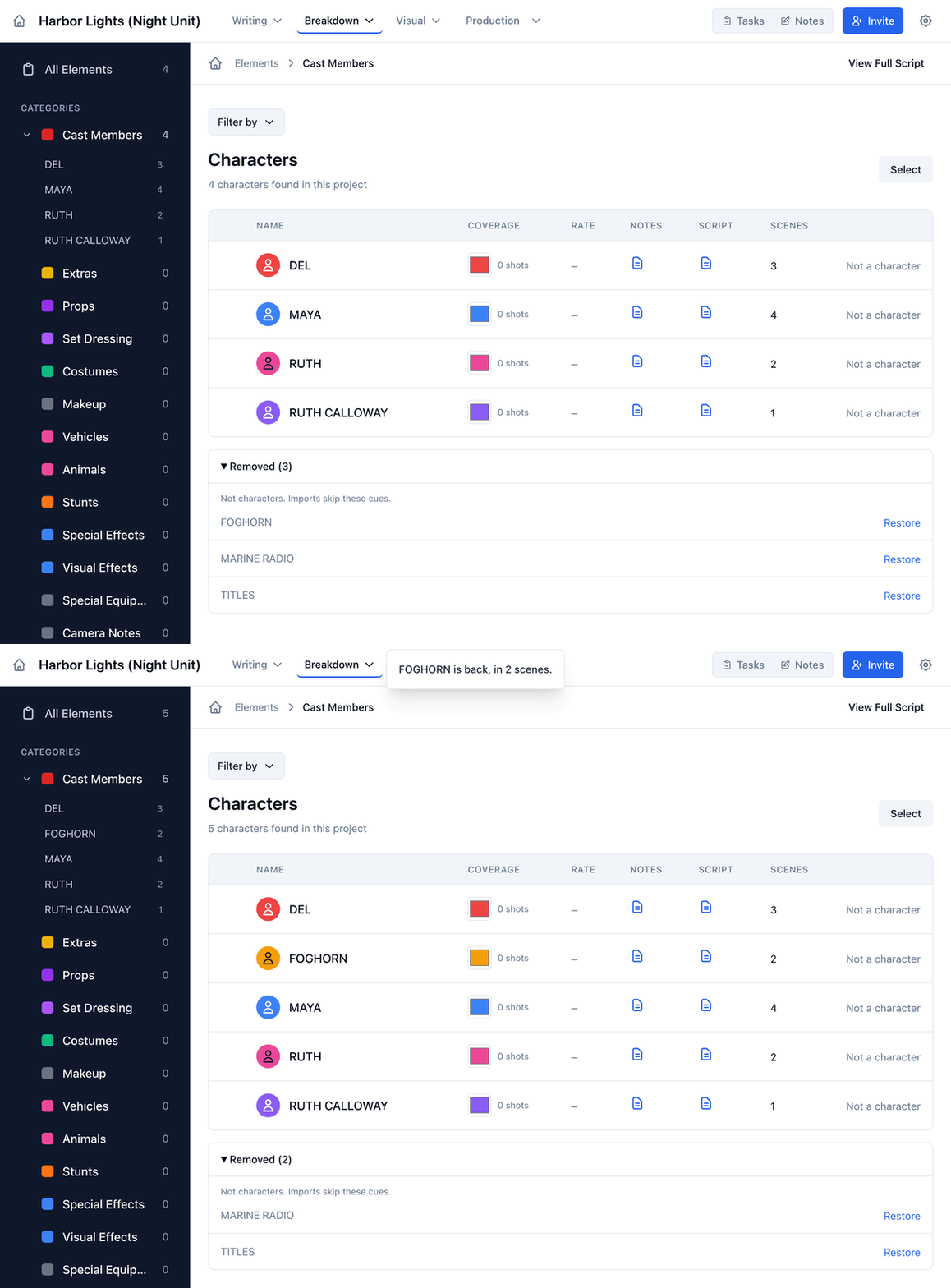
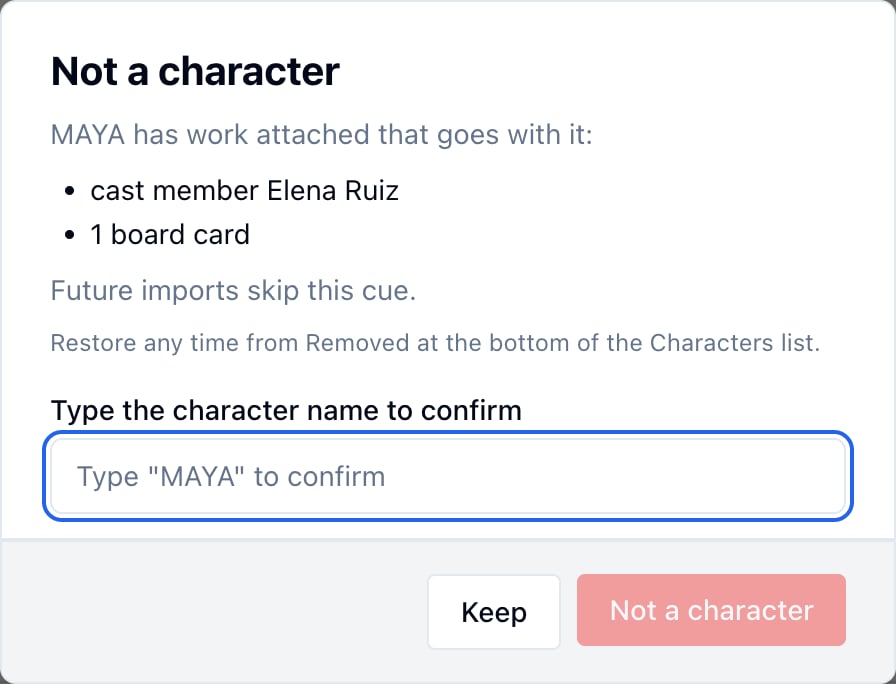
Sometimes a script import reads a sound effect, a prop, or a title card as a character: a spirit box that “speaks”, a teddy bear, or a cue like “THE END”. On the Characters list, click Not a character on that row. The name leaves every scene right away, and future imports skip that cue, so it stays gone when you re-import or save the script.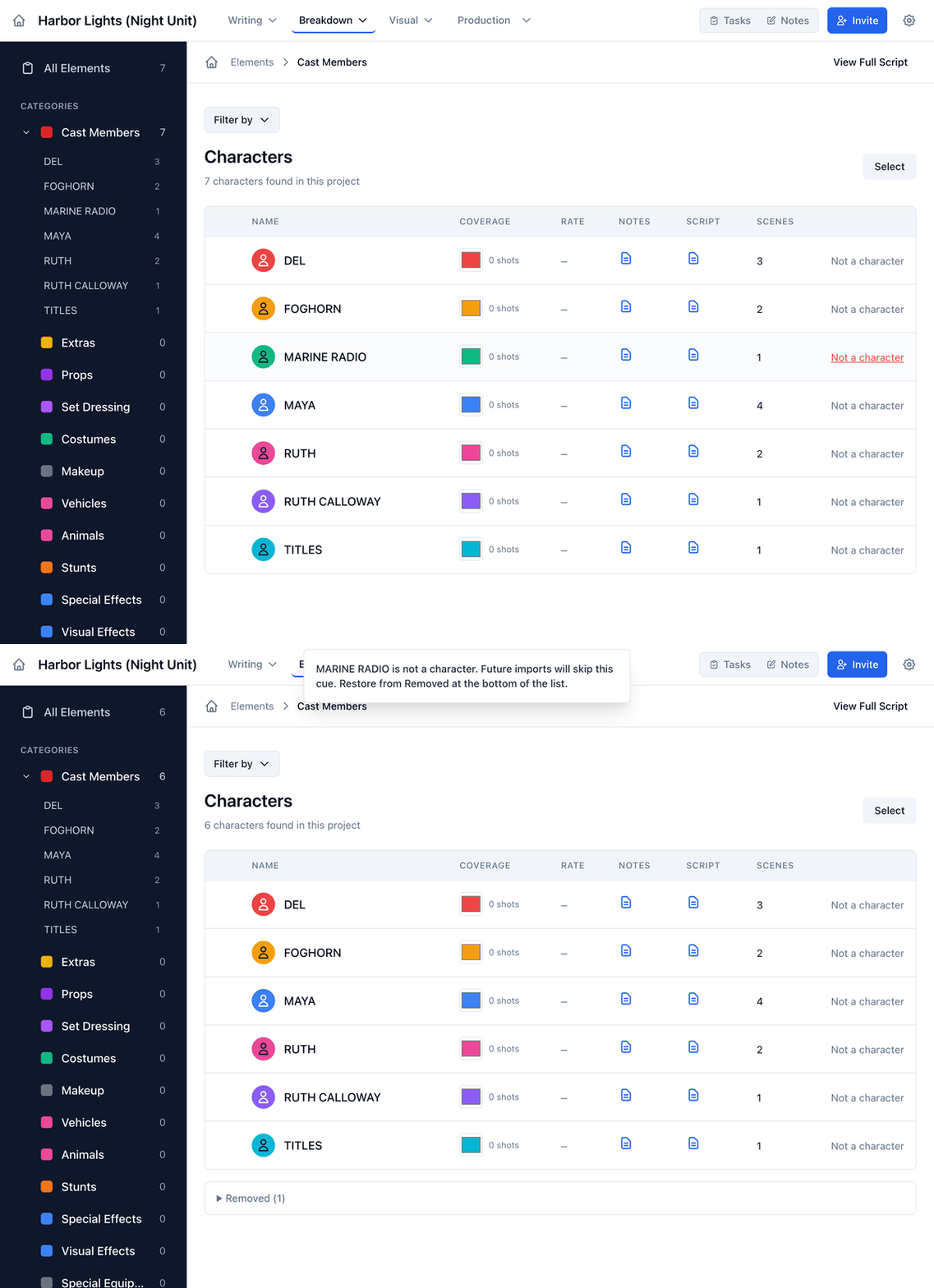
Restoring a removed character
Removed names sit under Removed at the bottom of the Characters list. Open it and click Restore to bring a character back. It rejoins the scenes it speaks in, and future imports pick the cue up again.