

Moodboards
Who can do this: Moodboards are available on your first project on the Free plan, and on every project on Supporter. Editing a moodboard follows the permissions of the board it lives on, so if you can edit that scene, character, or location, you can edit its moodboard.Every production starts with a pile of references: frames you screenshotted at 1am, a photo of a hallway you liked, three greens that are almost the right green. A moodboard is where those go, attached to the scene, character, or location they belong to instead of a folder on your desktop. Find them under Visual → Moodboards, or on any individual board (scene, character, location) as Moodboard cards. A moodboard has two layouts, and you can switch between them at any time without losing tiles:
- Grid tidies tiles into even columns. Use it for a straight reference sheet.
- Freeform gives you a canvas where you drag, resize, rotate, and overlap tiles wherever you want, across as many pages as you need.
Create a moodboard
- Open any board in the project. The project board works too, for project-level moodboards.
- Click Add Card.
- Select Moodboard from the card type list and click Continue.
- Give the moodboard a name, for example “Direction 1: Midnight Blue” or “Act II Wardrobe: Elena”.
- Pick a theme color. Choose a preset swatch or enter a hex value.
- Click Create Card.
Switch between Grid and Freeform
- Open the moodboard.
- Click Grid or Freeform in the layout toggle at the top of the board.

Arrange tiles on the Freeform canvas
Click a tile to select it. A selected tile shows handles and a row of controls.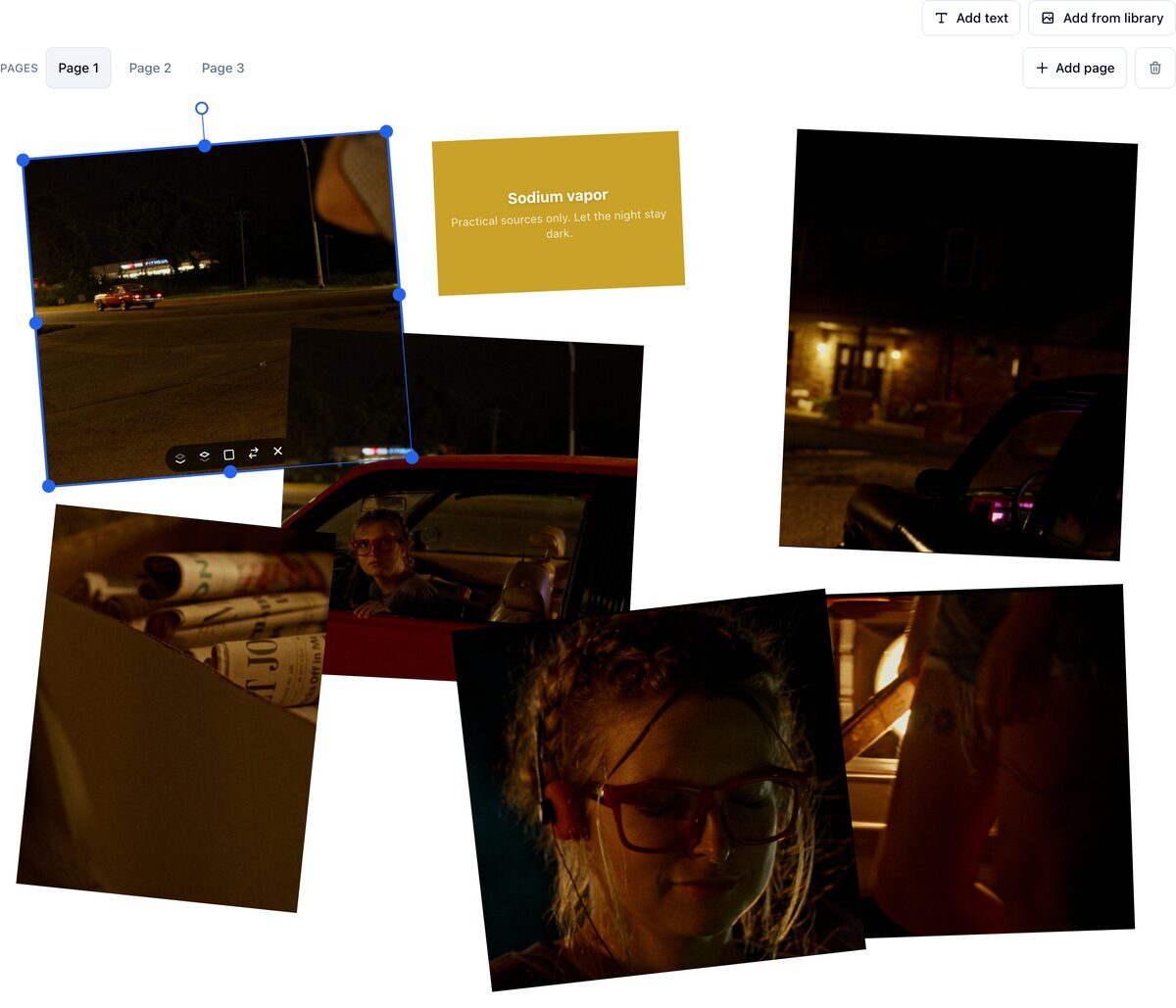
- Drag the tile to move it. It moves in the same gesture, so there is no click-then-drag.
- Drag a corner handle to resize.
- Drag the round handle above the tile to rotate.
- Click Bring to front or Send to back to change what overlaps what.
- Click Toggle frame to add or remove a card-style frame.
- Click Remove to take the tile off the board.
Add images to a Freeform board
Three ways in. The first two skip the menu entirely.- Drop files. Drag images from your desktop onto the canvas. The tile lands where you dropped it, and you can drop several at once.
- Paste. Copy a frame or a reference from a browser, click the board, and paste.
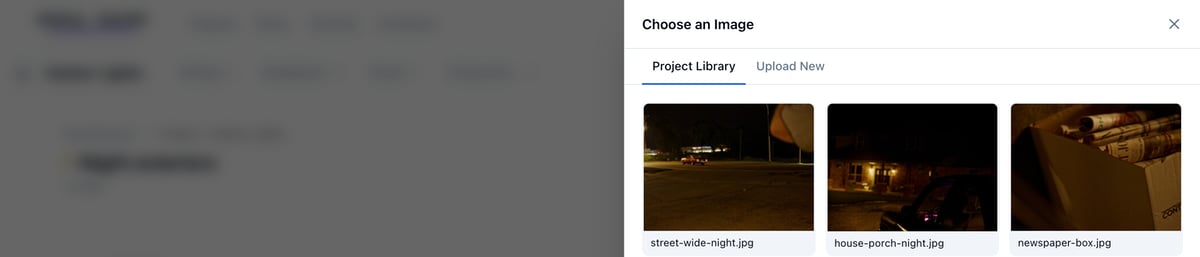
- Add from library. Click Add from library to pick from images already uploaded to the project.
Add an image in Grid
- Open the moodboard.
- Click Add Image.
- Choose an image from Project Library, or upload one from Upload New.
- Click Insert.
Add a text tile
- Open the moodboard.
- Click Add Text.
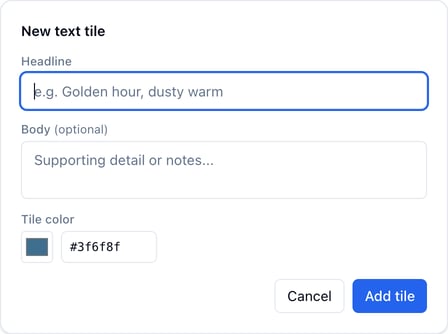
- Enter a Headline. Body text is optional.
- Set a Tile color, or leave it on the moodboard’s theme color.
- Click Add tile.
Work across pages
A freeform moodboard holds up to 50 pages. Each page exports as one sheet of the PDF, so a costume board can run a page per look and a location board a page per room.- Click Add page in the Pages bar.
- Click Page 1, Page 2, and so on to move between pages. Arrow keys work once the page bar has focus.
- To move a tile, select it, click Move to page, and pick the destination.
- To delete the page you are on, click the trash button at the end of the Pages bar.

Reorder tiles in Grid
Drag any tile to a new position and release. The new order saves when you release.Remove a tile
- In Grid, hover the tile and click the X in its top-right corner.
- In Freeform, select the tile and click Remove.
Change the theme color
- Open the moodboard.
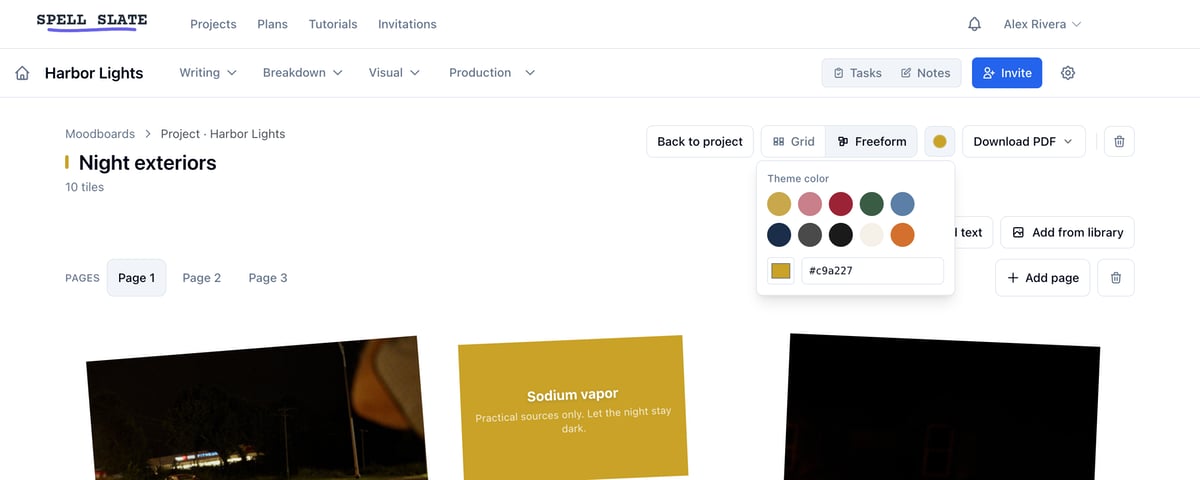
- Click Change theme color (the color circle) in the top-right header.
- Choose a preset swatch, or use the color picker and hex input.
Open a moodboard full screen
Click the moodboard card title or preview on the board. In Grid, tiles show in four columns on large screens, dropping to three, two, and one as the screen narrows. In Freeform, the canvas keeps its shape and scales as a whole, so tiles hold their positions relative to each other on any screen.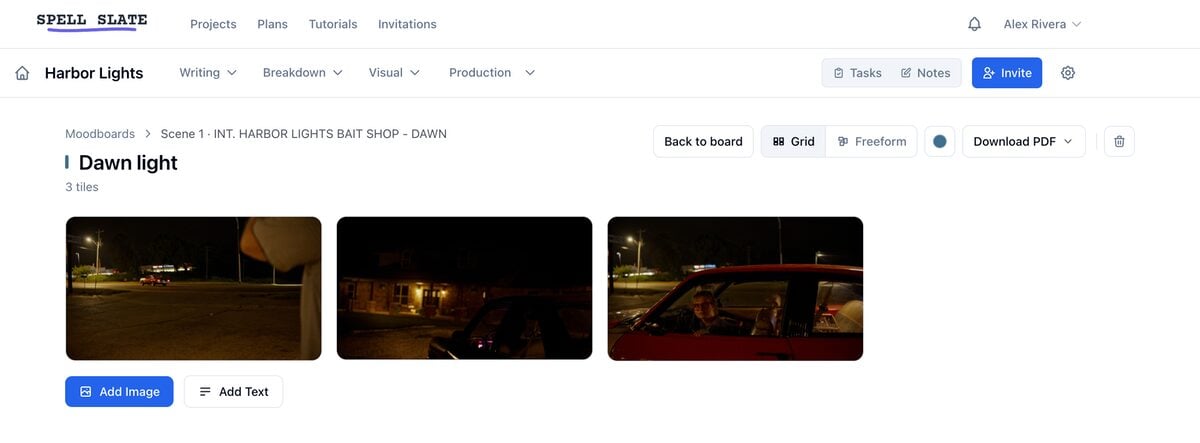
Find every moodboard in the project
Go to Visual → Moodboards. Each entry shows where the moodboard lives: “Scene 12 · INT. KITCHEN”, “Character · Elena”, “Wardrobe · Elena’s Act II Dress”, or “Project · My Film”. Click any entry to open it.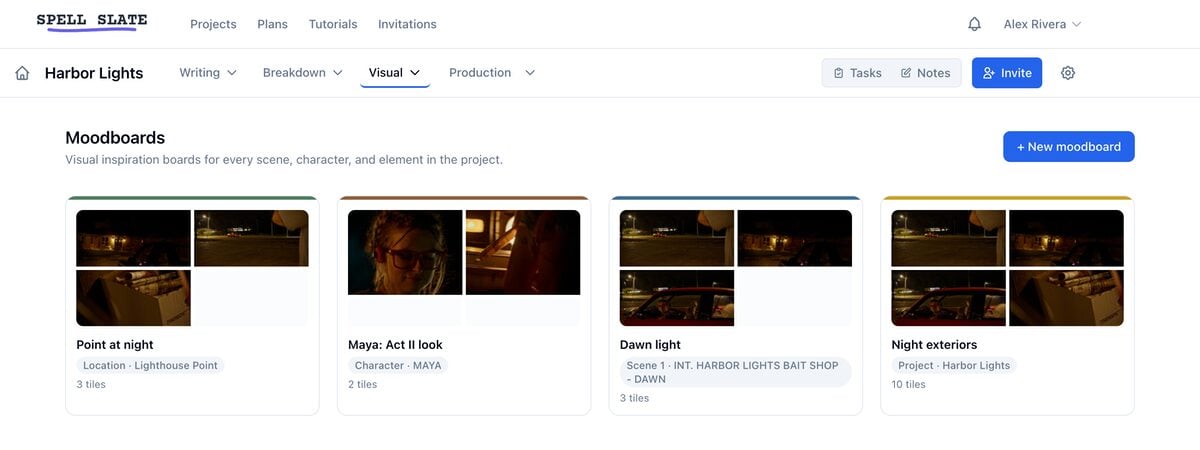
Export a PDF
- Open the moodboard.
- Click Download PDF, then Export PDF.
- Wait while the button reads “Exporting…”.
- The download starts on its own when the export finishes.
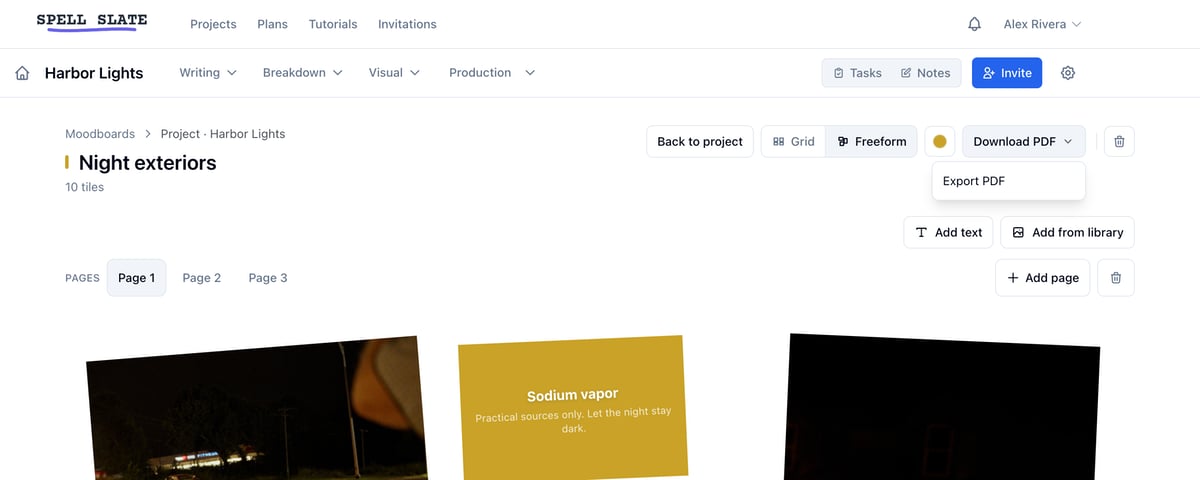
- Grid exports a title header, the context breadcrumb so the recipient knows which scene or character it came from, and a four-column layout. Image tiles keep their natural aspect ratio and render at higher detail for print.
- Freeform exports full-bleed landscape sheets matching what you arranged on screen, at the same sizes and angles, one sheet per page. Positions are stored as proportions of the canvas, so nothing is re-flowed to fit.
Related
- Lookbook: the full-project visual document, with scene pages, color bars, and shot lists.
- Media: the project image library. Images added through a moodboard appear here tagged as reference.
- Boards and cards: the board system moodboard cards live on.