

Line items and board sync
Who can do this: Free plan on your first project, Supporter on all projects. Editing lines, logging payments, and editing Cost / Budget cards needs the organization owner, an admin, or a member with Manage crew contacts. Members with View budget see everything read-only.The producer prices a prop on its board during prep. The line producer edits the same number on the budget during the shoot. Both are looking at one line, so neither has to copy the other’s work across. Where to find it: open Production and click Budget. Each line’s board is one click away through From in its details.
Edit a line
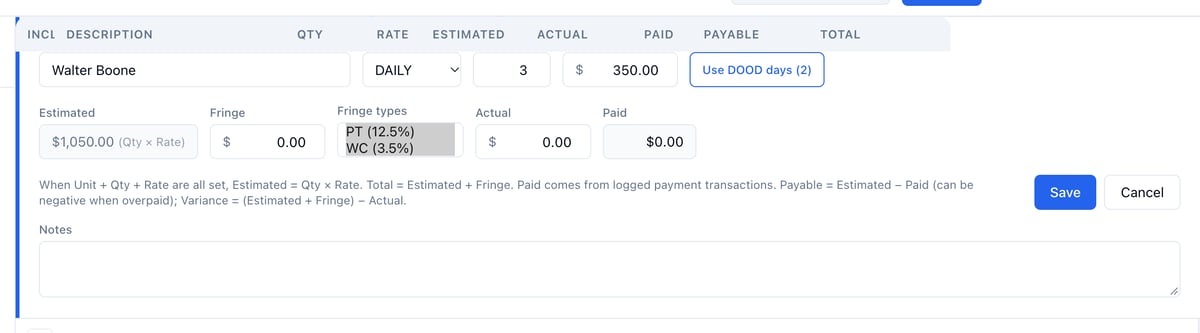
- Click the pencil at the right end of the line.
- Change any of Description, Unit, Qty, Rate, Fringe, Fringe types, Actual, and Notes.
- Click Save.
Let cast lines follow the schedule
A cast line’s Qty is the character’s work days on the Day Out of Days. Change the schedule and the quantity follows, until you type a number of your own.- Type your own Qty to pay through hold days or travel days. The line keeps your number and its details read “Qty typed by hand. DOOD has N work days.”
- Click Use DOOD days (N) in the edit form to go back to the schedule’s count.
- Rate and Unit are shared with the cast member record. Change either place and the other follows. Replacing the actor clears the rate so the next one starts fresh.
- Description is the actor’s name. Recast the role or fix a spelling on the cast page and the line follows on your next visit. Type a description of your own and the line keeps it, with “Description typed by hand” in its details. Click Use actor’s name in the edit form, or type the actor’s name, to let it follow again.
Example: paying Del through his hold day
Del shoots Saturday and Monday and is held on Sunday. The DOOD counts 2 work days, so his line reads Qty 2. Type 3 in Qty and save: the line now pays all three days, and its details note that the DOOD has 2 work days so nobody wonders where the third came from.Keep an element’s cost in step with its board
Every prop, vehicle, or other breakdown element has a Cost / Budget card on the Notes tab of its board. When the budget line was pulled from that element, the two stay in sync.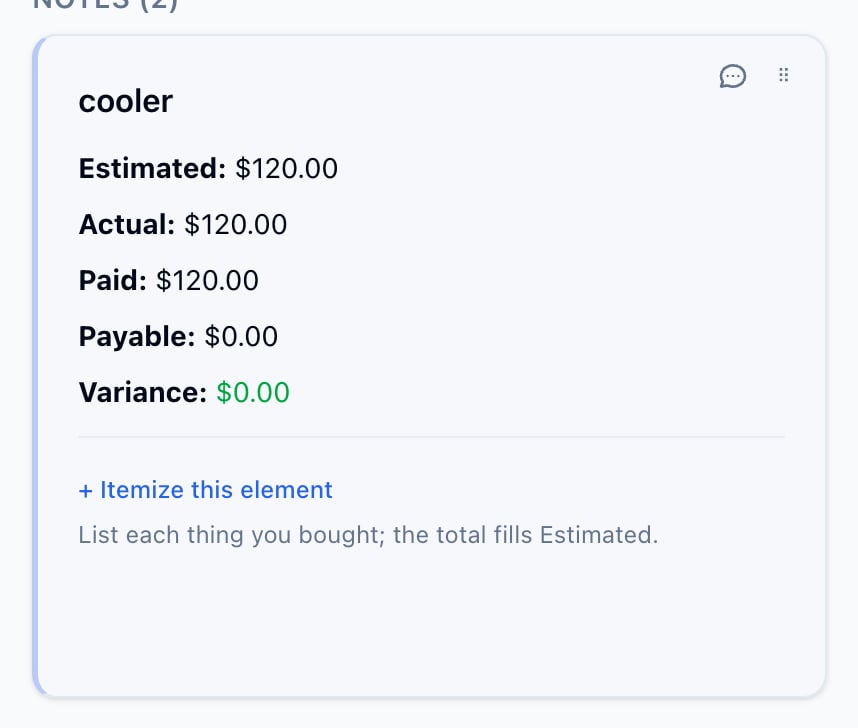
- Change Estimated or Actual on the card and the budget line updates.
- Change them on the line and the card updates.
- Paid comes from logged payments only, on both.
Itemize an element
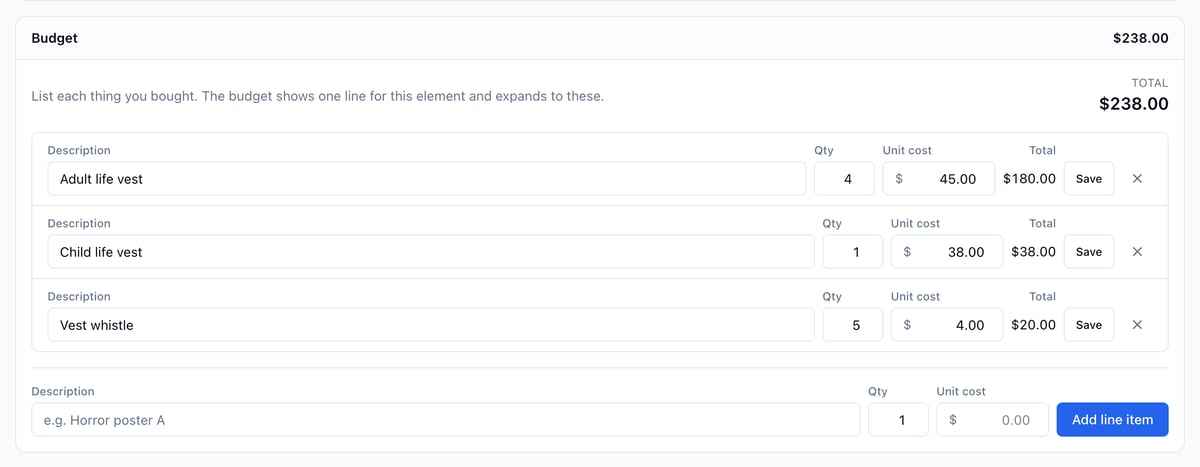
Some elements are several priced things. On the element’s Info tab, the Budget section lists them, and the budget shows one line that expands to each item.- On the element’s board, under Budget, fill in Description, Qty, and Unit cost.
- Click Add line item. Repeat for each thing.
Keep a location’s cost in step with its board
A location board has a Cost / Budget card with Rate, Unit, and Quantity as well as the amounts. Edit any of them on the card or on the linked budget line and the other side follows. The line keeps the location’s name.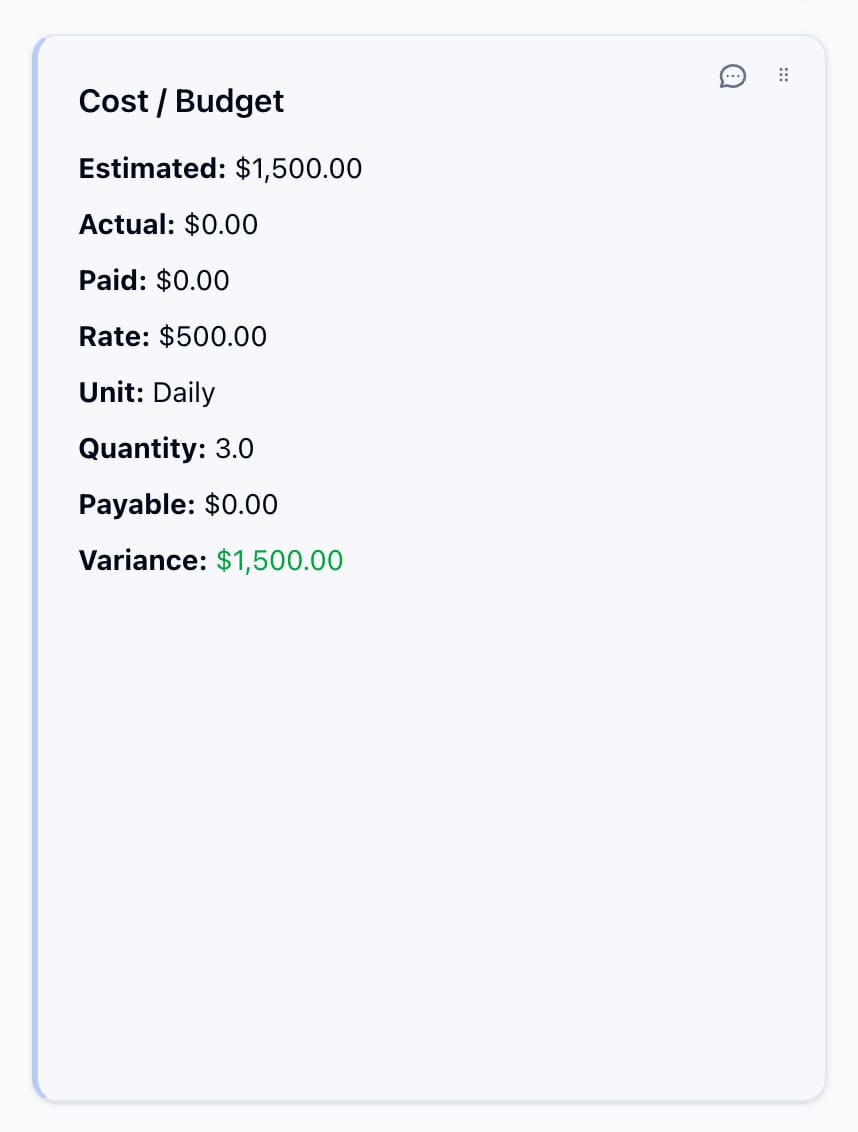
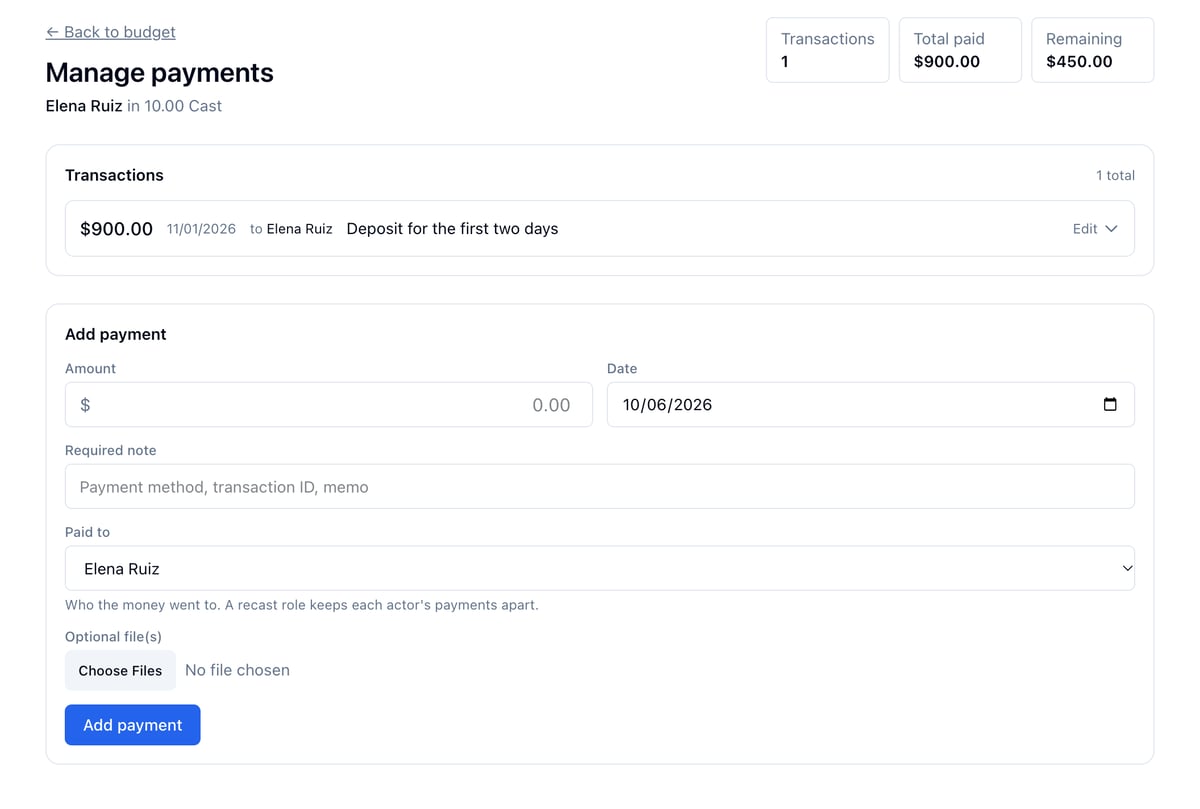
Log a payment
- Click the chevron next to the line’s description to open its details.
- Click Manage payments.
- Under Add payment, enter the Amount, Date, and a Required note. Attach files if you have them.
- Check Paid to. It defaults to the person the line pays today. Change it when the money went to someone else, such as the previous actor on a recast role.
- Click Add payment.
Unlink a line
Open the line’s details and click Unlink. The line keeps its values but stops following the board, and the board stops following it. An itemized element’s line cannot be unlinked, because its items own the numbers.