

Requests
Who can do this: Supporter plan. Sending needs the Edit call sheets permission (the organization owner, an admin, or a member who has it). Medical notes can only be requested and read by the owner and admins.Every production asks the same handful of questions before the first shoot day: can you make these dates, what size shirt, who do we call if something happens. A request sends one email with a personal link, the person answers on their phone, and the answer shows up on their page in Spell Slate instead of in a text thread. Where to find it: on the project home, click Ask cast & crew → in the Status Dashboard card. The same controls sit at the top of every cast member and address book contact page.
Ask one person for one thing
- On the Status Dashboard, pick the Cast or Crew tab and click Send request → next to the person.
- In the Status Dashboard section at the top of their page, open Ask for one thing.
- Pick the ask.
- Add a Personal note if you want one. It goes in the email.
- Click Send request.
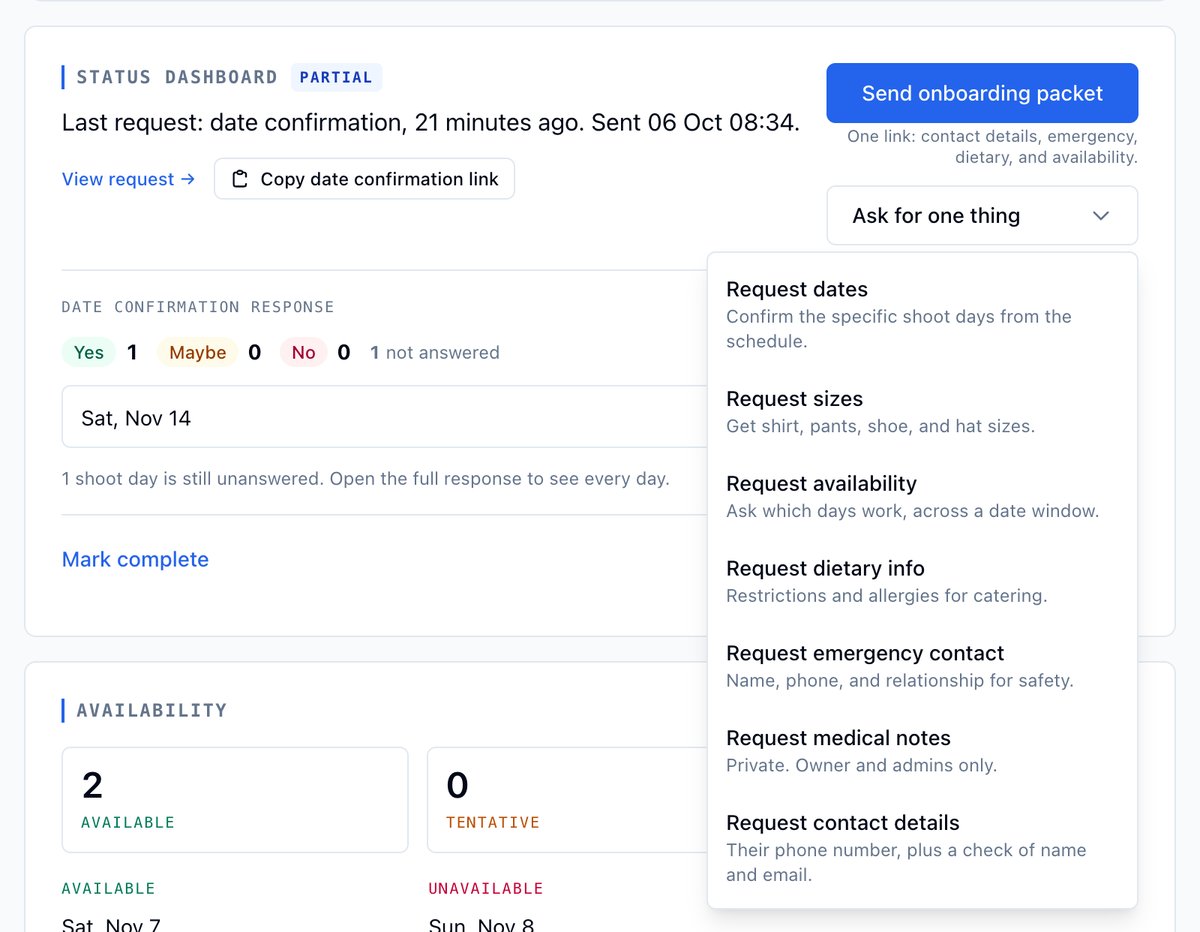
Sizes and shoot-date confirmation are cast-only.
Request shoot dates
- Open Ask for one thing and pick Request dates.
- Check the dates. They come from the approved schedule: every shoot day with one of the character’s scenes on it.
- Add a note and click Send request.
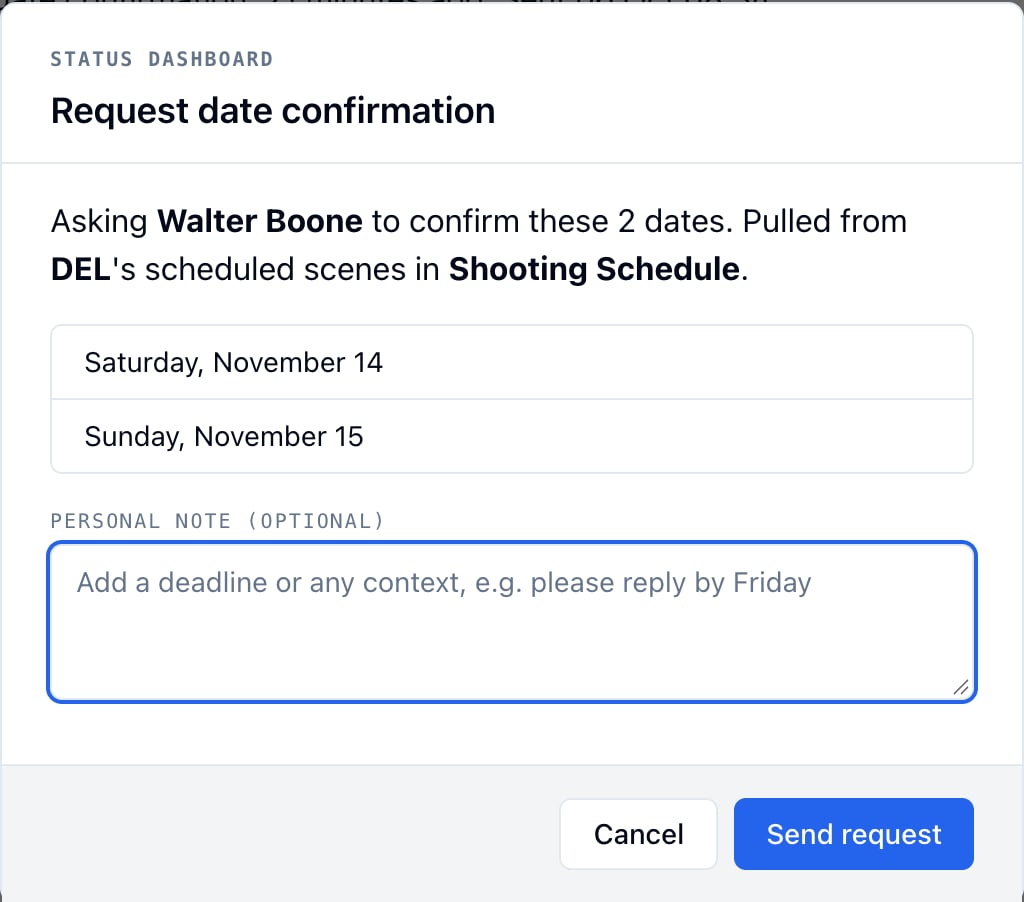
Example: Walter can only do one of two days
Walter plays Del, who shoots Saturday and Sunday. You send Request dates. He answers Yes for Saturday and leaves Sunday blank. His page shows Date confirmation response: Yes 1, 1 not answered, with the Saturday row, so you know to call him about Sunday before you lock the schedule.Request sizes
- Open Ask for one thing and pick Request sizes.
- Add a note and click Send request.
Request availability
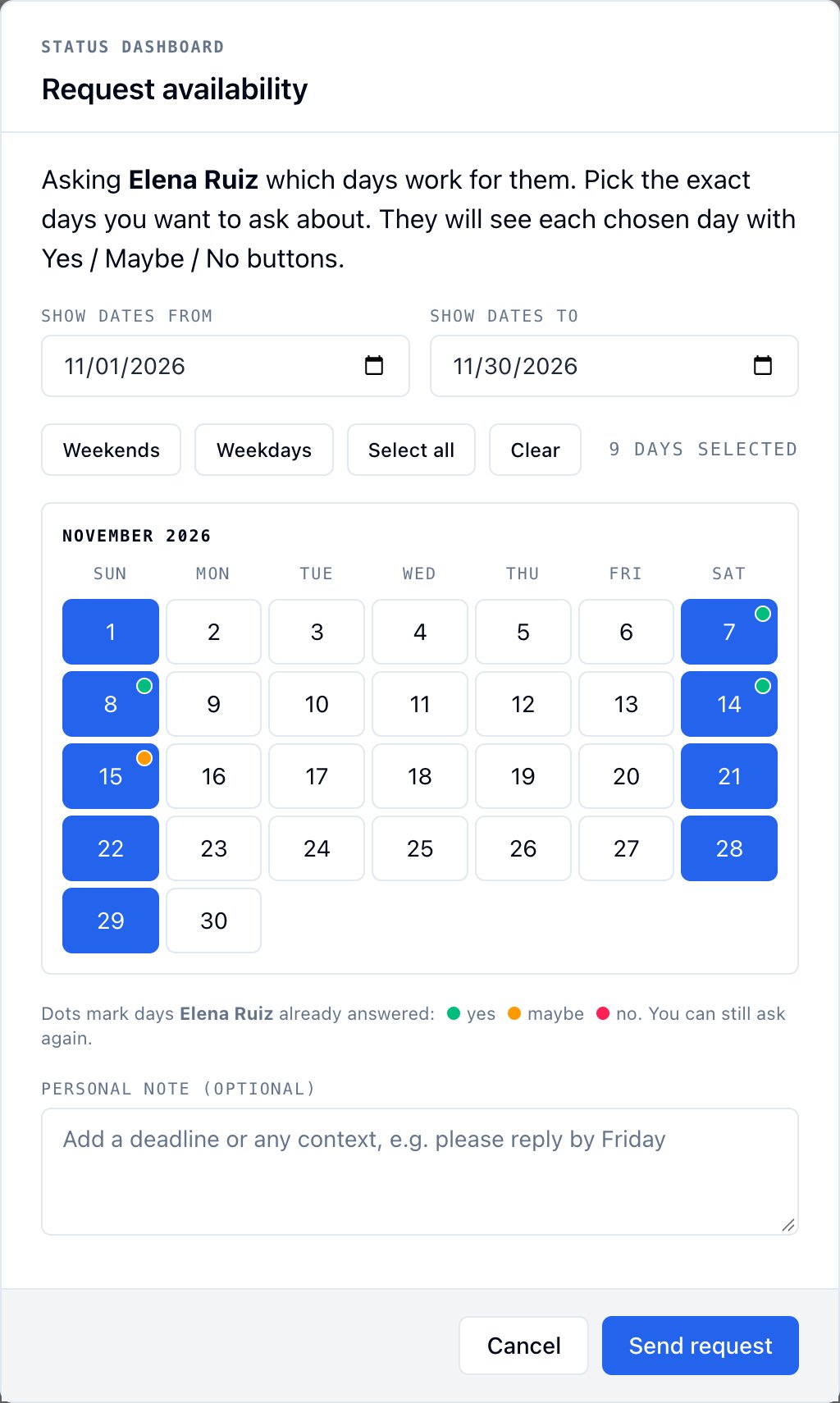
Use this before the schedule exists, when you want to know which days someone can work.- Open Ask for one thing and pick Request availability.
- Set Show dates from and Show dates to. This only frames the calendar, and the two dates can be up to 90 days apart.
- Click the days you want to ask about. Weekends, Weekdays, and Select all pick in one go, and Clear starts over.
- Add a note and click Send request.
Request contact details
Use this when you inherit a cast list with names and emails but no phone numbers, or when you want everyone to check their own details.One person
- Open Ask for one thing and pick Request contact details.
- Add a note and click Send request.
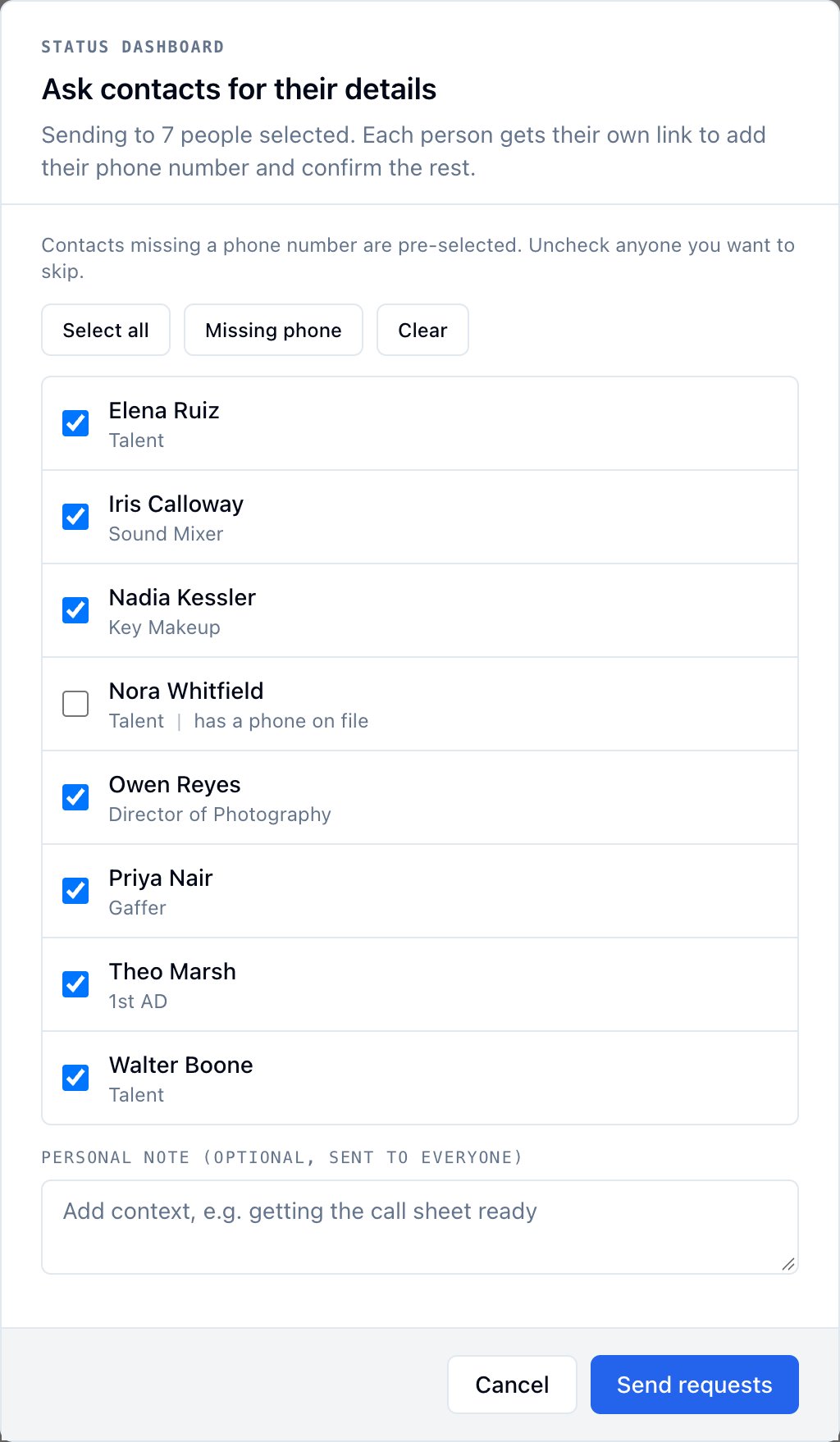
Everyone missing a phone number
- Open Production, then Address Book.
- Click Request contact details at the top of the page.
- Contacts with no phone on file are already checked. Uncheck anyone to skip, or use Select all, Missing phone, and Clear.
- Add a note and click Send requests.
Request dietary info, an emergency contact, or medical notes
- Open Ask for one thing and pick the ask.
- Add a note and click Send request.
Ask crew
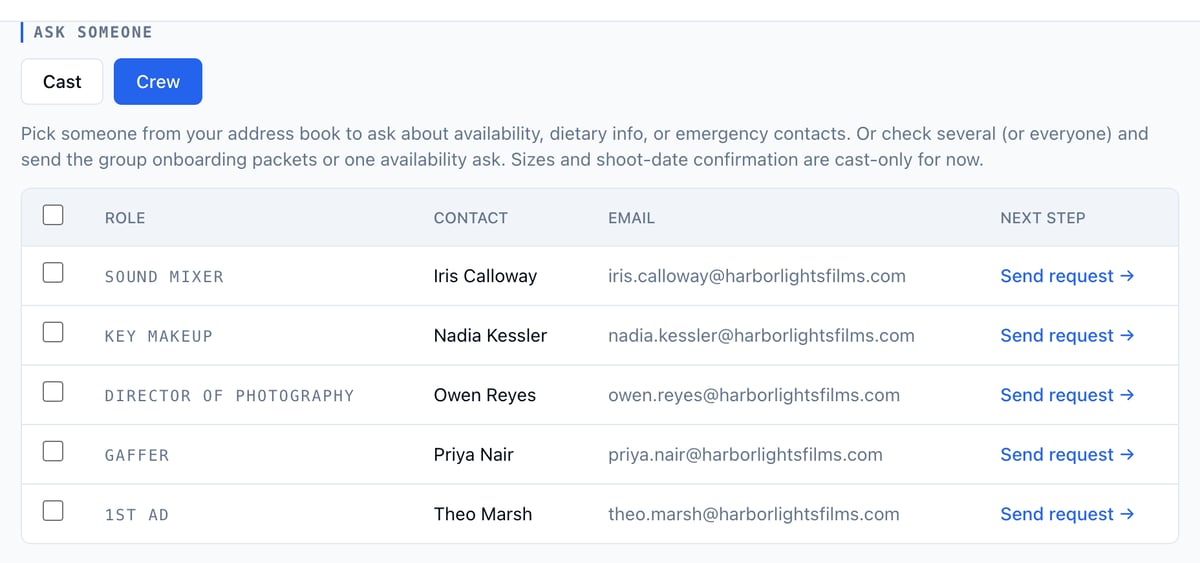
Crew requests go to people in your Address Book.- On the Status Dashboard, click Crew.
- Click Send request → next to the person. This opens their address book page.
- Open Ask for one thing and pick the ask.
Ask a group about availability
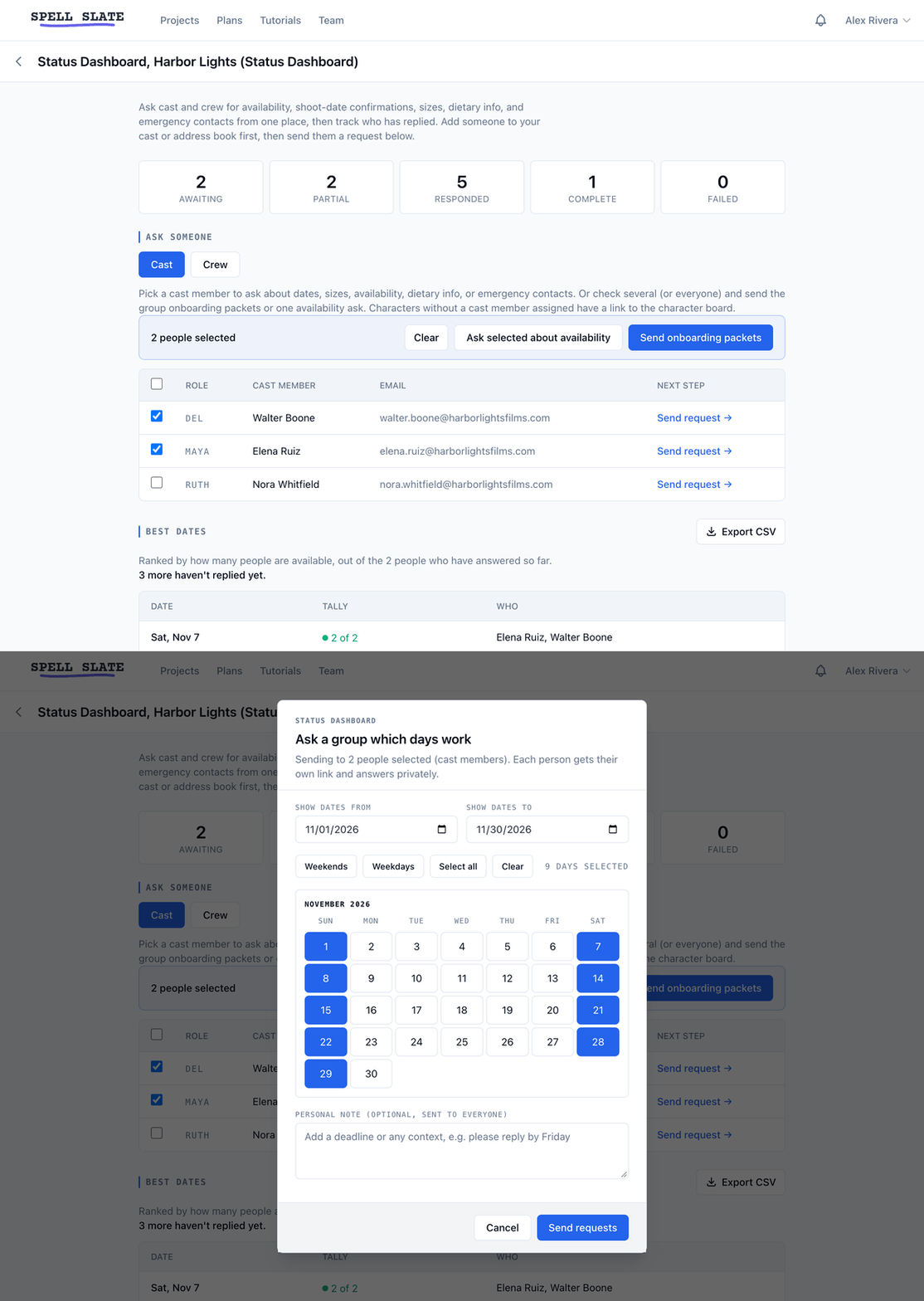
- On the Status Dashboard, pick Cast or Crew. A group is one or the other.
- Check the people to ask. The checkbox in the table header picks everyone with an email.
- Click Ask selected about availability in the bar that appears.
- Frame the calendar, pick the days, and add a note. Everyone gets the same note.
- Click Send requests.
Example: locking the marina weekends
You have two weekends on hold at the marina and three cast members to fit in. Check all three, click Ask selected about availability, pick both weekends, and add “Locking the marina weekends. Answer what you know, skip what you don’t.” The results grid fills in as they reply, and Best dates on the Status Dashboard ranks the four days by how many said yes.What the recipient sees
The email comes from you. Your name is on the From line and replies go to your inbox. The link opens a page styled like a slate, with the production title, their role, your note, and the form. They can come back to the same link any time to change an answer. The link does not expire.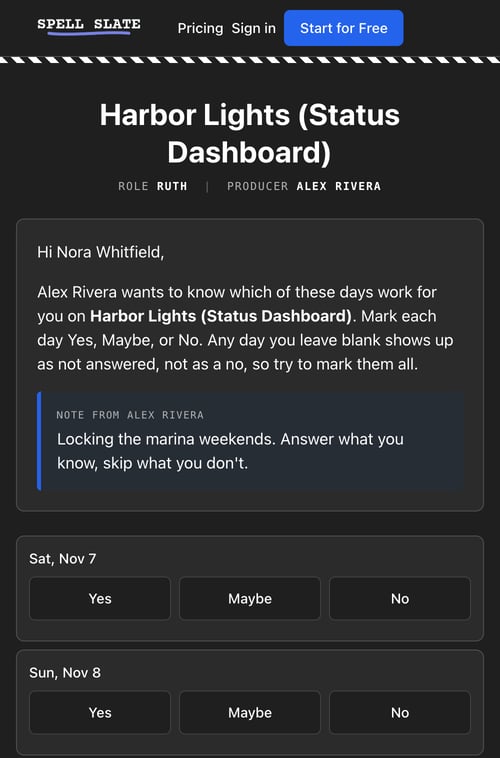
Send a reminder
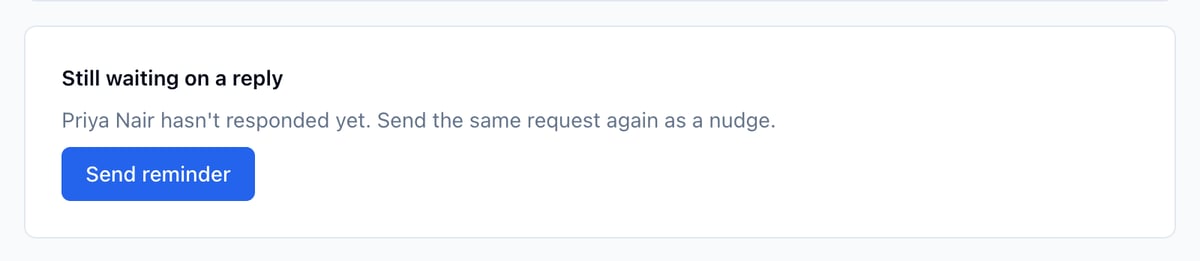
- Click View request → in the Status Dashboard section.
- Under Still waiting on a reply, click Send reminder.
If the email did not go out
A request marked Send failed never reached them. Send a fresh one from Ask for one thing.Related
- Status Dashboard, where replies, Best dates, and the group grid live
- Onboarding packet, several of these asks in one email
- Managing cast
- Managing crews
- Schedules, where the dates for a shoot-date request come from