

Status Dashboard
Who can do this: Supporter plan. Reading and managing requests needs the Edit call sheets permission (the organization owner, an admin, or a member who has it). Medical notes are visible to the owner and admins only.Once the asks are out, the question changes from “did I send it” to “where does everyone stand.” The Status Dashboard answers that in three places: a card on the project home, a section on each person’s page, and one page for the whole production. Where to find it: the Status Dashboard card on the project home. View all requests opens the full page.
Check the project home
The Status Dashboard card on the project home shows how many requests are Awaiting, Responded, and Complete, and the most recent activity with a status badge per person.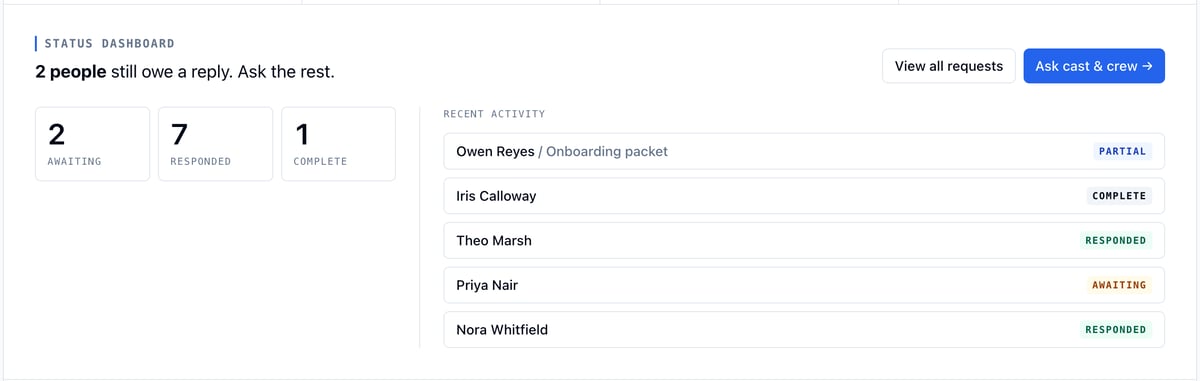
- Click View all requests to open the full page.
- Click Ask cast & crew → to send something new. See Requests.
Open the Status Dashboard
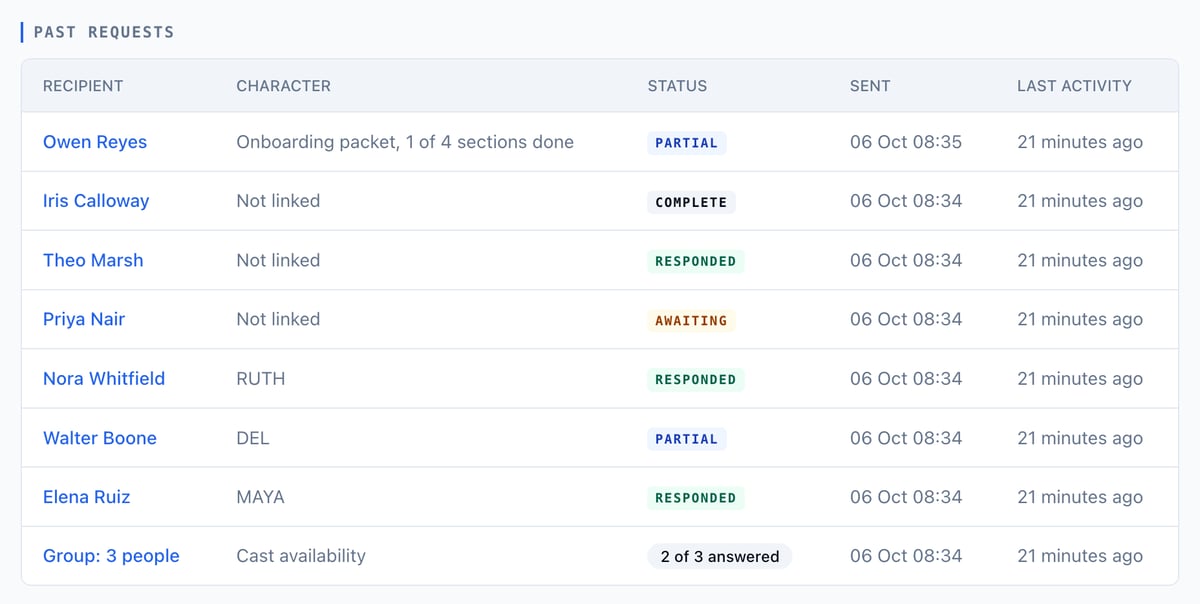
The page has four parts, top to bottom: counts, the Ask someone roster, Best dates, and Past requests.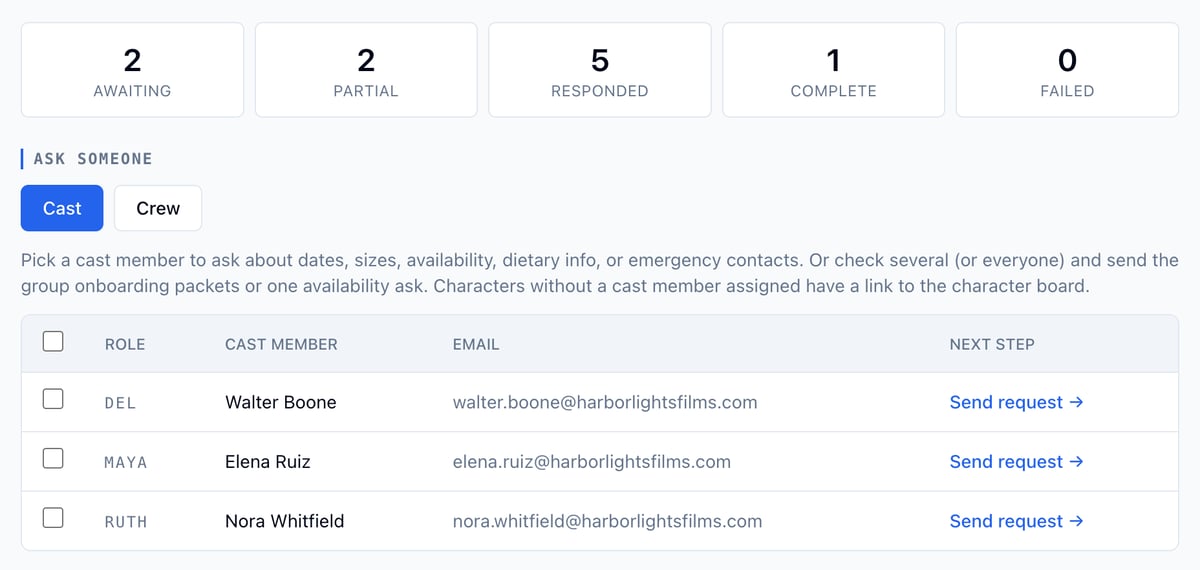
Read a reply on their page
When someone answers, the Status Dashboard section on their cast member or address book page shows what they said. The badge changes at the same time.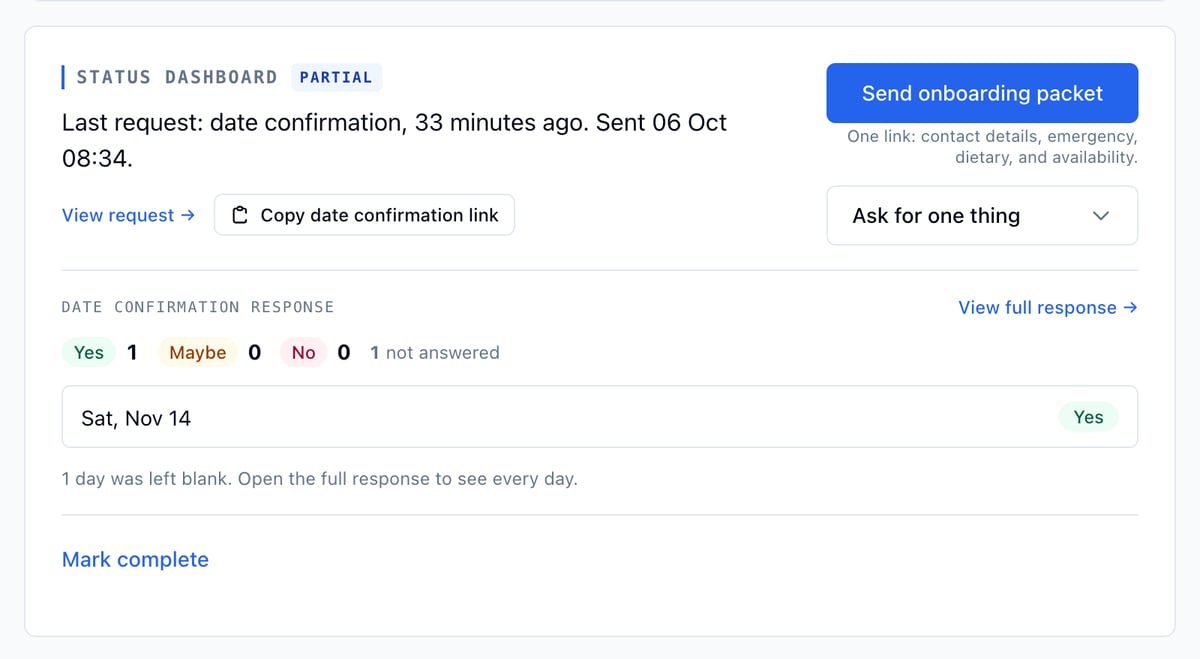
- Availability and shoot-date confirmation show a Yes, Maybe, and No tally and the days they marked. Days they skipped are counted as not answered.
- Sizes show the values they sent.
- Contact details, dietary info, and an emergency contact show the fields they filled in.
See everything one person has said about dates
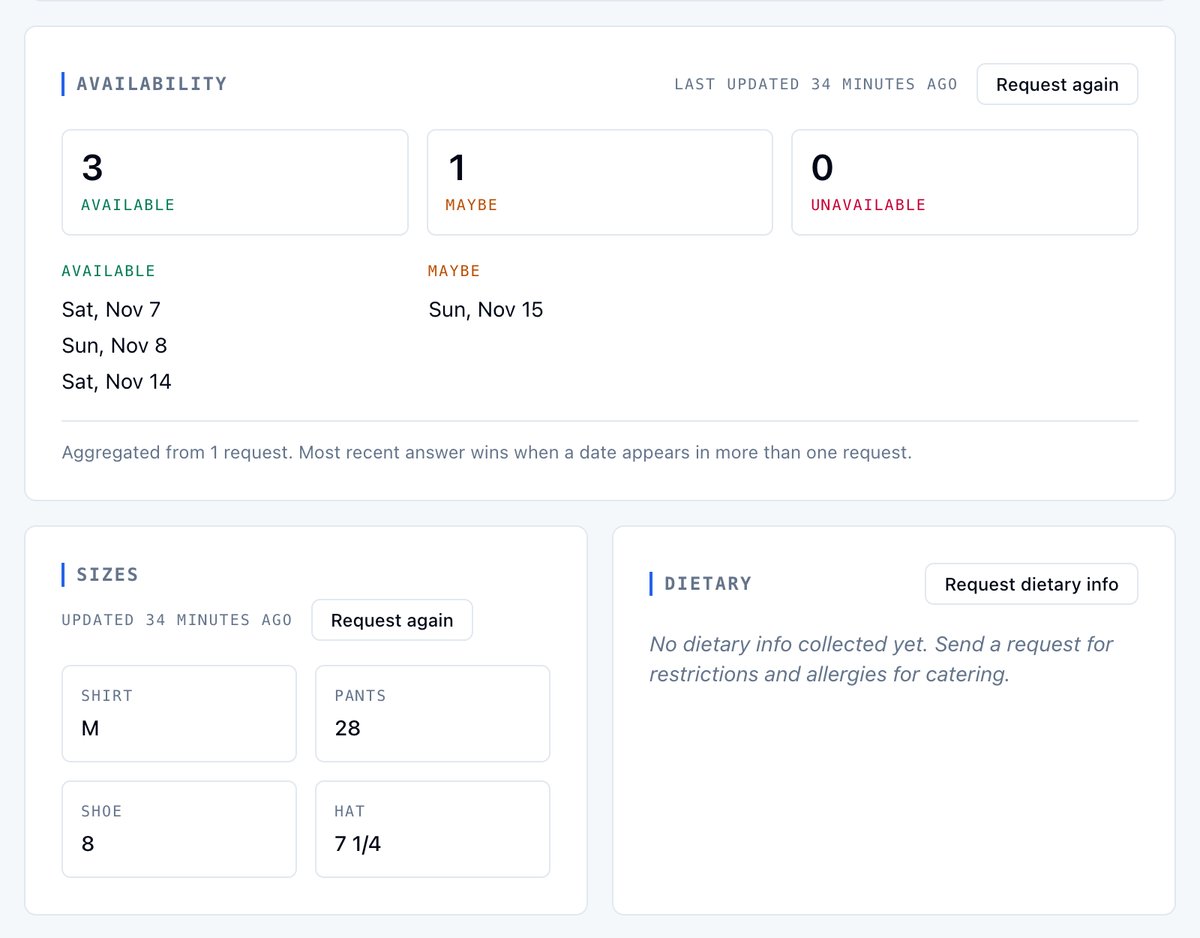
Below the Status Dashboard section, the Availability section folds together every availability and shoot-date answer this person has ever given, as Available, Maybe, and Unavailable counts with the dates under each.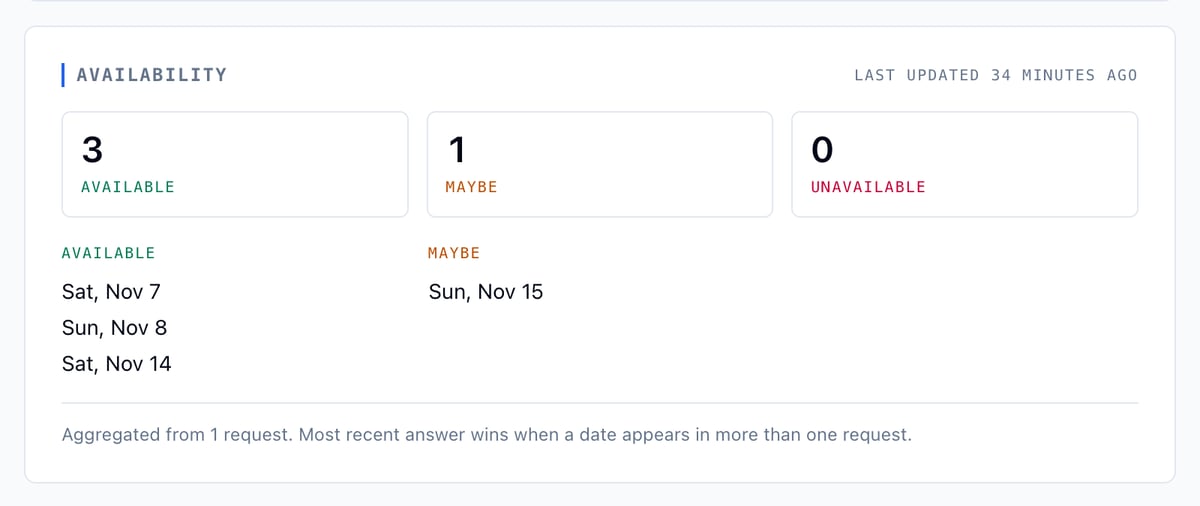
Example: picking the pickup day
You need one more day with Elena for pickups. Open MAYA’s board. Available lists Sat, Nov 7, Sun, Nov 8, and Sat, Nov 14, and Maybe lists Sun, Nov 15. Nov 7 is clear, so you book it. If the day you wanted is missing from every list, nobody has asked her about it yet, so click Request again.Open the full response
The request page shows everything about one request: who it went to, who sent it and when, the note you included, and every answer.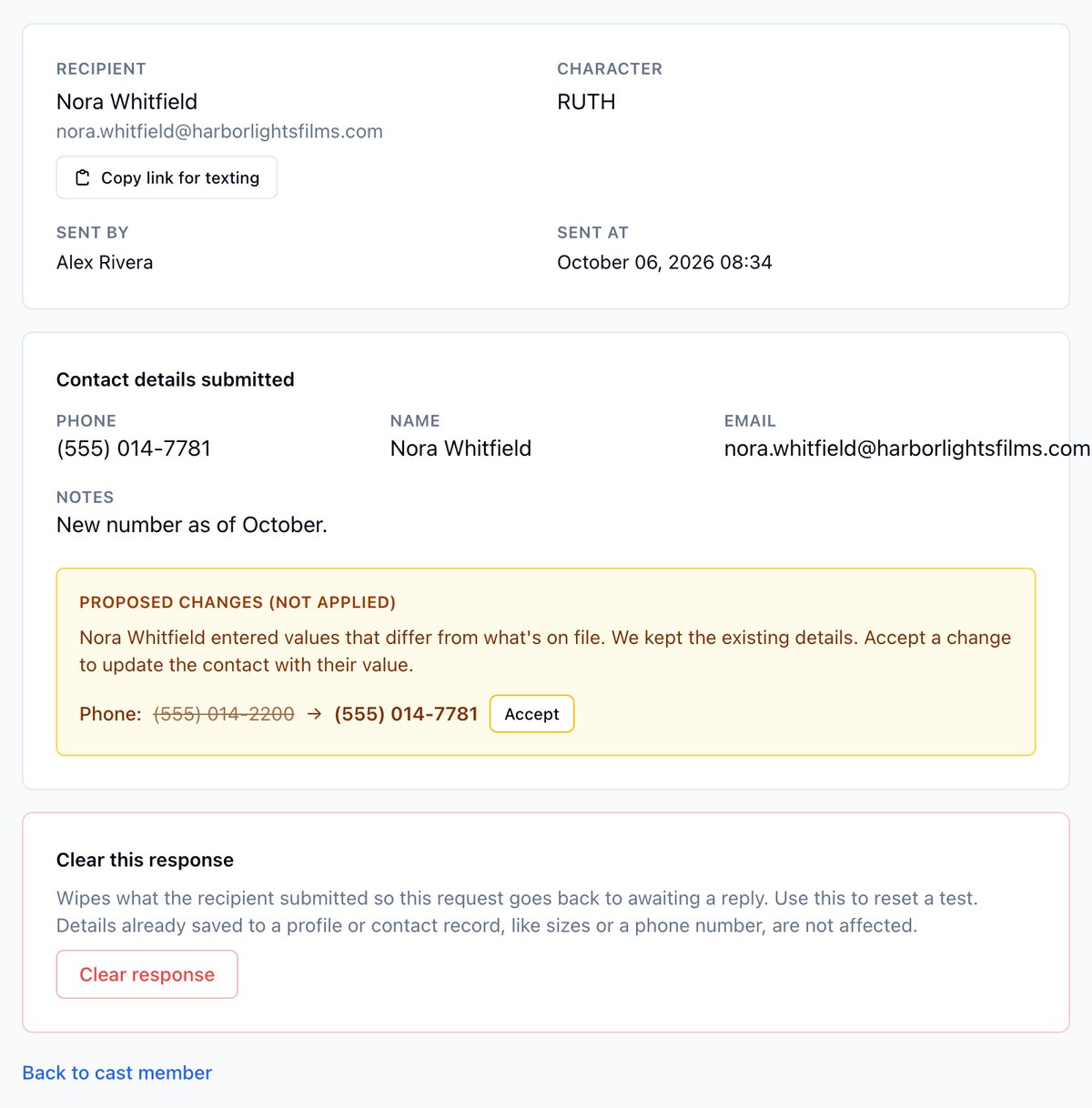
- For dates, every day you asked about is listed, including the ones marked Not answered.
- For contact details, a value that differs from what you had on file shows under Proposed changes (not applied). Click Accept to update the contact with it. Nothing on file is overwritten until you do.
- Copy link for texting copies their personal link so you can text it to them.
Find the day most people can work
Best dates on the Status Dashboard lists every date anyone has answered, ranked by how many are available, with the names. It appears once at least one person has replied.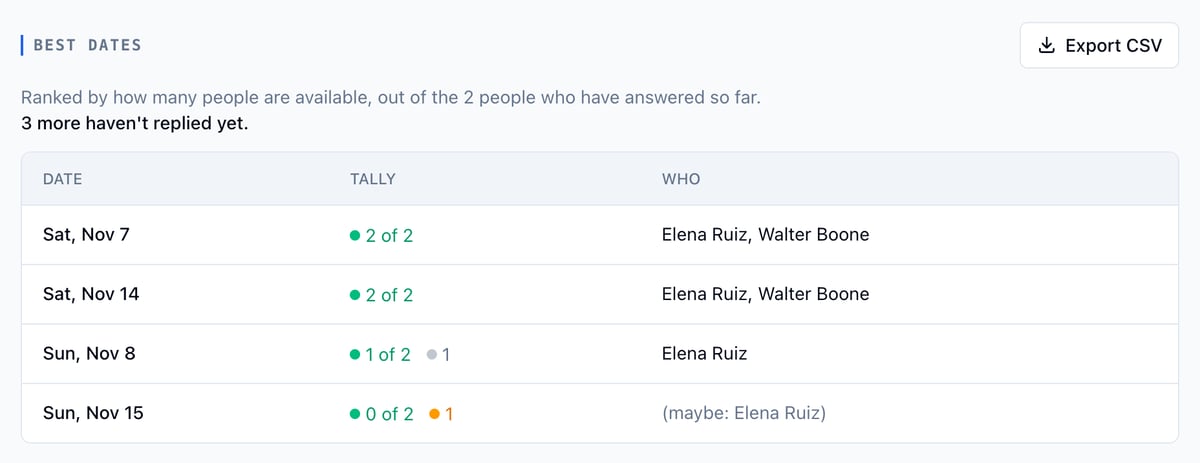
Track a group
A group request has its own page: one row per person, one column per day. A dash means they have not answered that day yet. Click a name to open their individual request.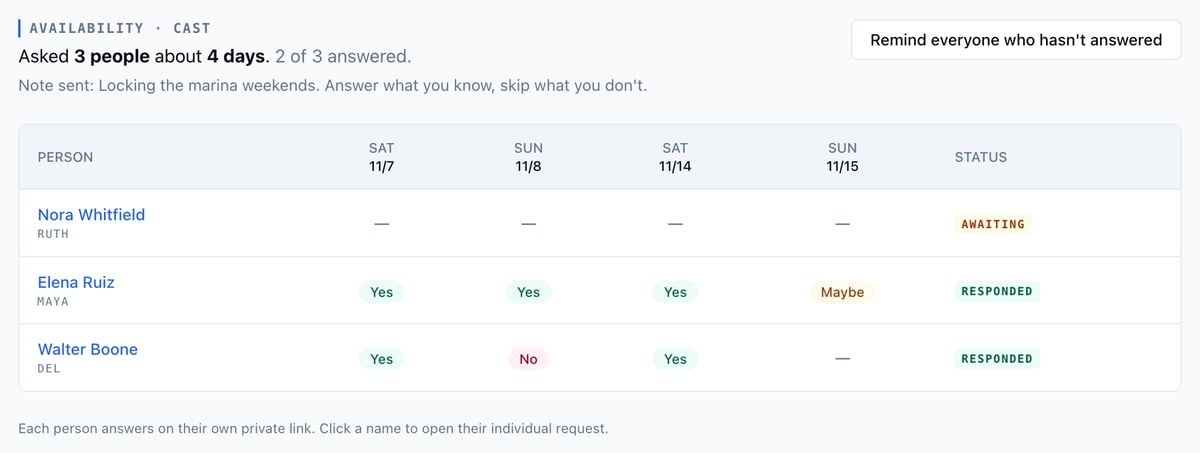
Statuses
A request does not stay Queued on its own. If one sits there for more than a minute, reach out to support.
Mark a request complete by hand
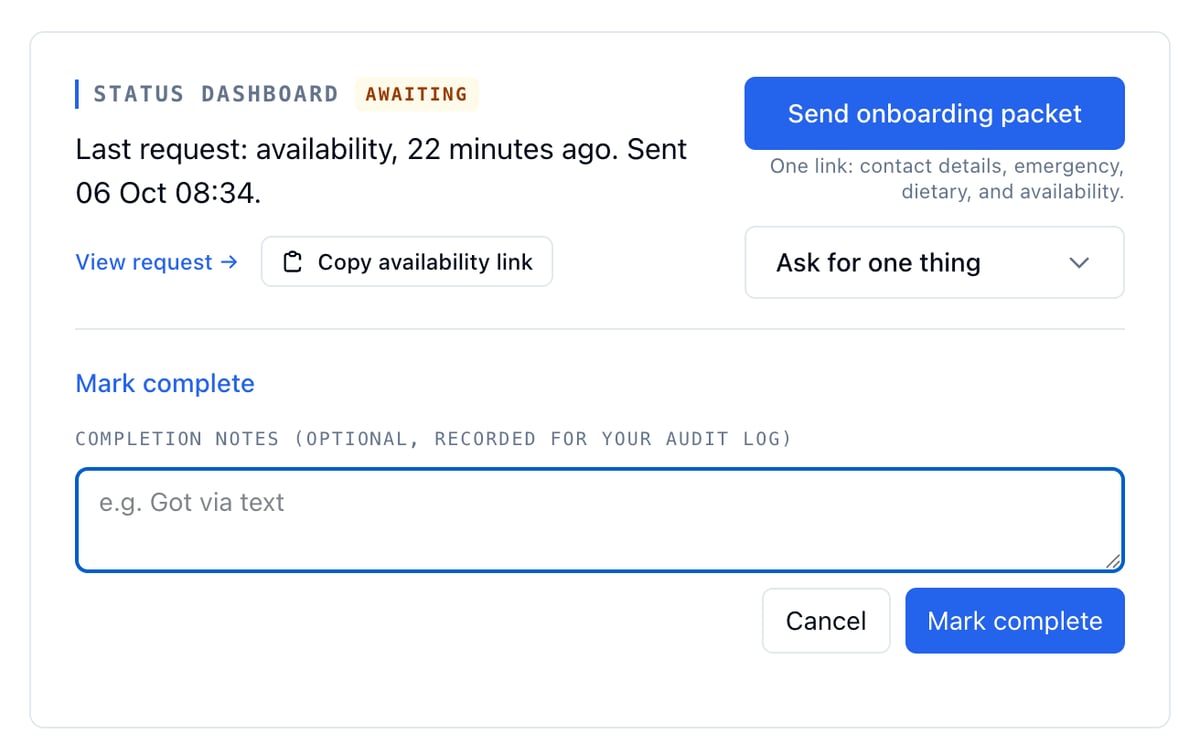
If someone replies by text or in person instead of using the link, close the request yourself.- In the Status Dashboard section on their page, click Mark complete.
- Add a note such as “Got via text”.
- Click Mark complete.
Clear a test response
If you answered your own request to see how it looks, open the request page and click Clear response. Their answer is wiped and the request goes back to Awaiting. Anything already saved to a profile or contact, such as sizes or a phone number, stays.Related
- Requests, how to send each ask
- Onboarding packet, one link for a new person’s setup
- Managing cast
- Managing crews
- Call sheets