

Onboarding packet
Who can do this: Supporter plan. Sending needs the Edit call sheets permission (the organization owner, an admin, or a member who has it). The medical section can only be included and read by the owner and admins.A new crew member gets the same four questions from every production. The packet puts them in one email with one link. They fill the sections on their phone, each one saves on its own, and you watch it as a single row instead of four. Where to find it: the Send onboarding packet button in the Status Dashboard section at the top of any cast member or address book contact page.
Send a packet
- Open the cast member or contact page.
- Click Send onboarding packet.
- Under What to ask for, uncheck anything you do not need. Anything medical we should know starts unchecked.
- If availability is included, set the Availability window.
- Add a Personal note and click Send packet.
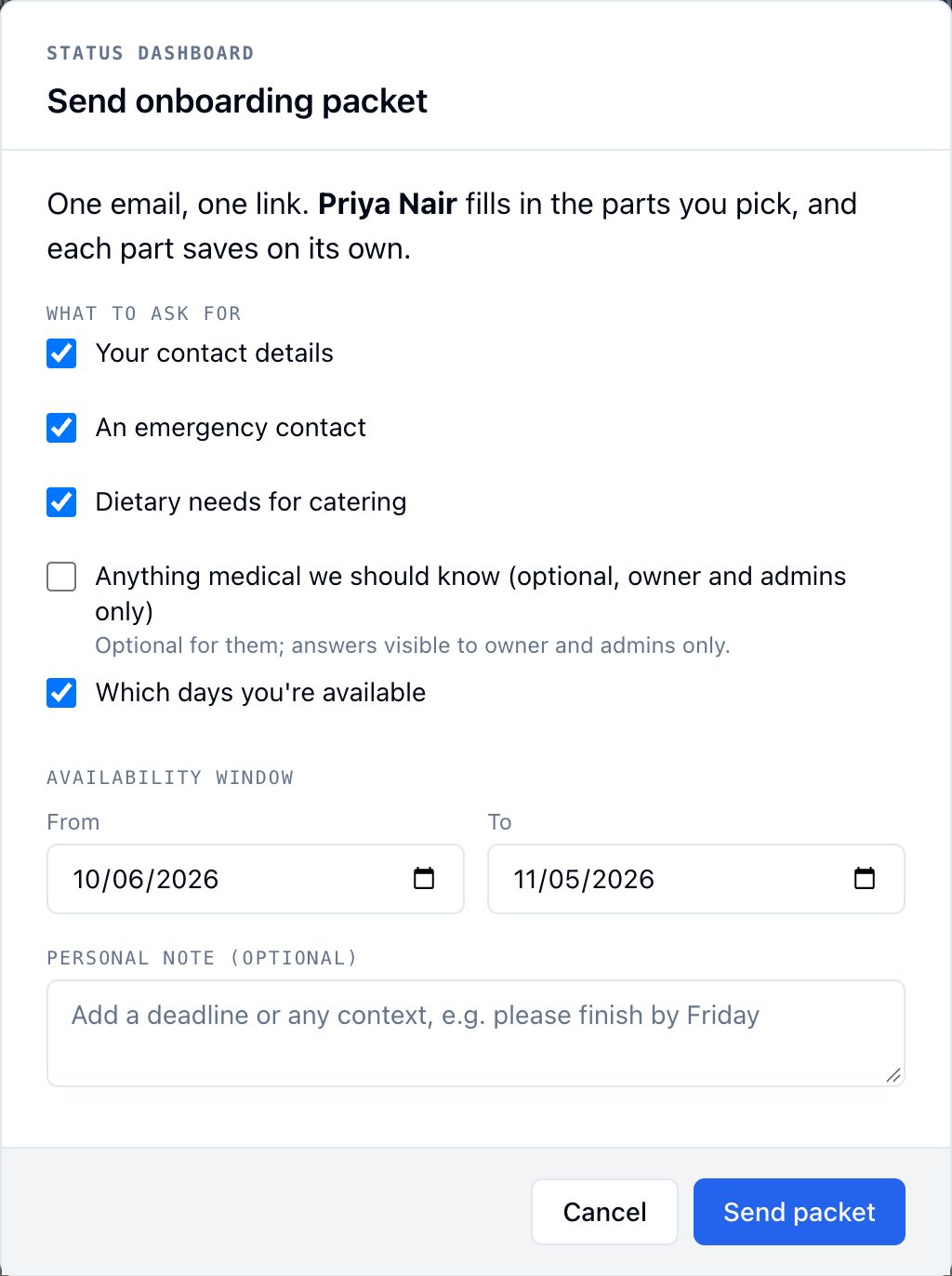
Every answer lands where the single ask would put it: contact fields on their contact, dietary and emergency info on their page, and availability in the Availability section and in Best dates.
Send packets to a group
- On the Status Dashboard, pick the Cast or Crew tab. A group is one or the other.
- Check the people to send to. The checkbox in the table header picks everyone with an email.
- Click Send onboarding packets in the bar that appears.
- Pick the sections, set the window if availability is included, and add a note.
- Click Send packets.
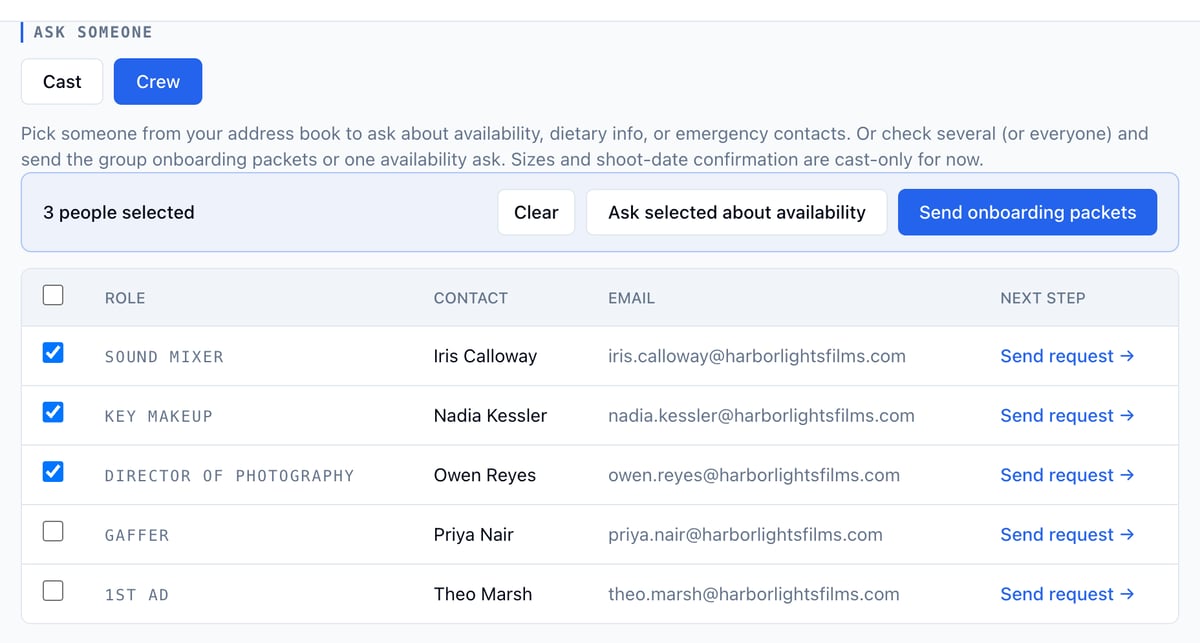
Example: a new camera department
Owen, Priya, and Iris are joining for the second block. On the Crew tab, check all three and click Send onboarding packets. Keep every section checked, set the window to the shoot weeks, and add “Welcome aboard. Five minutes on your phone gets us everything we need before the shoot.” One row on the Status Dashboard tracks all three, and each name opens their packet.If they already have an open request
Sending a packet folds in any open single ask of the same kind.- An open contact details, emergency contact, dietary, or medical ask moves into the packet with its answers and status. The old email link still works and opens the packet.
- An open availability ask with the same window moves in the same way. One with a different, overlapping window is skipped and you are told. A separate window stays its own request.
- Skipped sections are listed when you send, so nothing disappears quietly.
What the recipient sees
One email with one link. The page is a single scrolling form with a sticky 1 of 4 done counter. Each section has its own save button, and saved sections collapse with a check. They can leave and come back on the same link, and change any answer later.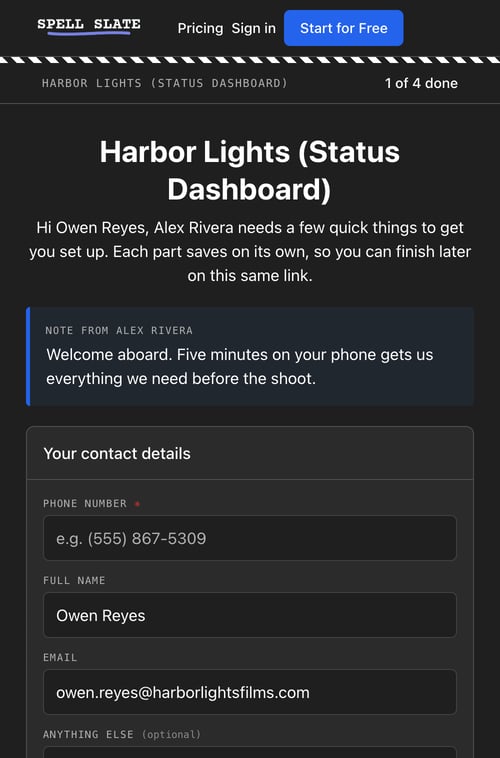
Track a packet
The packet is one row in Past requests on the Status Dashboard and one entry in the project home card. The row says how many sections are done and carries a badge:- Awaiting until they save the first section.
- Partial once any section is saved.
- Responded once every required section is done. Medical notes are optional and never hold this up.
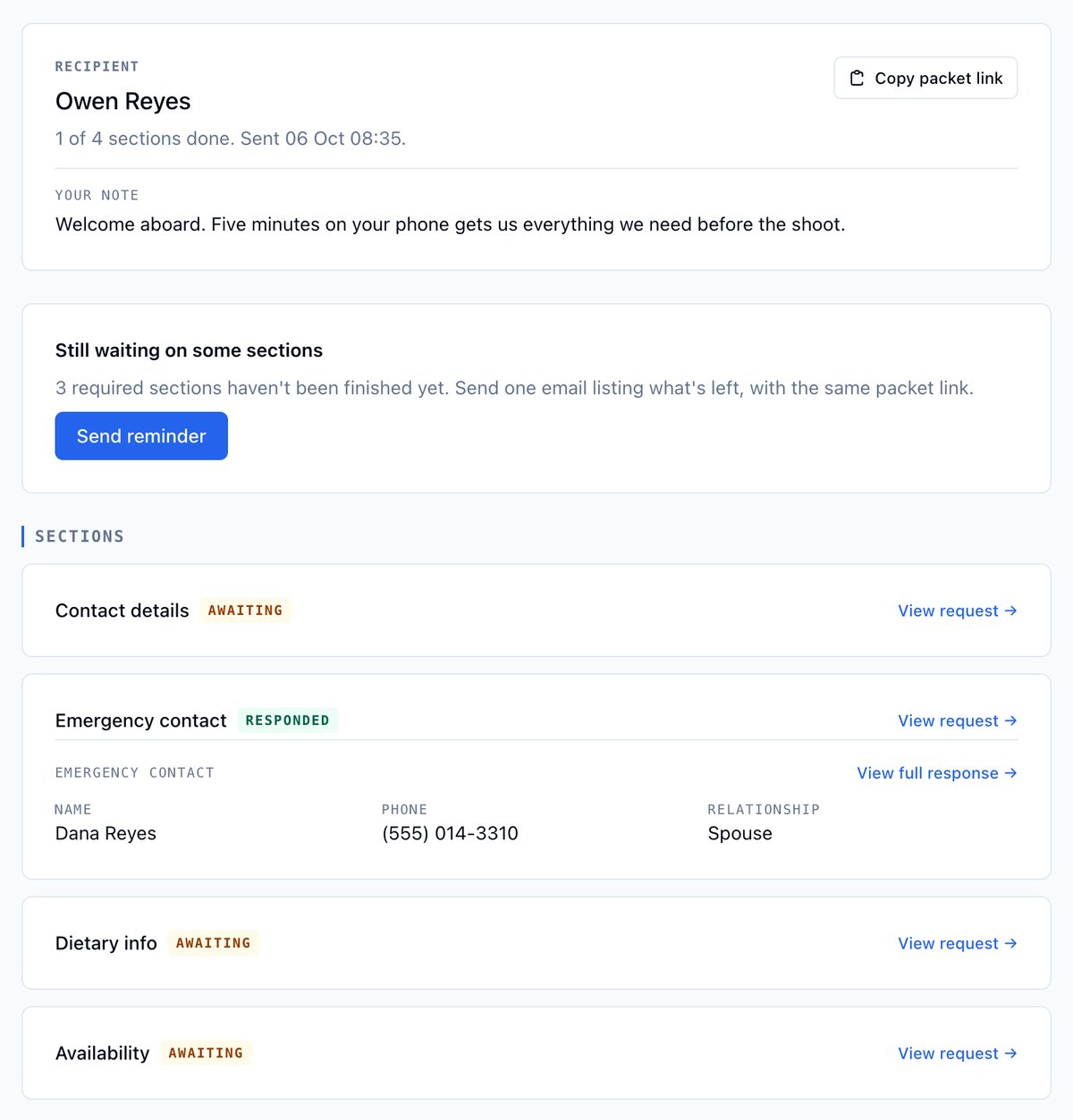
- Each section shows its own status and its answers so far, with View request → for the full response.
- Copy packet link copies their link so you can text it.
- Send reminder emails them once, listing only what is left, with the same link. It shows while required sections are unfinished.
Medical privacy
The medical section works like the standalone medical ask. Only the production owner and admins can include it, see that it exists, or read the answer. Other team members see the packet without it, and the section counts leave it out so nothing hints at it. It is always optional for the recipient.Limitations
- Group sends are one audience at a time, all cast or all crew.
- Sizes and shoot-date confirmation stay single asks. See Requests.
- Email only for now.
Related
- Status Dashboard, where the packet row lives
- Requests, the single asks a packet bundles
- Managing cast
- Managing crews