

Upload a new version
Who can do this: All plans. Uploading needs permission to edit the script.Revised pages land mid-prep. Upload the new draft and it becomes the live script, with every earlier version a click away.
Upload revised pages
- Open your script from the Writing menu.
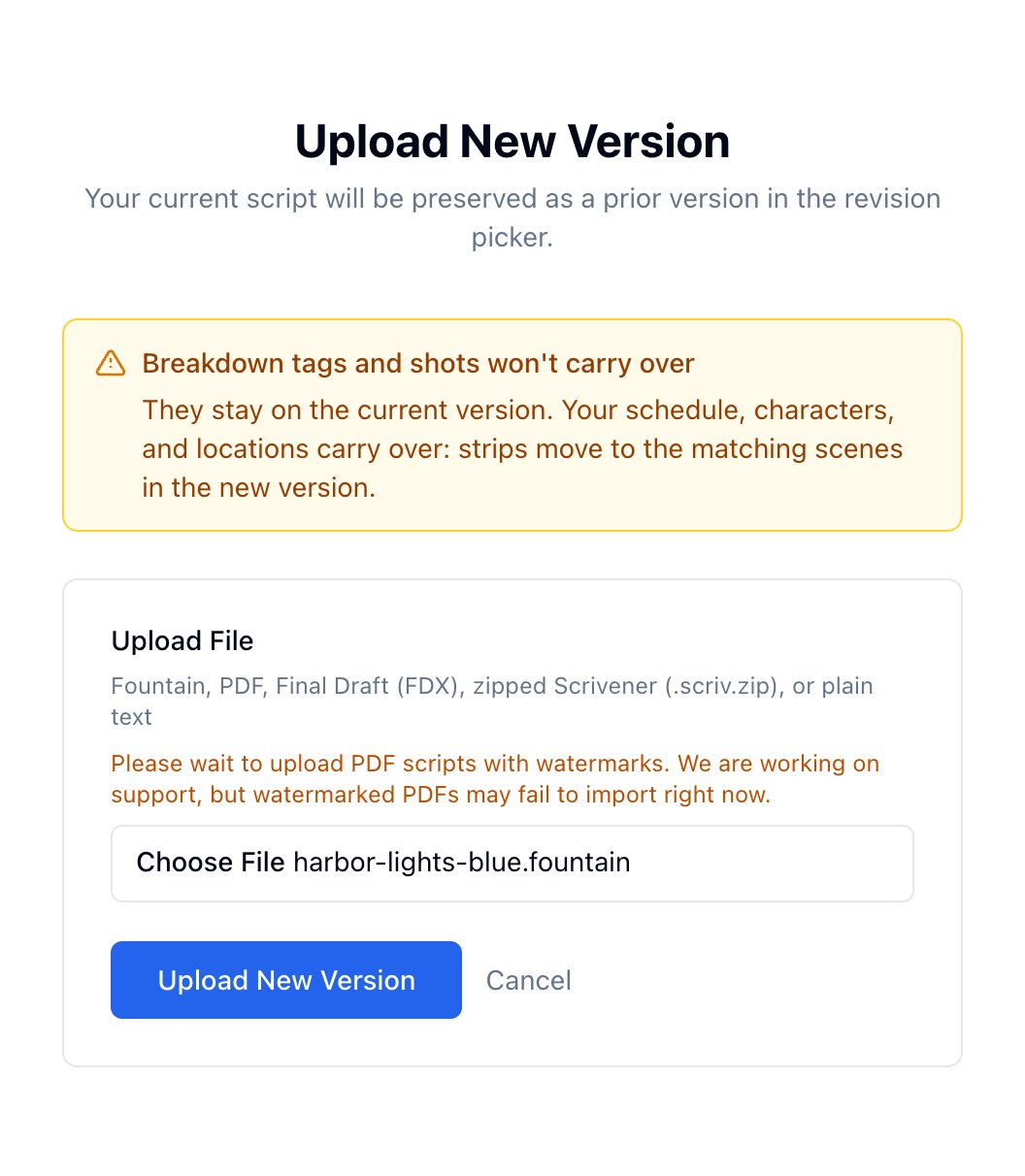
- Open Versions in the row above the script and click Upload New Version.

- Click Choose File and pick the revised script.
- Click Upload New Version.

What carries over
- Your schedule. Strips move to the matching scenes in the new version and keep their days and times. New scenes join the schedule, strips for cut scenes are removed, and scenes in the Boneyard stay there.
- Characters and locations. Ones the new draft no longer mentions are removed when nothing is attached to them.
- Breakdown tags and shots stay with the old version. Tag the new version’s scenes and add their shots again.
Look at an earlier version
- Click the revision badge next to Versions, for example Blue – 9/28/26.
- Pick a version.
