

Share a view-only script link
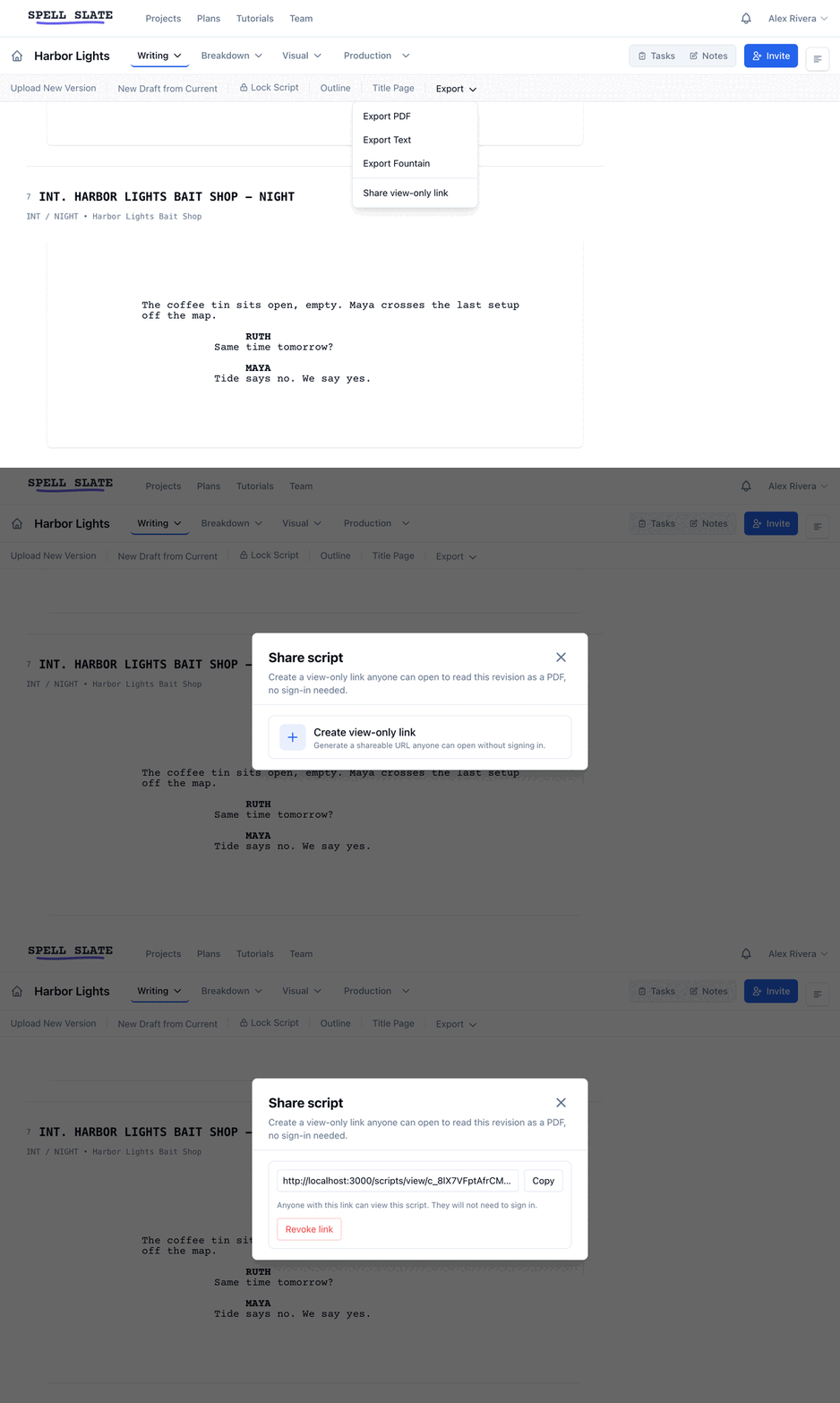
Who can do this: All plans. Creating and revoking a link requires the organization owner, an admin, or a member with script editing permission. Anyone with the link can read the script, no account needed.Texting a script PDF is a coin flip. The file gets compressed, the message app blocks it, or it lands on a phone that just shows a grey box. A share link fixes that: the reader taps it and the script opens as a PDF in their browser. Where to find it: open the Writing menu, click Script, then open the Export menu in the header row above the script. Share view-only link is the last item. On a phone, Share sits next to Export PDF in the header.

Create the link
- Open the revision you want to share. If your project has more than one draft, pick it from the revision menu in the header row first.
- Open Export and click Share view-only link.
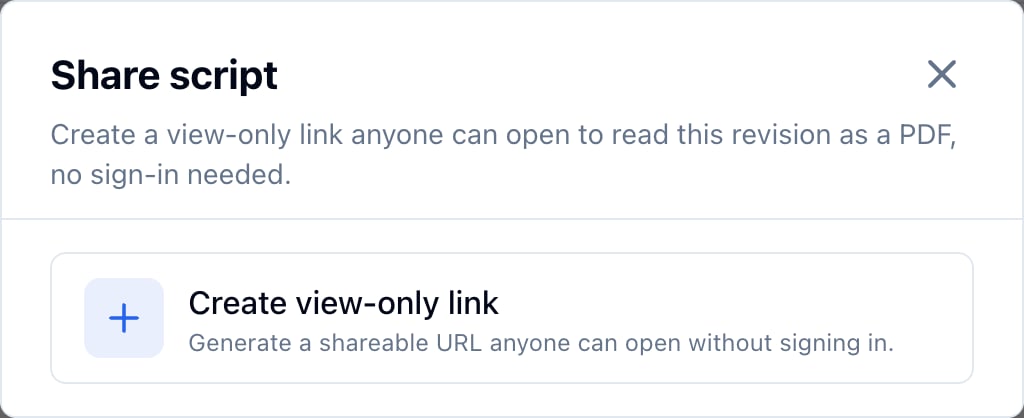
- Click Create view-only link.
What the reader sees
The link opens a page with the script title, the writer, and the revision, plus an Open PDF button. On a computer the PDF also appears right on the page. On a phone, tapping Open PDF opens it in the built-in PDF viewer so it scrolls and zooms like any other document.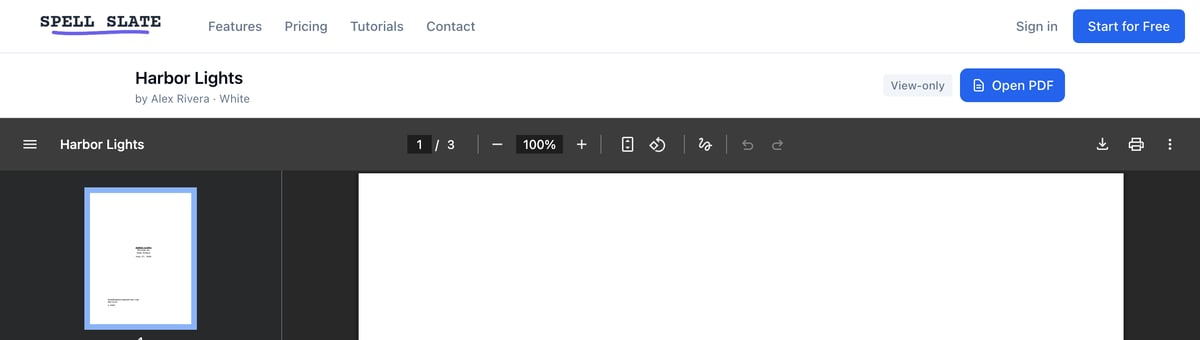
Scene numbers on a shared script
The page has a Show scene numbers checkbox next to Open PDF. It is off by default, so a reader giving notes gets a clean script. Someone reading for set, like your 1st AD, ticks it and every scene heading prints with its number, the same number as the stripboard and the call sheet. The choice is theirs, not yours: one link goes to everyone, and different readers want different things. Ticking the box puts the choice in the page address, so a reader can copy that address and send the numbered version straight to someone else. When you paste the link into Messages, Slack, or an email, the preview card shows your script’s title page, so the message reads as a script, not a website.Which draft the link shows
The link is tied to the revision you were viewing when you created it. Edits you make to that draft show up the next time the reader opens the link. Cutting a new draft does not change what an existing link shows. To put people on the new draft, open it and share it from its own header row.Revoke the link
- Open Export and click Share view-only link.
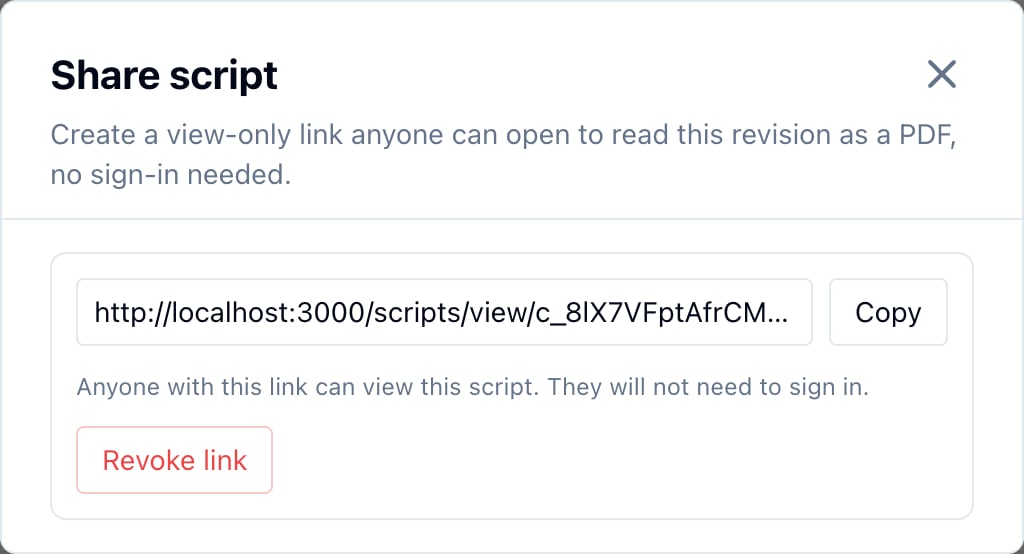
- Click Revoke link and confirm.
Related
- Download your script for PDF, Text, and Fountain exports
- Editing your title page sets the title and writer the link shows
- Locking the script when scene numbers need to stop moving