Times and pace

Who can do this: Free plan on your first project, Supporter on all projects. Changing times and the pace needs the Edit schedule permission.
Every strip on the board gets a time before anyone types one. The pace is where that time comes from, and you can set it to how fast your crew really shoots: by pages, or by the shots on your shot list. Open the stripboard under Production → Schedule. The times live in the Est. Time, Start Time and End Time columns; turn them on under Display if you don’t see them.

Open a strip’s details

  1. Click a strip’s set.
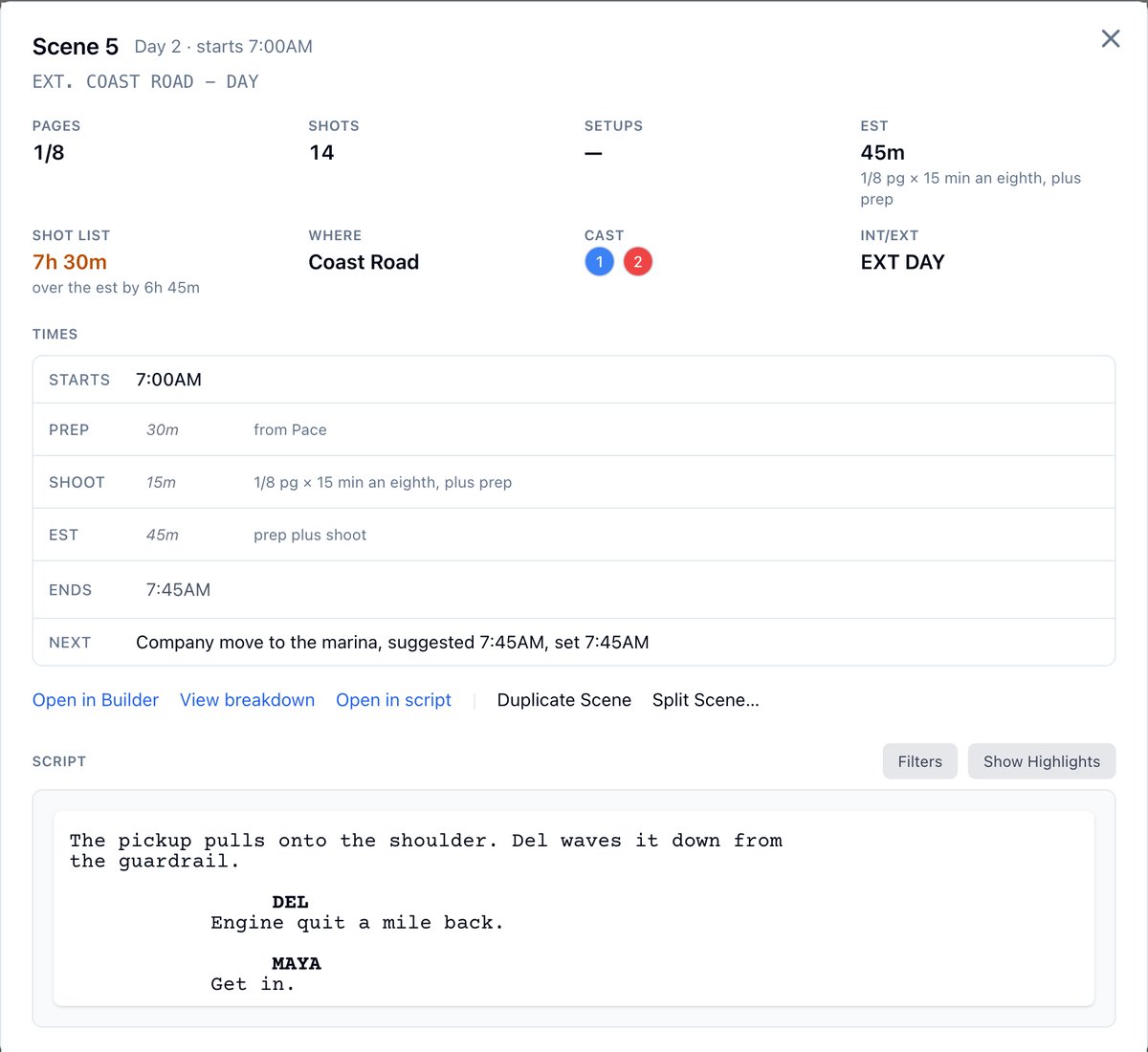
The strip opens with what its time stands on: pages, shots and setups, its est and what its shot list adds up to, where it shoots and who is in it. Under Times, every time says where it came from: typed on the strip, from pages at the pace, or from its shots. Scene 5's details: 1/8 page, 14 shots, Est 45m from pages, Shot list 7h 30m in amber, over the est by 6h 45m, then each time with where it came from and Next naming the company move Next names the strip or banner that follows and when it is suggested to start. A start that no longer matches is amber, with Recalculate times from here beside it. Click a time to change it, the same way as on the board. Open in Builder, View breakdown and Open in script take you to the scene.

Set start and end times

  1. Click a strip’s start or end time.
  2. Use the arrows or type the time. The editor shows the suggested time, from the strip before it and this strip’s length.
  3. Click Save.
Changing the coast road scene's start time, with Suggested: 7:00am above the hour and minute Saving a start time moves every later strip in the same day to follow it, so you can anchor one strip and let the rest of the day line up. A strip runs for its Est. Time, or its Prep Time plus Shoot Time. Turn those columns on under Display and click one to change it. A time that no longer matches its suggestion, after you reorder or change a length, gets an amber ring. Hover it to see the suggested time. Recalculate times from here in the strip menu lines up the rest of the day from any strip, after you confirm.

Set the pace

The pace is what a strip’s time starts from until you type one. Thirty minutes of prep and fifteen minutes an eighth of a page are the defaults. They’re the old rule of thumb, not your crew.
  1. Click the lightning bolt in the stripboard toolbar (Pace).
  2. Set A shot takes, setup included.
  3. Set Prep before a scene and An eighth of a page takes.
  4. Click Save.
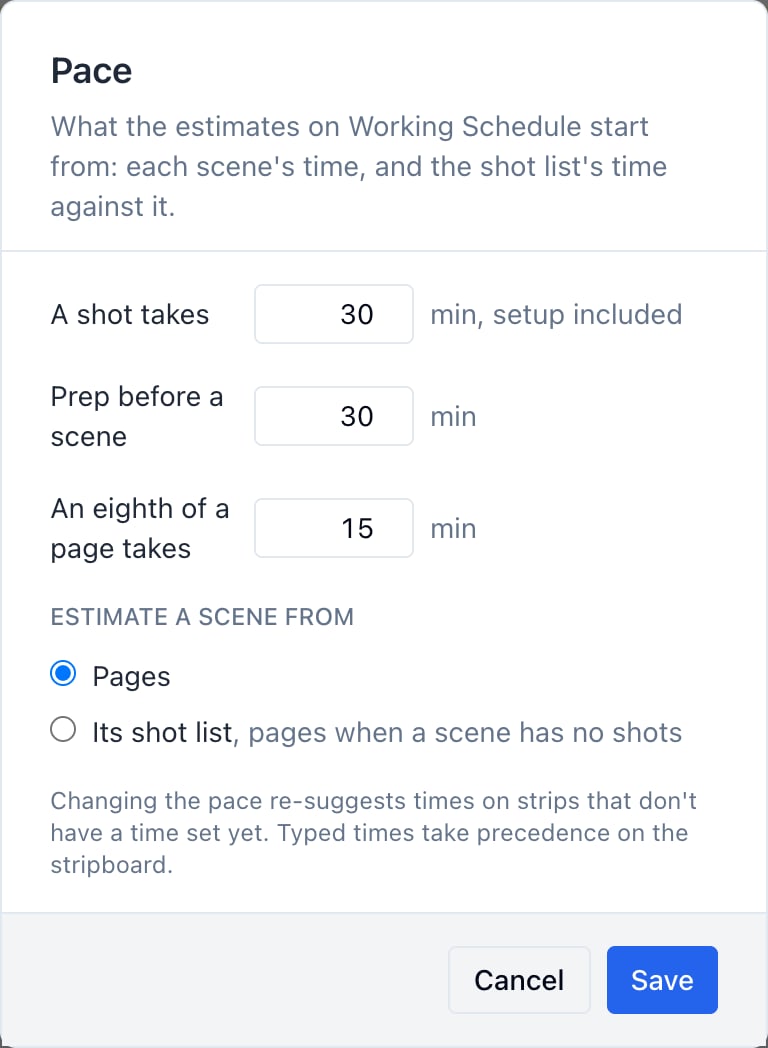
The Pace window: A shot takes 30 min, Prep before a scene 30 min, An eighth of a page takes 15 min, and Estimate a scene from set to Pages Every strip without a typed time follows the new numbers. A strip you typed stays as you typed it: set to 1h 35m, it stays at 1h 35m. Start times that no longer match turn amber, and Recalculate times from here lines the day back up. The same pace opens from the lightning bolt (Pace) on the shot list page.

Example: a crew that lights once

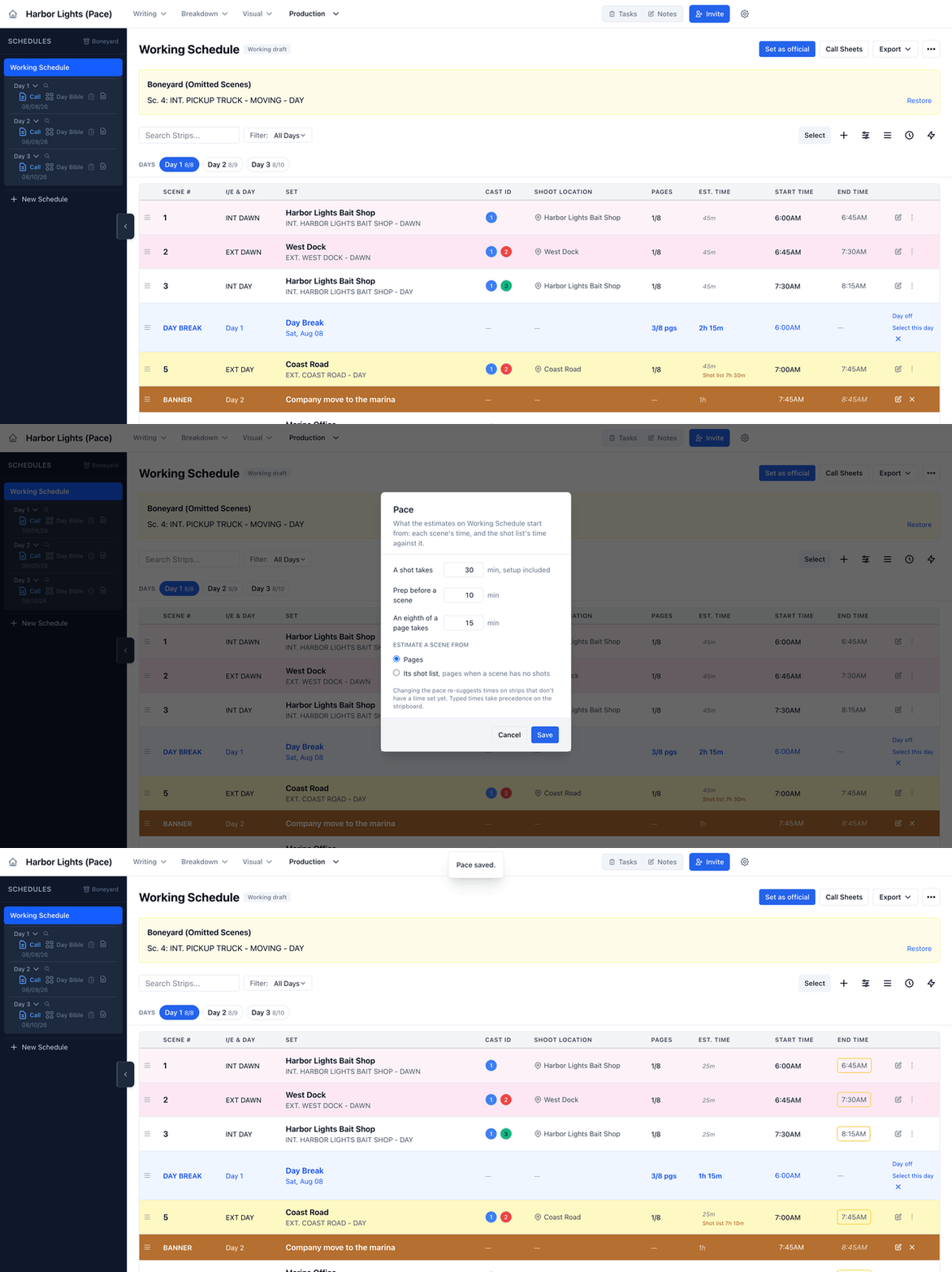
Your crew lights everything before the first take, so setups are not what slows you down. You set Prep before a scene to 10 minutes and leave the eighths alone. Day 1’s three scenes drop twenty minutes each, from 2h 15m to 1h 15m, and the One-Liner prints the new totals. Day 1 at 45m a scene and 2h 15m for the day, Prep before a scene changed to 10 in the Pace window, then Day 1 at 25m a scene and 1h 15m, with Pace saved and the end times ringed in amber
See shots on the board

Pages say how long a scene plays. Shots say how long it takes to shoot. Once a scene has a shot list, the board can show both.
  1. Click Display in the stripboard toolbar.
  2. Check Shots and Est. Time.
  3. Click Save.
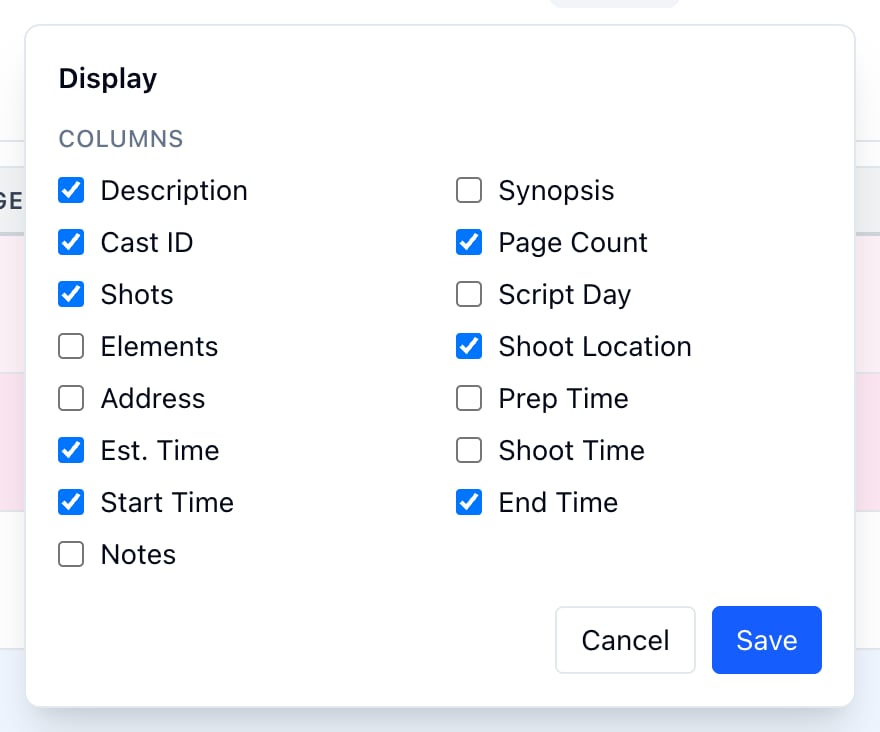
The Display window with Shots, Est. Time, Start Time and End Time checked Each strip shows how many shots its scene lists, and the day row adds up the day’s shots so far. Under a strip’s est, Shot list shows what the shots add up to when it differs from the est by more than fifteen minutes, amber when the list runs over. The est itself does not move.

Example: the shot list lands the night before

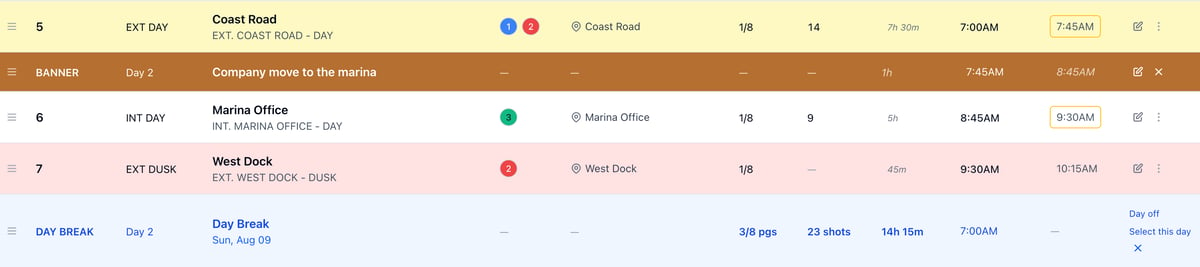
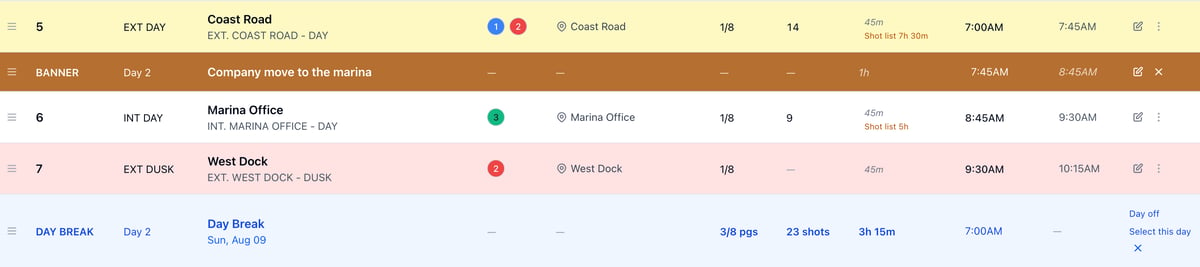
Brian laid the days out by pages before anyone had a shot list. Steven lists Day 2 the night before: 14 shots on the coast road, 9 in the marina office. Day 2’s row reads 23 shots, and under each est the shot list’s time shows in amber: 7h 30m against 45m, and 5h against 45m. Day 2 with the Shots column on: 14 shots on Coast Road with Shot list 7h 30m under its 45m est, 9 on Marina Office with Shot list 5h, and the day row reading 23 shots They cut inserts, give the scenes more time, or move the marina office to Day 3. Nobody retyped an estimate.
Estimate scenes from their shot lists

  1. Click Pace in the stripboard toolbar.
  2. Under Estimate a scene from, choose Its shot list.
  3. Click Save.
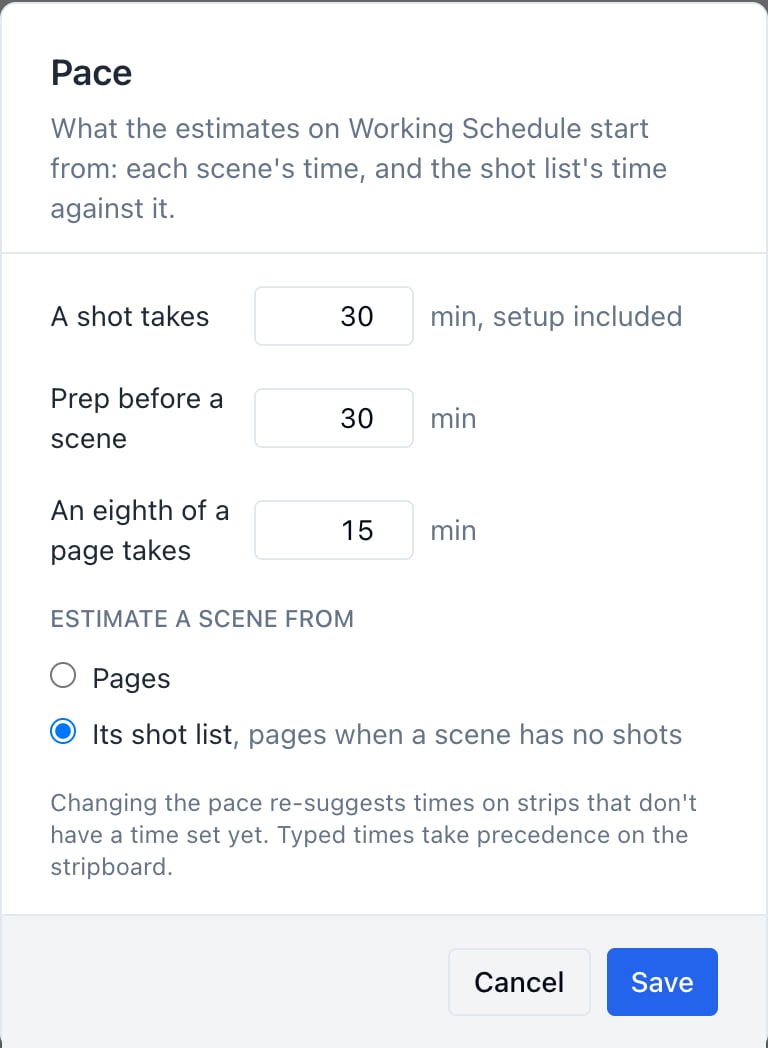
The Pace window with Its shot list chosen under Estimate a scene from A scene with shots takes its time from them: each shot at its own est, or at A shot takes when it has none, plus prep. A scene with no shot list keeps its pages. Typed times still win. Day 2 sized by its shot lists: Coast Road at 7h 30m and Marina Office at 5h, their end times ringed in amber, and West Dock still at 45m from its pages The end times don’t move by themselves. Use Recalculate times from here on the day’s first strip when you want the day to follow.

Scenes on two days

  • A split scene’s parts each count their own shots. Shots not assigned to a part count on the first.
  • A scene on the board twice with Duplicate Scene counts its whole list on the first strip, and on the second what is left to shoot. The second strip prints no pages, so the day totals don’t count the scene twice.

Reset times

  1. In the stripboard toolbar, click the clock icon (Reset Times).
  2. Choose what to clear: everything, clock times only, durations only, the strips’ times only, or the day breaks’ times only.
  3. Click Reset Times.
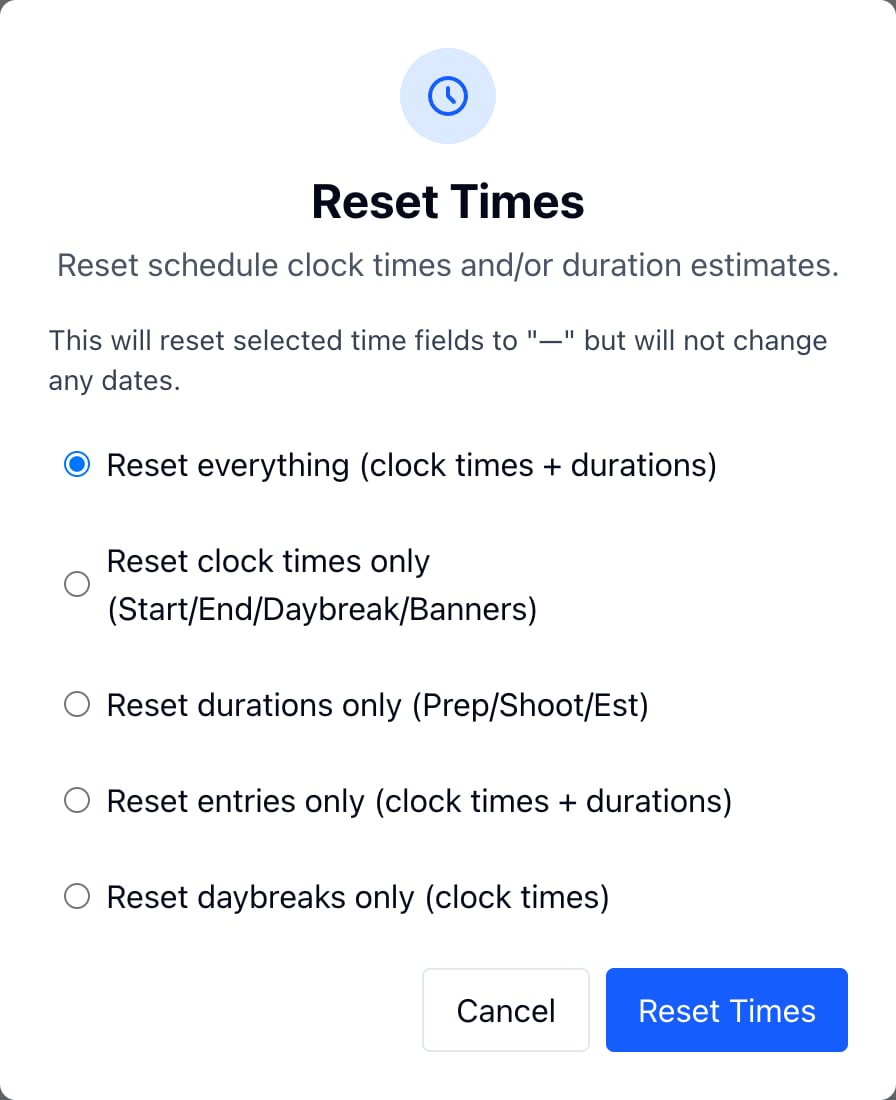
The Reset Times window with Reset everything chosen, then clock times only, durations only, entries only and daybreaks only Cleared times show —. Dates don’t change.