Reference images and storyboards
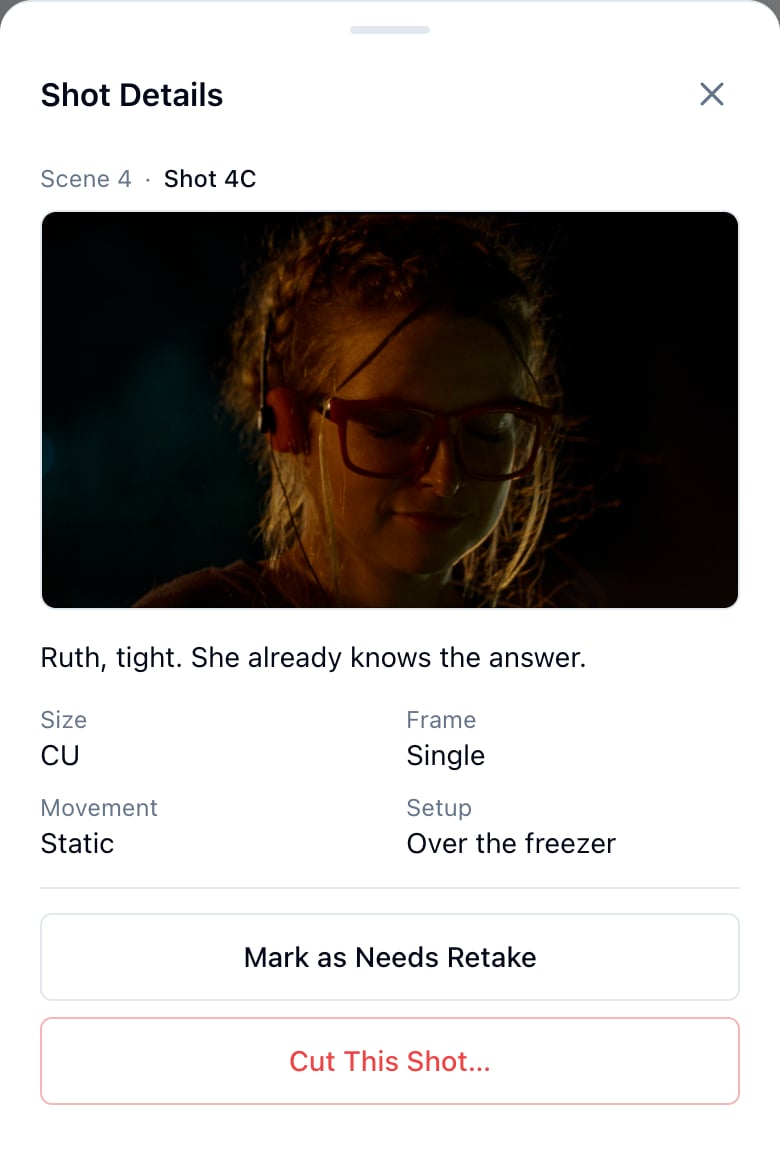
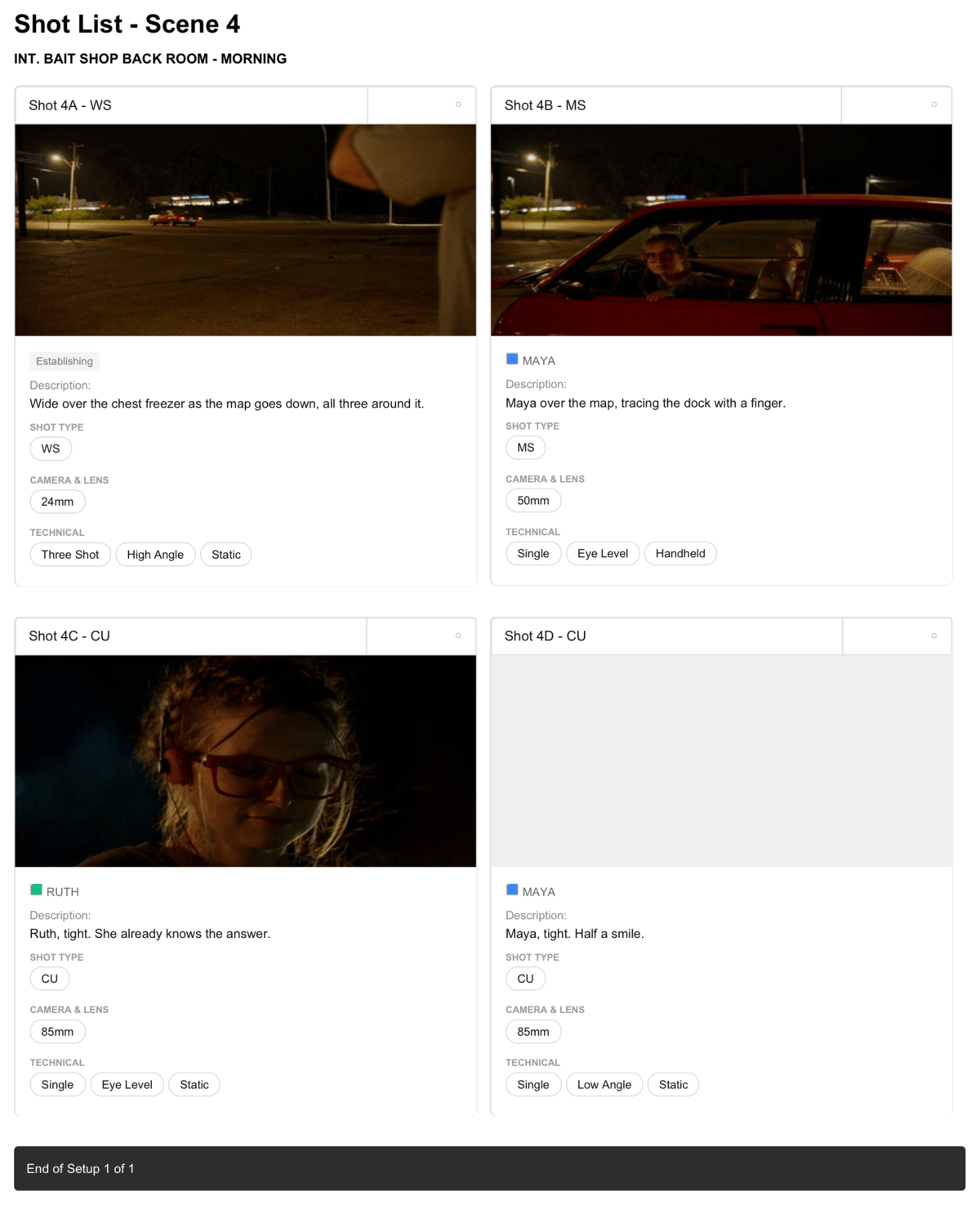
Who can do this: Free plan on your first project, Supporter on all projects. Adding, changing, or removing a shot’s image needs project edit access; everyone else sees the image on the list, the phone, the PDF, and the share link.A shot can carry one image: a frame from the lookbook, a location photo, a storyboard panel. It rides with the shot everywhere the shot goes, so the framing you agreed on in prep is the framing the crew sees on the day. Find it under Visual → Shot List → View Shot List.
Add an image to a shot
- Hover the shot’s image area, on a card or in the table’s Image column.
- Click Add Image.
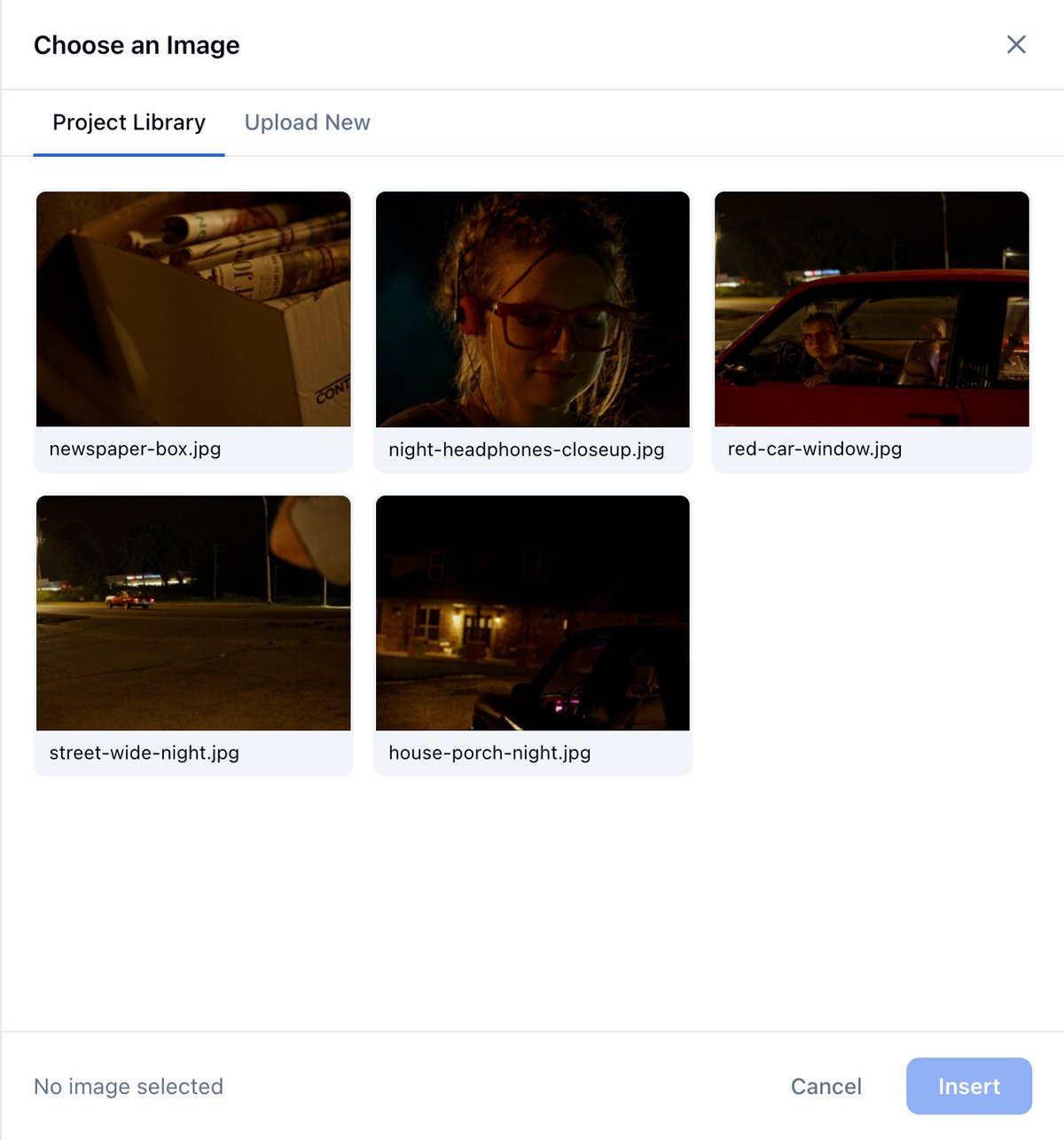
- Pick an image from Project Library, or drop one on Upload New.
- Click Insert.
Change or remove it
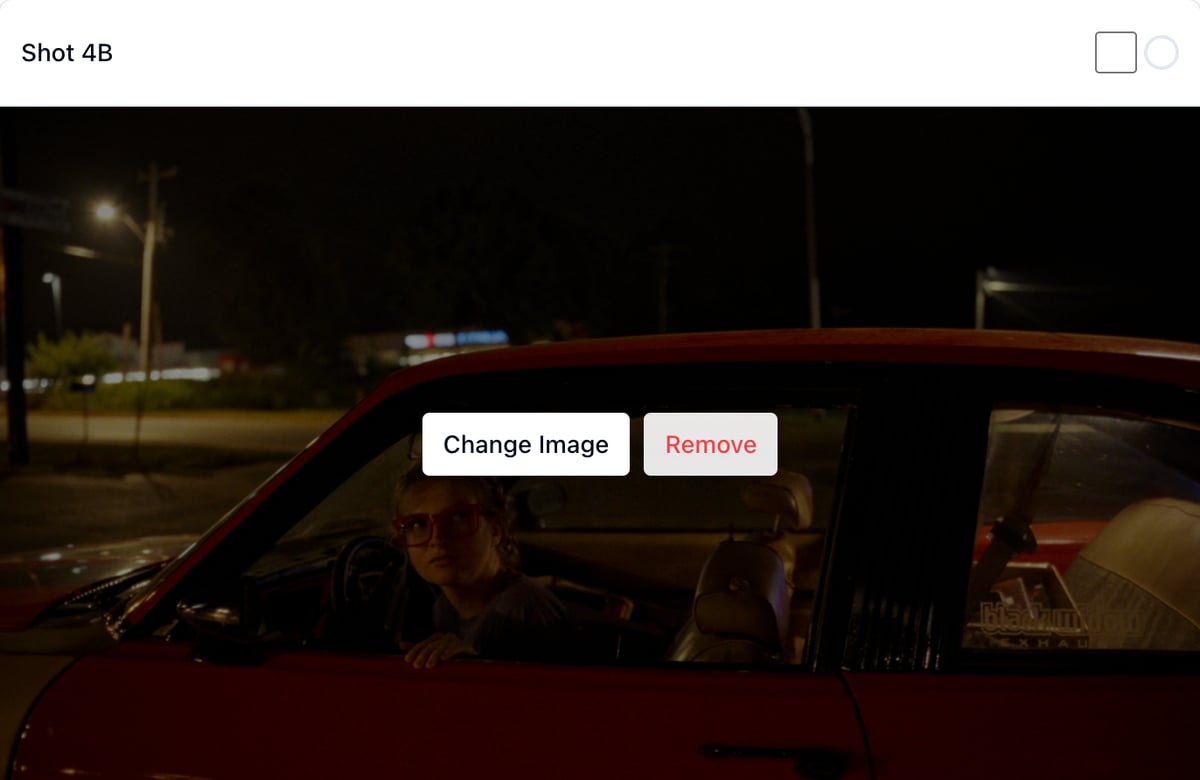
- Hover the image and click Change Image to pick another.
- Hover the image and click Remove to clear it. The image stays in the project library.
Use it as a storyboard
One image per shot. For a storyboard, put the panel for that shot on it; for a sequence within one shot, combine the panels into one image or describe the moves in the shot’s description. A frame from the lookbook or a location photo works the same way when the point is the look rather than the blocking.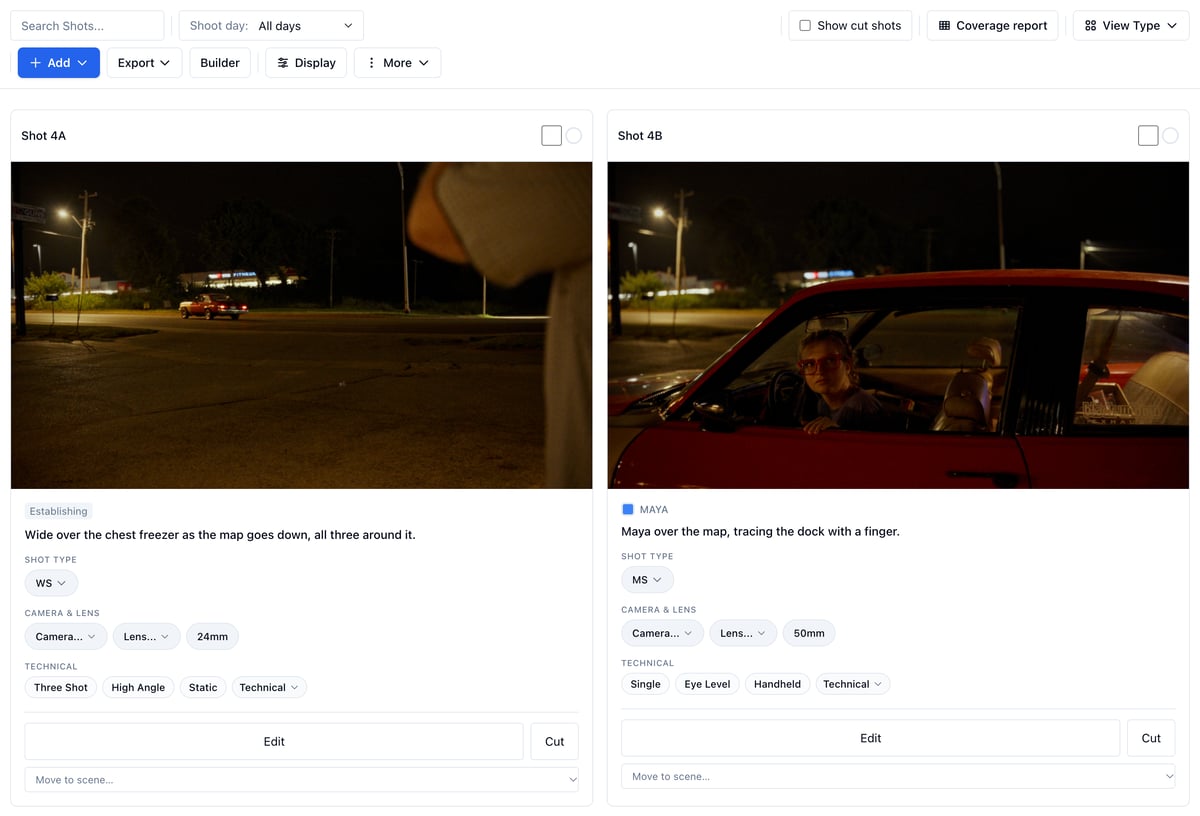
Where the image shows
- On the card and in the table’s Image column. Display turns the column off and sets the thumbnail Size.
- On the phone, in the shot’s details when you tap its name.
- On the Shot List PDF, when the Image column is ticked.
- On the view-only share link.