Managing shot lists
Who can do this: Free plan on your first project, Supporter on all projects. Everything on this page needs project edit access; members with view access get the read-only View. The Builder is for desktop and tablet.Once shots exist, the list needs tending: a shot squeezed in between two others, coverage marked on a shot you added in a hurry, setups and banners for the day, the odd shot cut. This is where that happens. Find it under Visual → Shot List → View Shot List. It opens on All Shots, every scene’s shots together. To reorder a list, open one scene or one shoot day from the bar at the top left. The Builder does the script-side work, and Your first shot list covers that.
Add a shot without the script
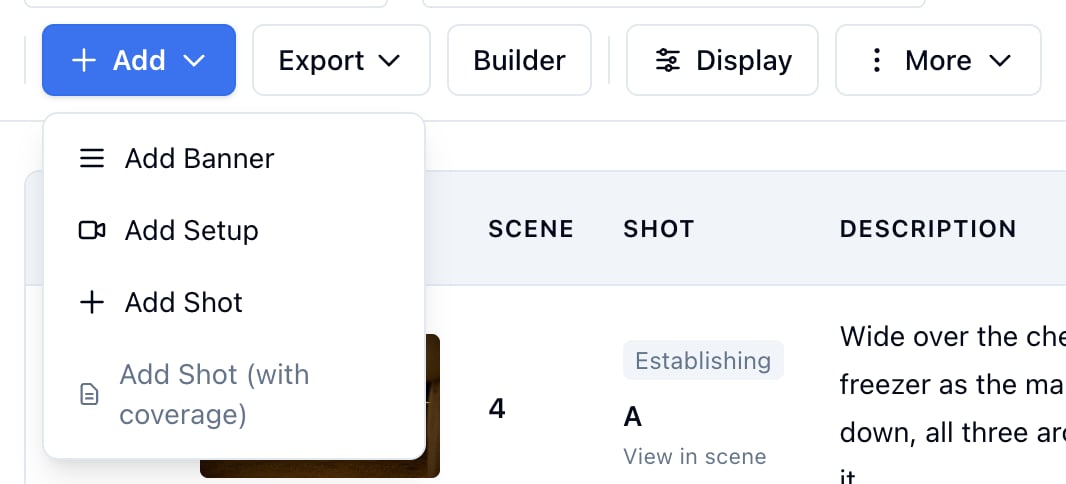
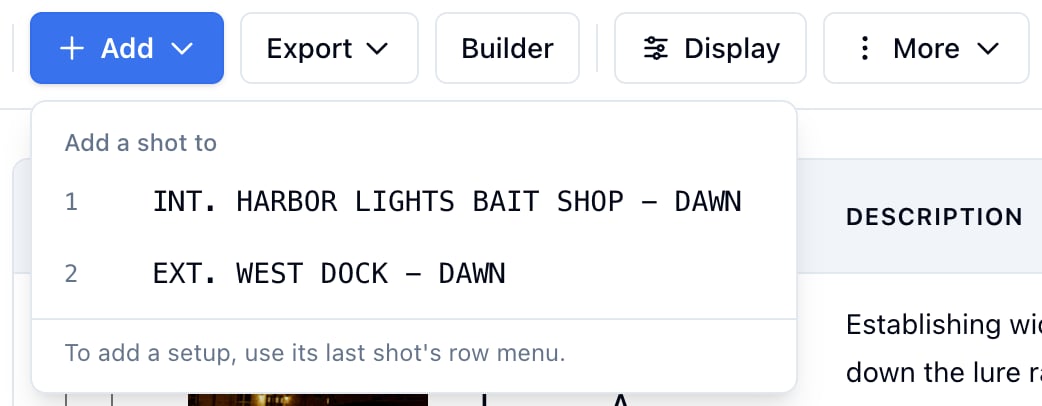
- Click Add, at the right of the toolbar beside Export.
- On a scene’s list, click Add Shot. On a shoot day or All Shots, click the scene the shot belongs to.
- Fill in the form and click Add Shot.
Insert under a shot
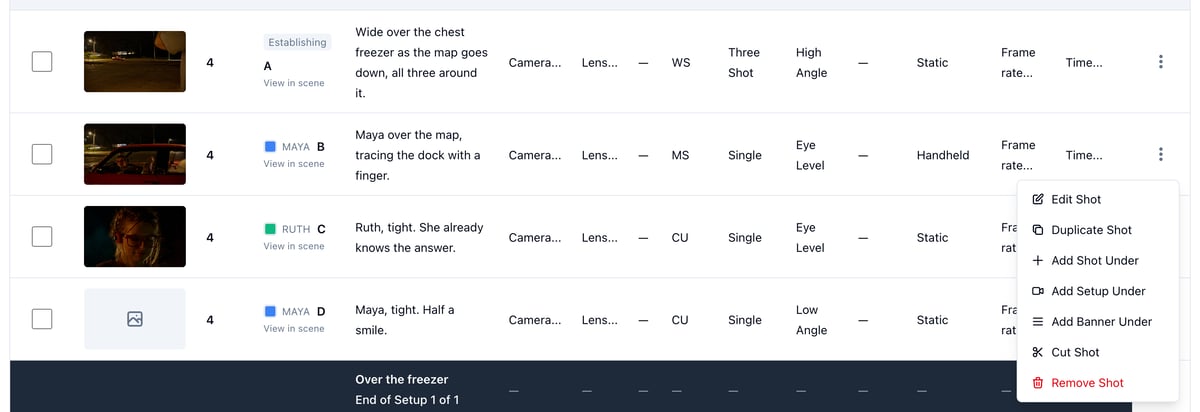
- Click the three dots at the end of a shot’s row.
- Click Add Shot Under, Add Setup Under, or Add Banner Under.
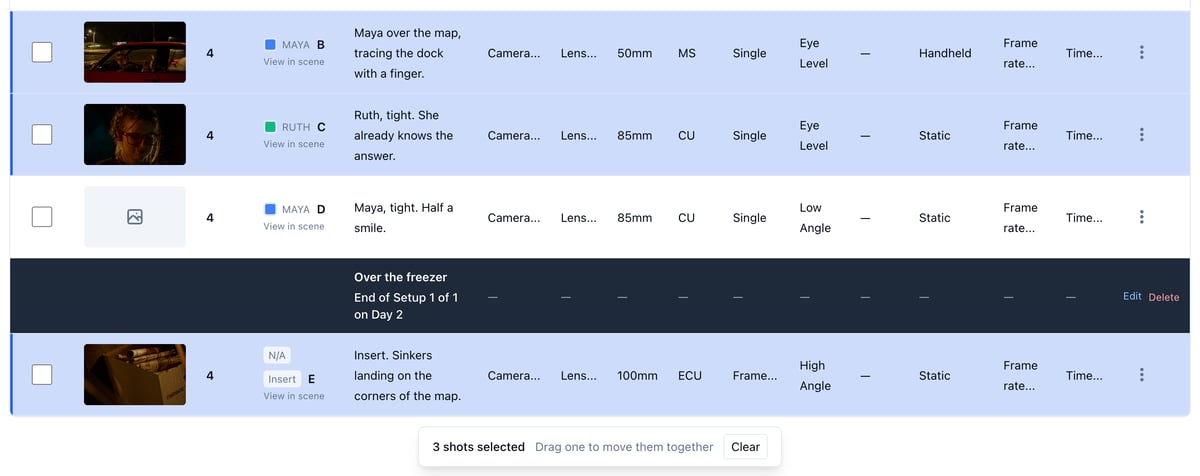
Move several shots at once
- Open a scene or a shoot day from the bar at the top left.
- Cmd-click (Ctrl-click on Windows) each shot you want to move. Shift-click picks every shot between your last pick and this one.
- Drag any of the picked shots.
Group shots into a setup
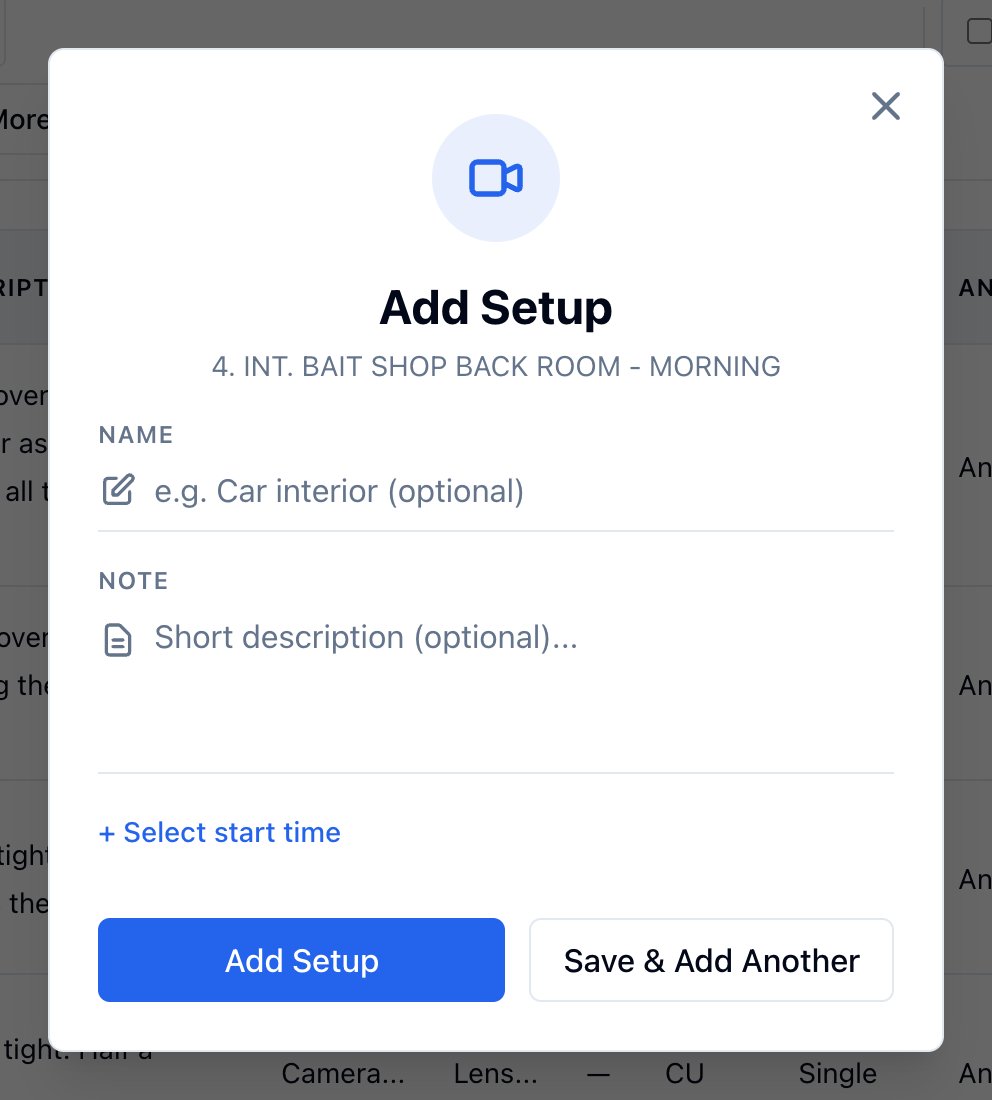
- On a scene’s list, click Add, then Add Setup.
- Name the setup after the camera position, or leave the name blank.
- Click Add Setup.
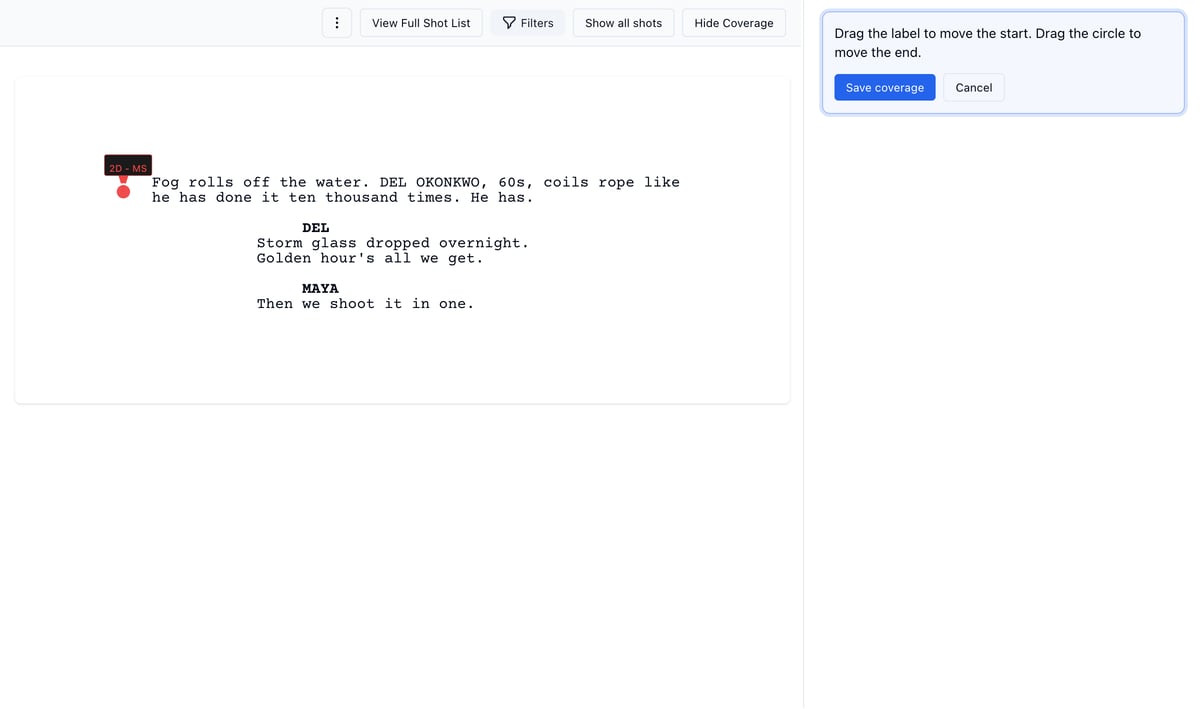
Mark coverage on a shot later
- Open the Builder on the shot’s scene.
- Click Set coverage on the shot in the right panel.
- Drag the label at the top of the line to where the shot starts, and the circle at the bottom to where it ends.
- Click Save coverage.
Change a shot in place
- Click the Shot Size, Frame, Angle, Focus, Movement, or Est. value on a row to pick a new one.
- On a card, click the pill under Shot Type or the Technical pill.
- Click Edit Shot in the row’s menu for the full form.
Work one shoot day at a time
Set Shoot day to a day. The day’s list opens across scenes, whatever scene you had open. The days come from your schedule’s day breaks, one group per shoot day, and shots follow their scene onto the day. You cannot rename or delete them. On a day, the list is also that day’s setup builder. See Shot list groups and settings.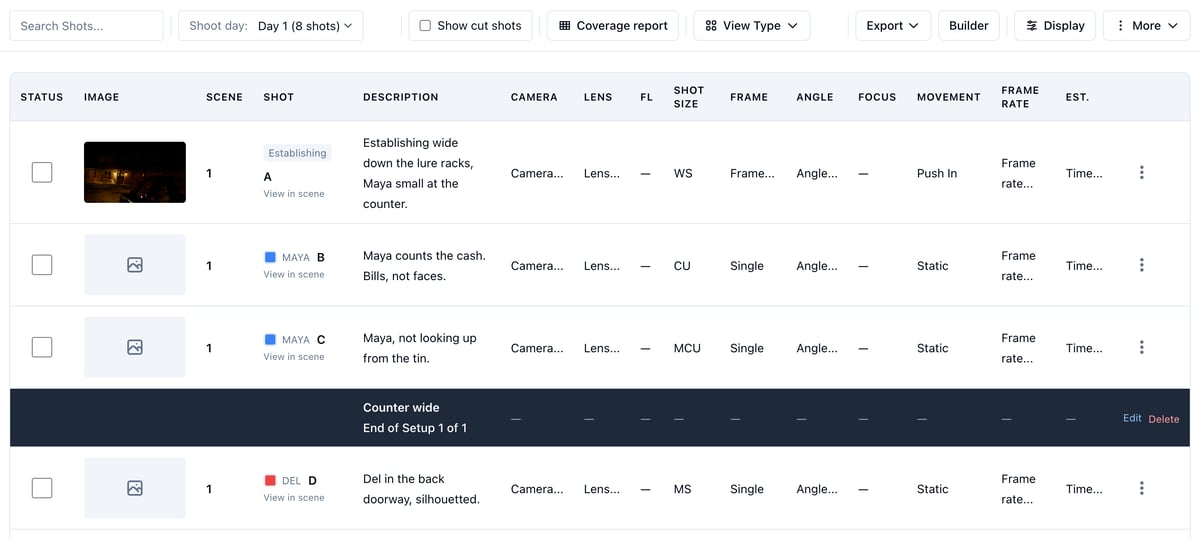
Cut a shot instead of deleting it
- Click the three dots on the shot’s row.
- Click Cut Shot.
- Type the reason and save.
Set the numbering
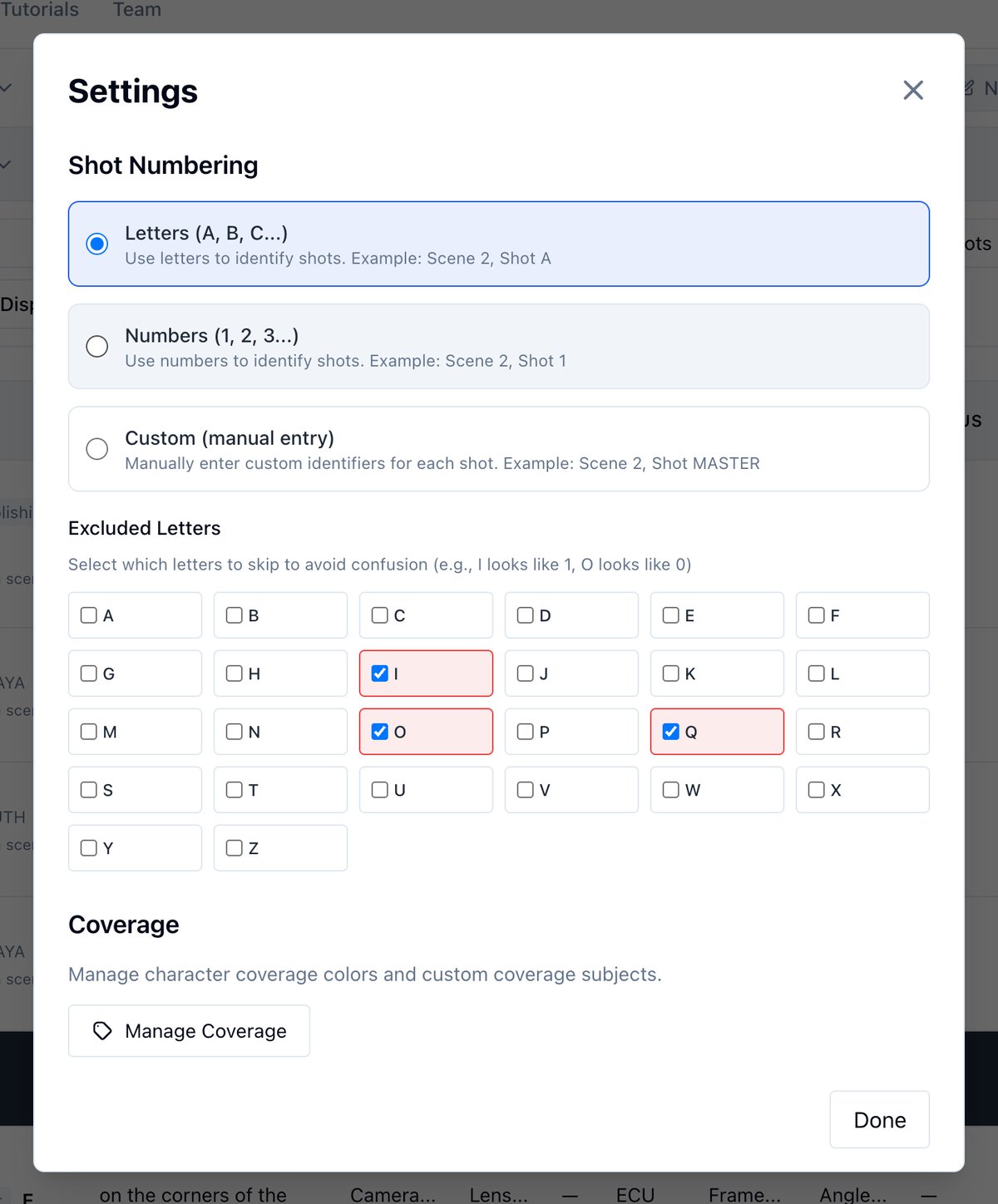
- Click More, then Settings.
- Under Shot Numbering, pick Letters, Numbers, or Custom.
Choose the columns
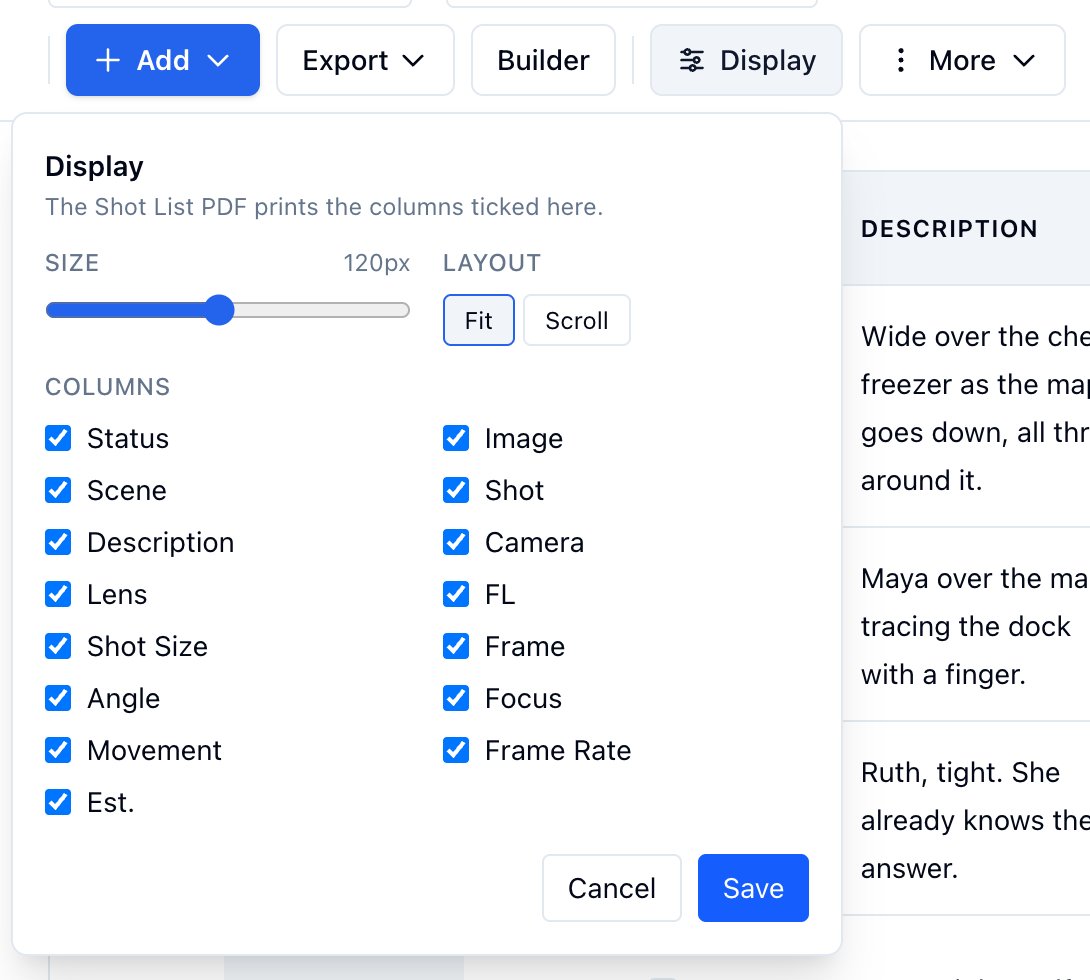
- Click Display.
- Tick the columns you want, set the thumbnail Size, and pick Fit or Scroll.
- Click Save.
Export
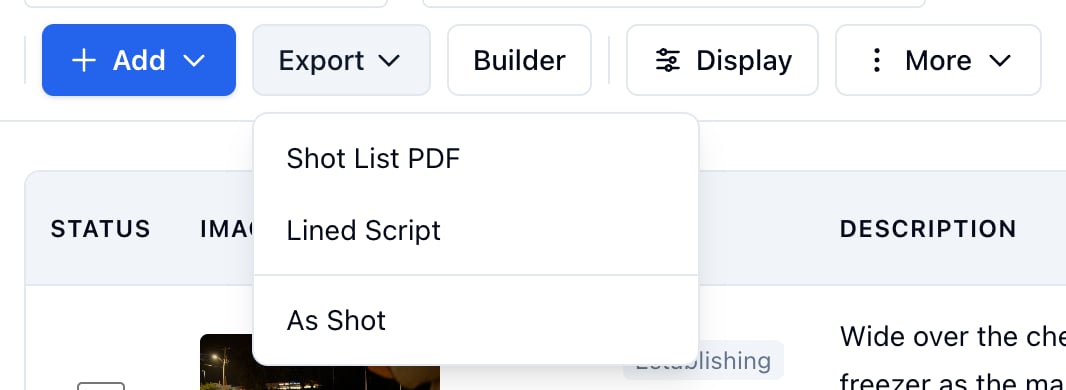
- Click Export.
- Pick Shot List PDF, Lined Script, or As Shot.