View, export, and share
Who can do this: Free plan on your first project, Supporter on all projects. Anyone with project access can open the View, search it, switch layouts, and export. Editing shots, adding banners and setups, and sharing need shot list edit access (owners, admins, and members with Edit shot lists).The Builder is where the list gets made. The View is where you and everyone else read it, tidy it, and take it to set: the same shots as a table or as cards, filtered to a day, printed, or handed out as a link. Find it under Visual → Shot List → View.
Pick a layout
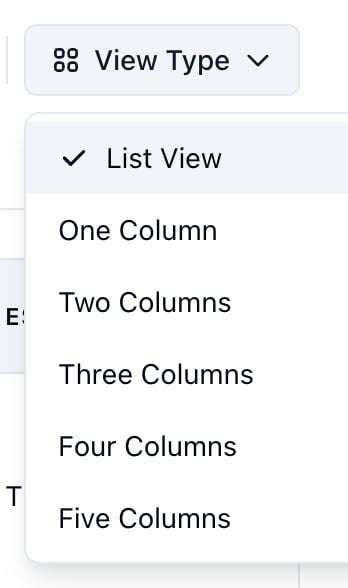
- Click View Type.
- Choose List View for the table, or One to Five Columns for cards.
Move between scenes
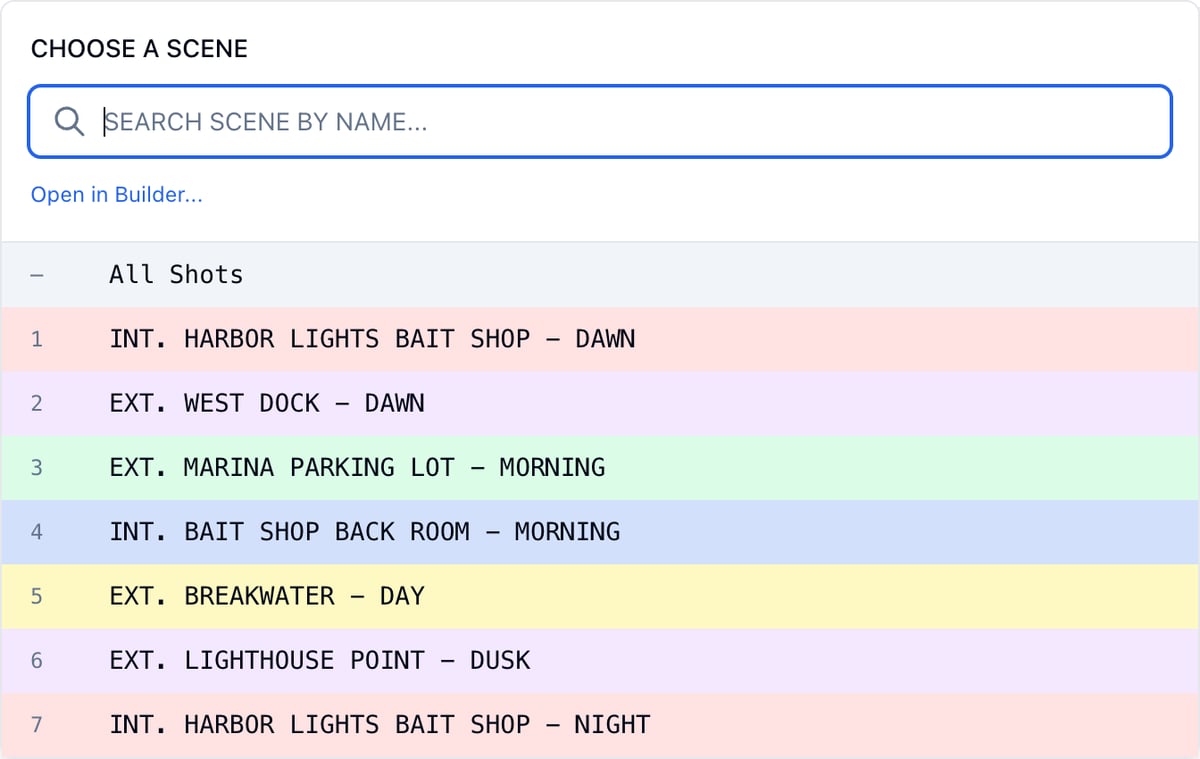
- Click the scene name at the top of the page.
- Click a scene, or All Shots to see every scene in script order.
Find a shot
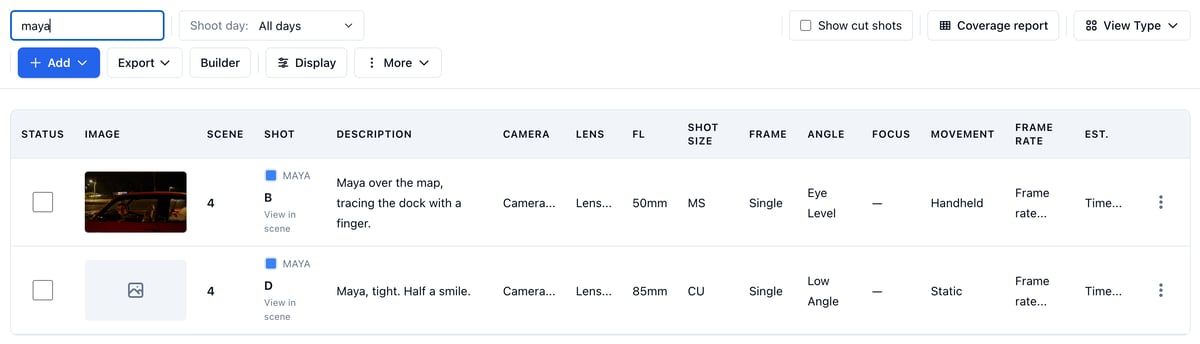
- Type in Search Shots. The table or cards narrow as you type, matching any text on the shot, including its subject.
- Use Shoot day to open one shoot day. The day’s shots come from every scene on it, in the day’s own order with its setups.
- Tick Show cut shots to bring cut shots back into the list. They never print.
Edit a shot in place
In the table, click a cell to change it without opening the shot: Camera, Lens, FL, Shot Size, Frame, Angle, Focus, Movement, Frame Rate, and Est. each open a small picker. Cards offer Shot Size, Camera, Lens, and FL. A camera or lens you type once is offered next time.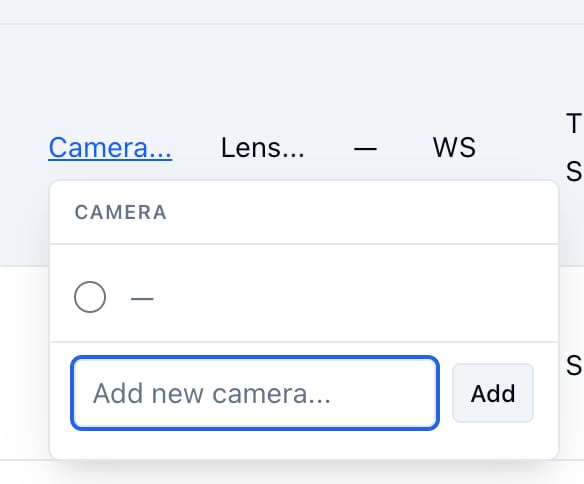
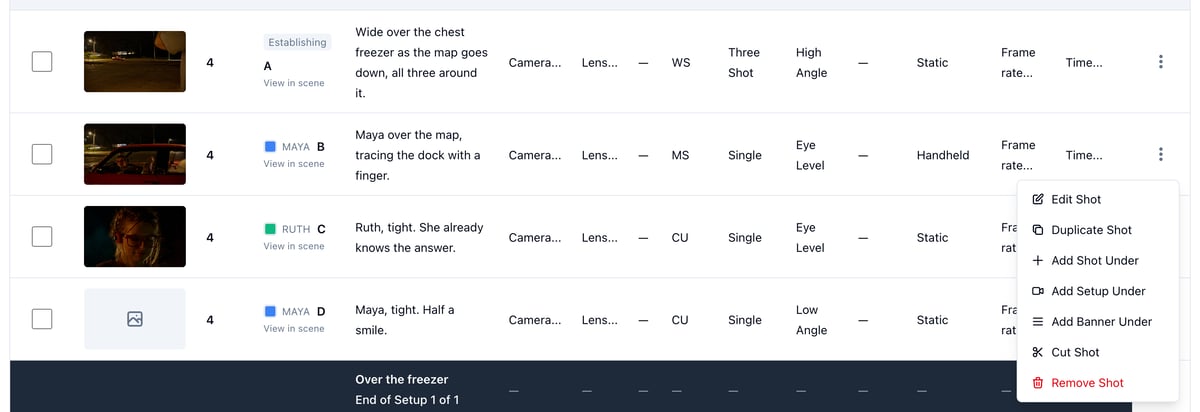
- Edit Shot opens the full form.
- Duplicate Shot copies the shot in under its original.
- Add Shot Under, Add Setup Under, and Add Banner Under insert right below that shot. On All Shots, Add Setup Under opens the shot’s scene and adds the setup there.
- Cut Shot takes it out of the list and off every PDF. Remove Shot deletes it.
Mark shots as filmed
Tick a shot’s checkbox when it is in the can. The status saves at once and shows on the shared link and the As Shot PDF. On a phone the View becomes a tap list built for set; see Using your shot list on the shoot day.Add banners and setups
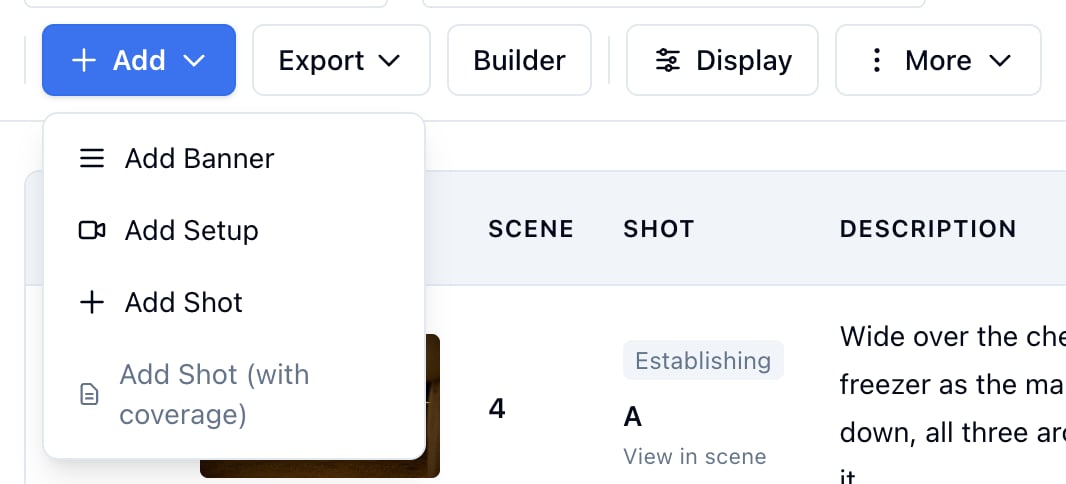
- Click Add.
- Choose Add Banner for a label row, Add Setup to group the shots that share a camera position, Add Shot for the full form, or Add Shot (with coverage) to go to the Builder.
Export a PDF
Click Export. With a scene open you get Shot List PDF, Lined Script, and As Shot. On All Shots the choice is Shot List PDF (all scenes). A shoot day exports its own Shot List PDF in the day’s order. The table or card layout and the columns ticked in Display carry into the PDF. Cut shots never print. Full detail: Printing your shot list.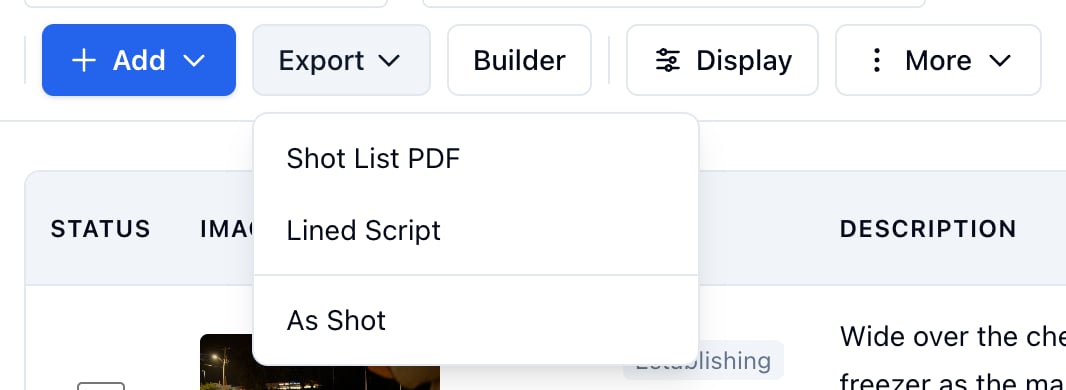
Choose columns and thumbnail size
Click Display to tick the columns you want, set the thumbnail Size, and pick Fit or Scroll for a wide table. Column choices also decide what the Shot List PDF prints.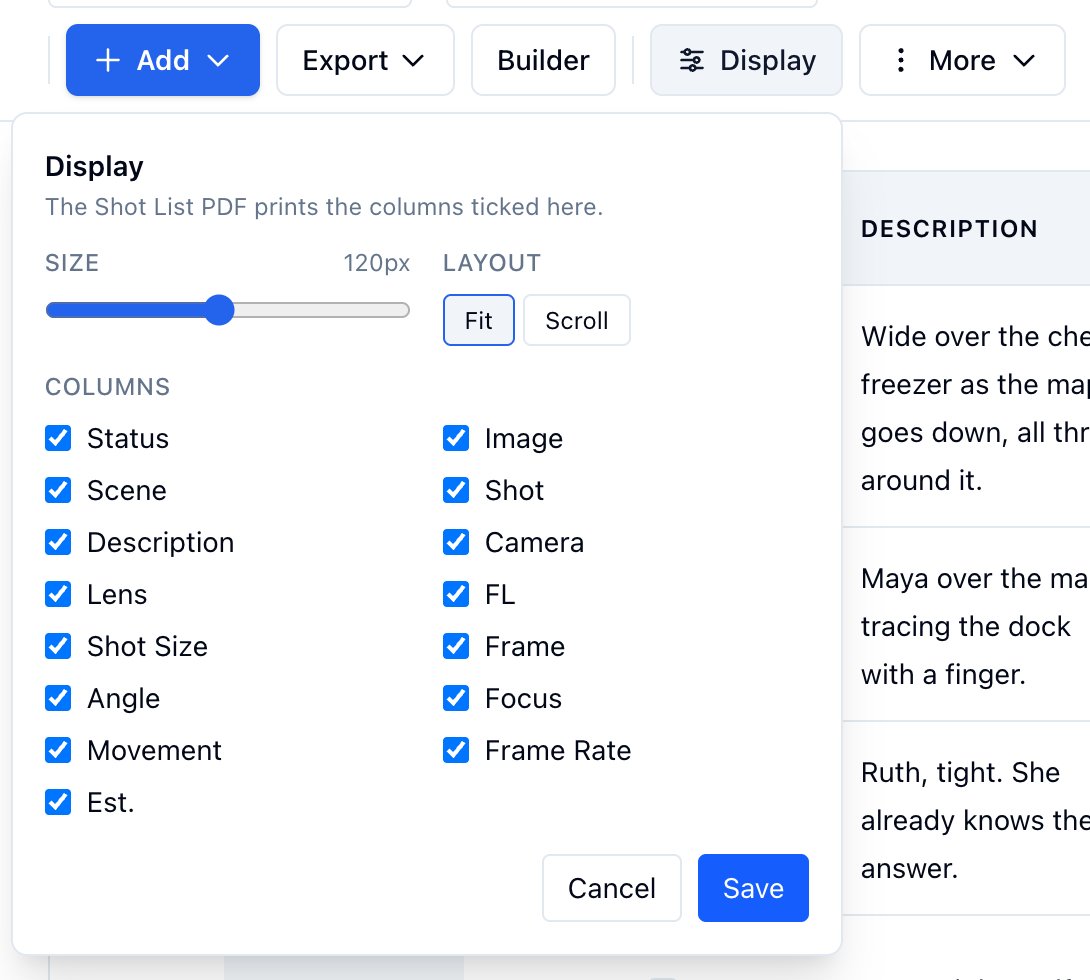
Change numbering and coverage settings
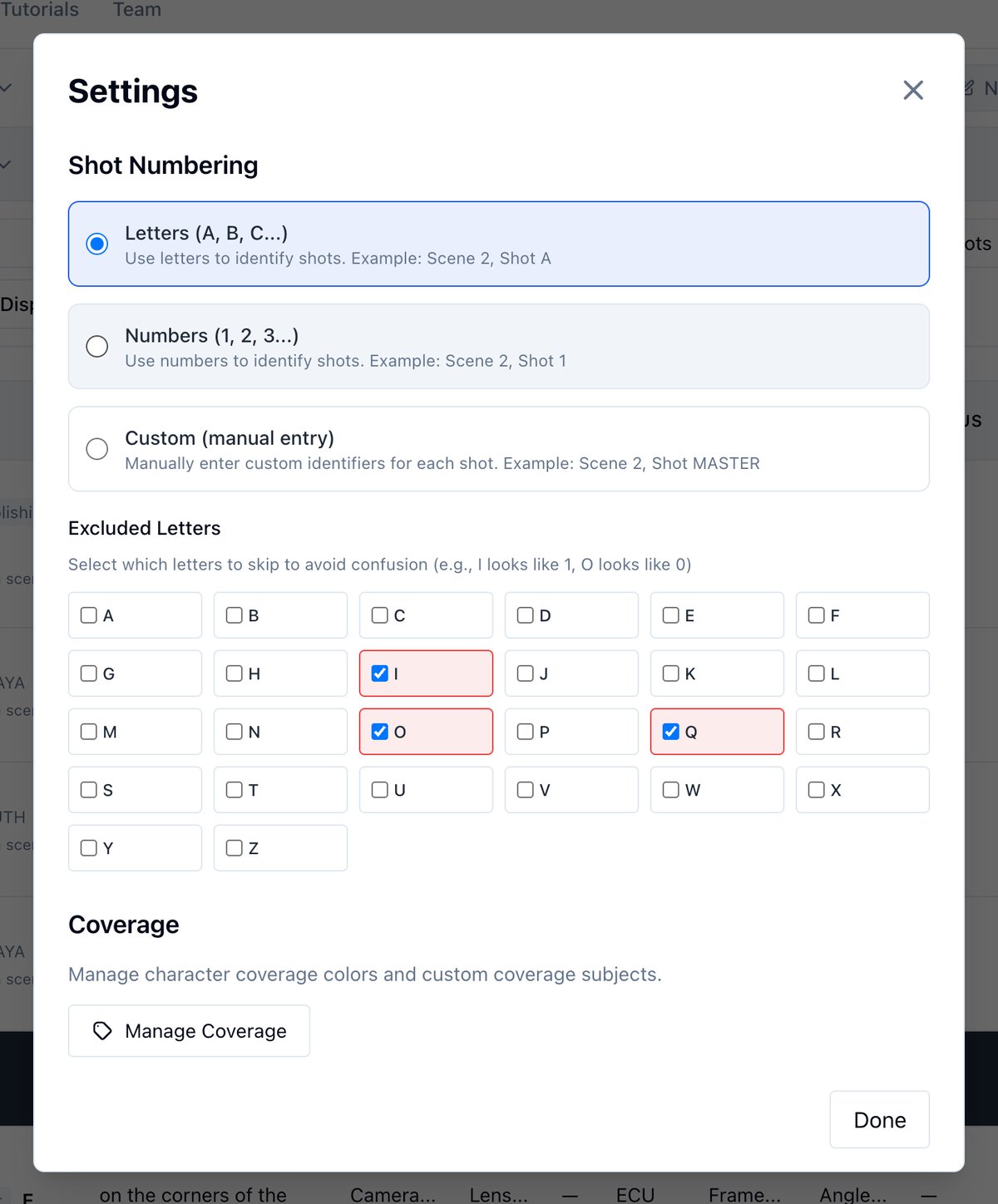
Open More → Settings to switch Shot Numbering between Letters, Numbers, and Custom, skip letters under Excluded Letters, or open Manage Coverage for subject colors and custom subjects.