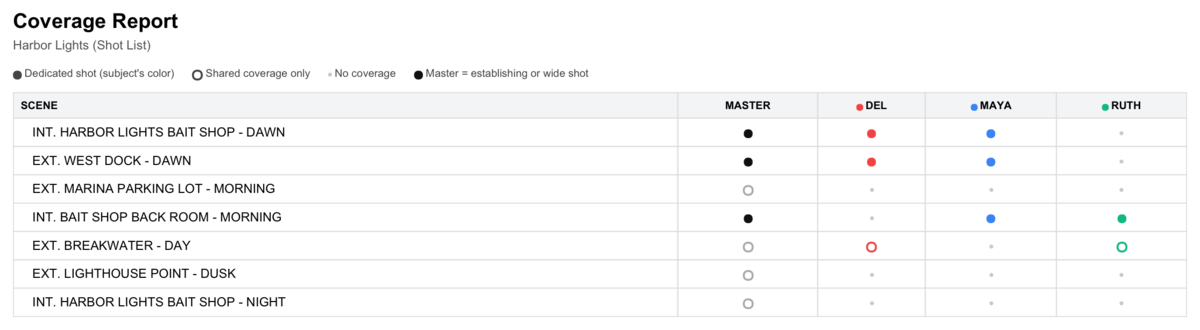
Coverage report
Who can do this: Free plan on your first project, Supporter on all projects. Viewing needs project access; members with view-only access can open it too.One page that answers the question you’d otherwise answer scene by scene: who still needs a single, and where. Find it from the Coverage report link on the Builder’s scene bar, or on the shot list view toolbar. On a phone, it is at the top of the shot list.
Read the grid
Scenes run down the side in script order. Characters run across the top.- A solid dot in the character’s color means they have a dedicated single in that scene: at least one shot covering only them.
- A hollow dot means they only exist in shared shots there, like a two shot. Real coverage, but no single.
- A faint dot means no coverage at all.
- The Master column fills when the scene has an establishing or wide shot.
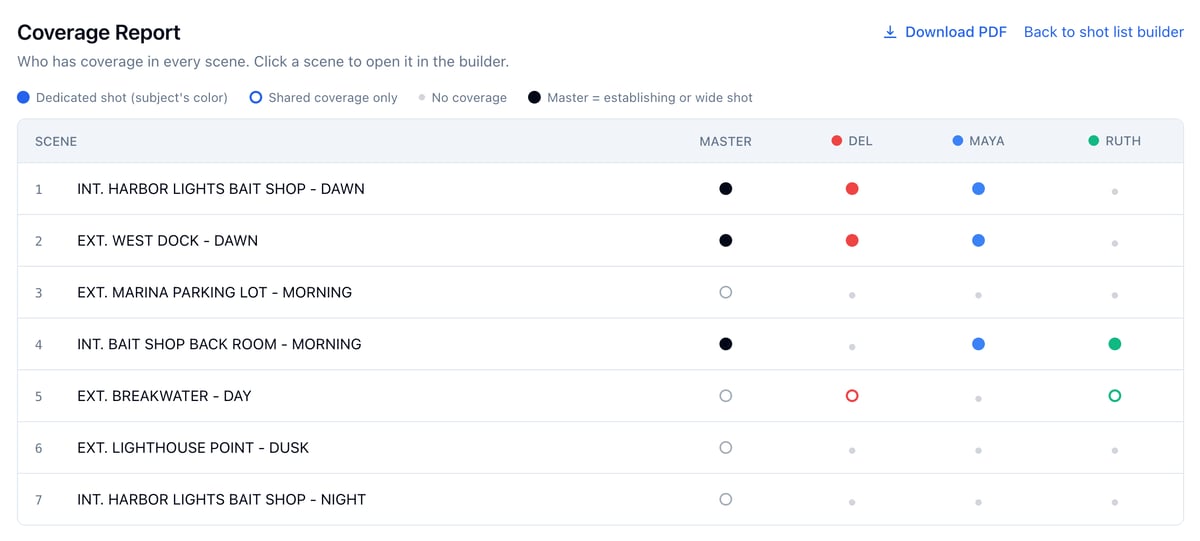
Jump to a scene
Click any scene in the grid to open that scene in the Builder, ready to add the missing shot.On a phone
Each scene is a card instead of a grid row, with the same dots. A card names only that scene’s characters and anyone a shot credits, so the faint dots are the people in the scene still waiting for a shot. Tap a scene to open its shot list.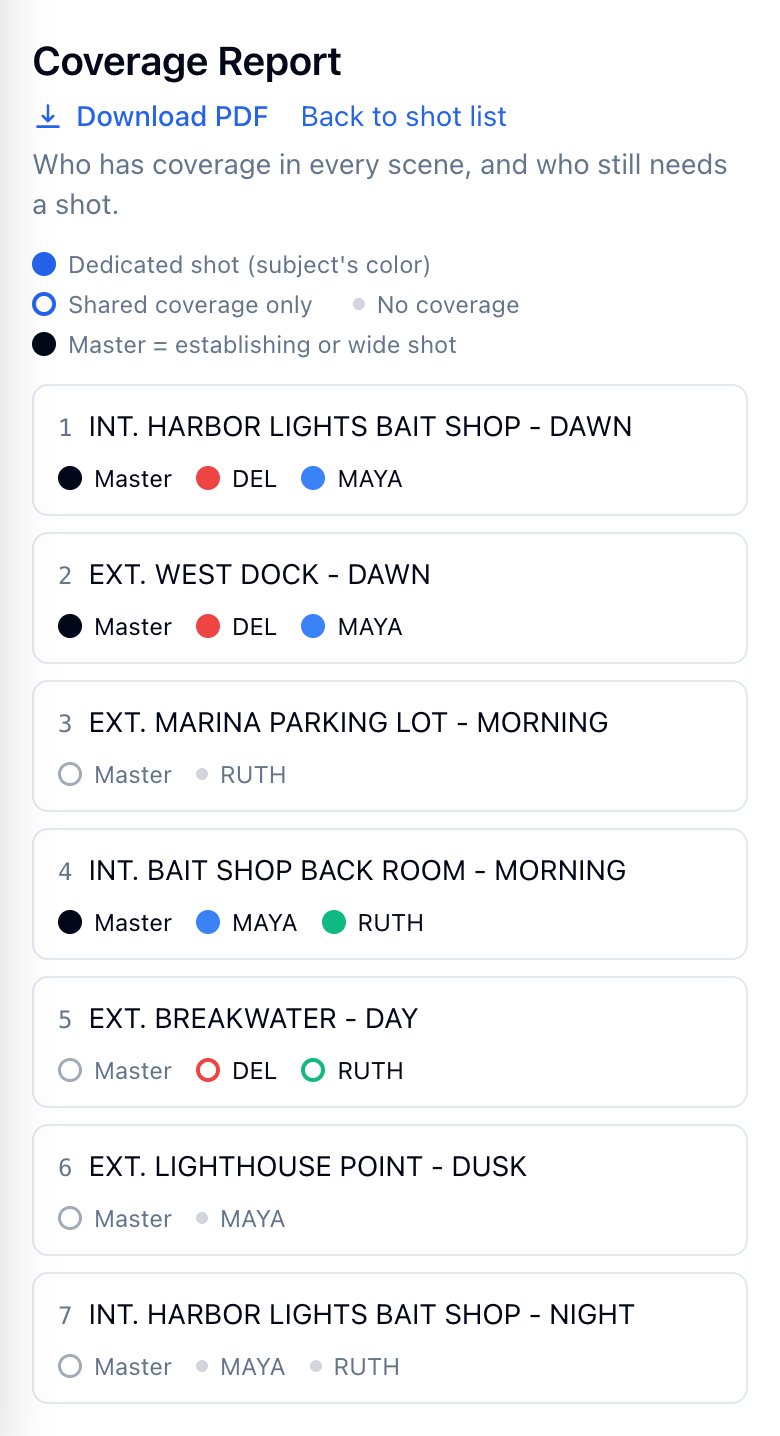
Download the PDF
Click Download PDF at the top of the report. The PDF is landscape and carries the same grid; a cast wider than twelve columns splits into stacked column groups so nobody falls off the page.