Using shots to confirm coverage (by character)
Who can do this: Free plan on your first project, Supporter on all projects. Assigning coverage needs project edit access.Coverage is who each shot is for. Assign it as you build and the script itself will show you, character by character, what you have and what you’re missing before you shoot it.
Assign a subject to a shot
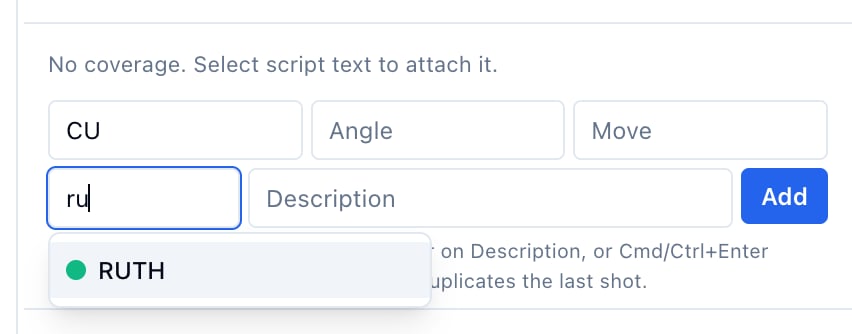
- In the entry row, type the character’s name in the Subject cell while adding the shot.
- In the inspector, pick the subject under Coverage.
- For shots that are for nobody in particular (b-roll, inserts), check Coverage N/A.
Credit everyone in a shared shot
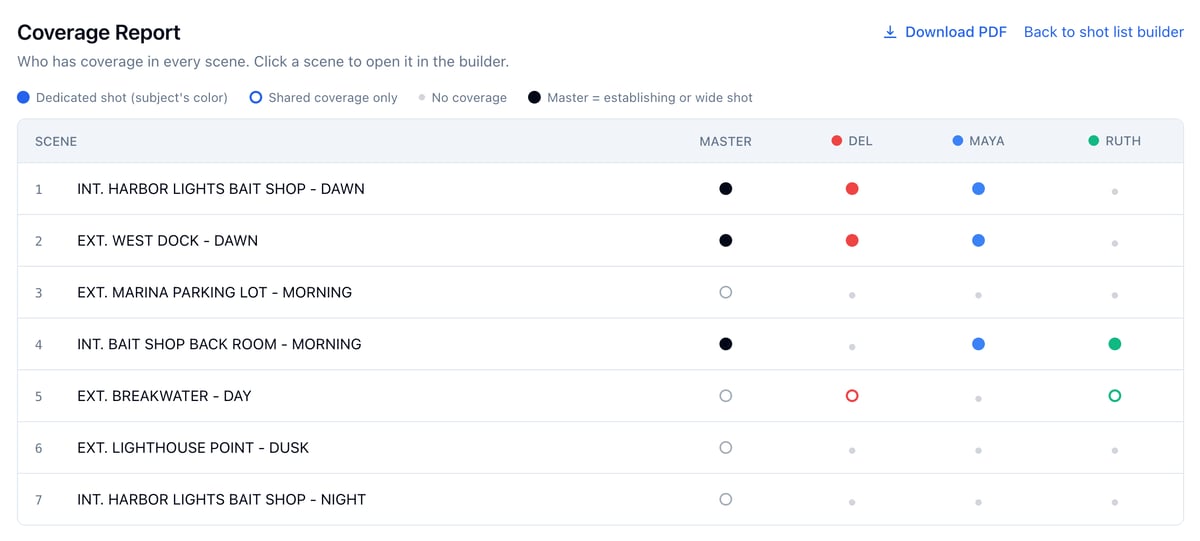
A two shot is coverage for both people. In the inspector’s Coverage group, the primary subject sets the shot’s color, and Also covers (shared coverage) credits everyone else in the frame. Shots crediting one person count as that person’s single; shots crediting two or more count as shared coverage for each of them. The coverage report draws that distinction as solid versus hollow dots.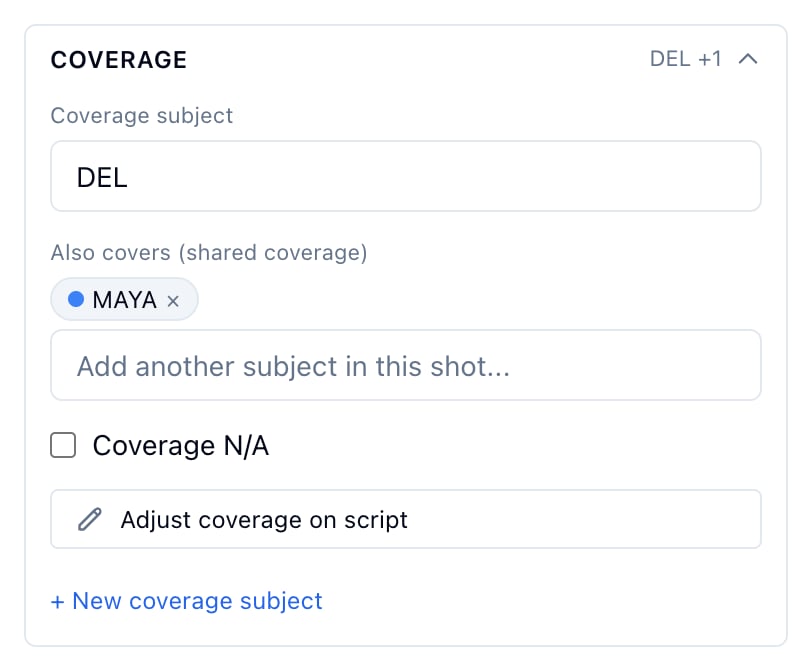
Manage coverage subjects
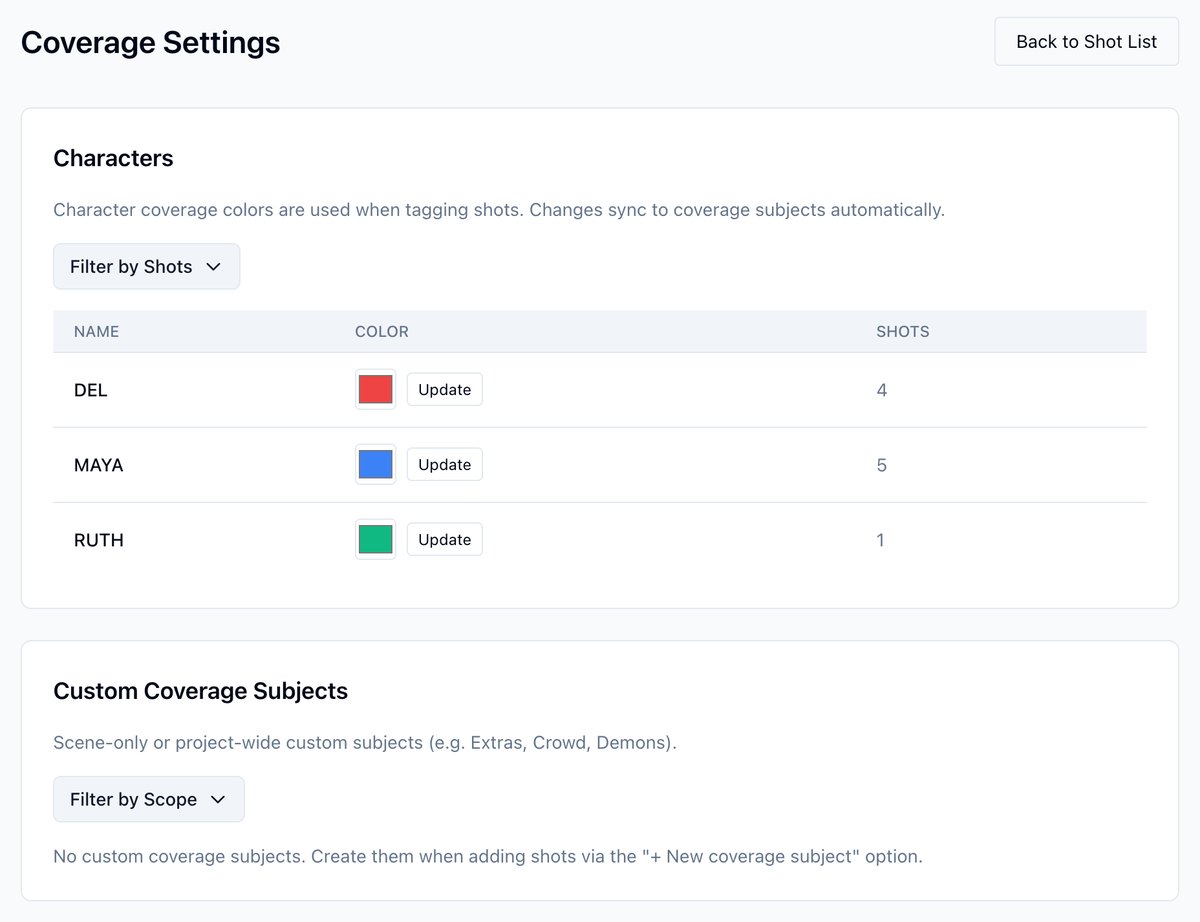
- In the View, click More, then Settings.
- Click Manage Coverage.
Check one character’s coverage in a scene
- Open the scene in the Builder ( Visual → Builder).
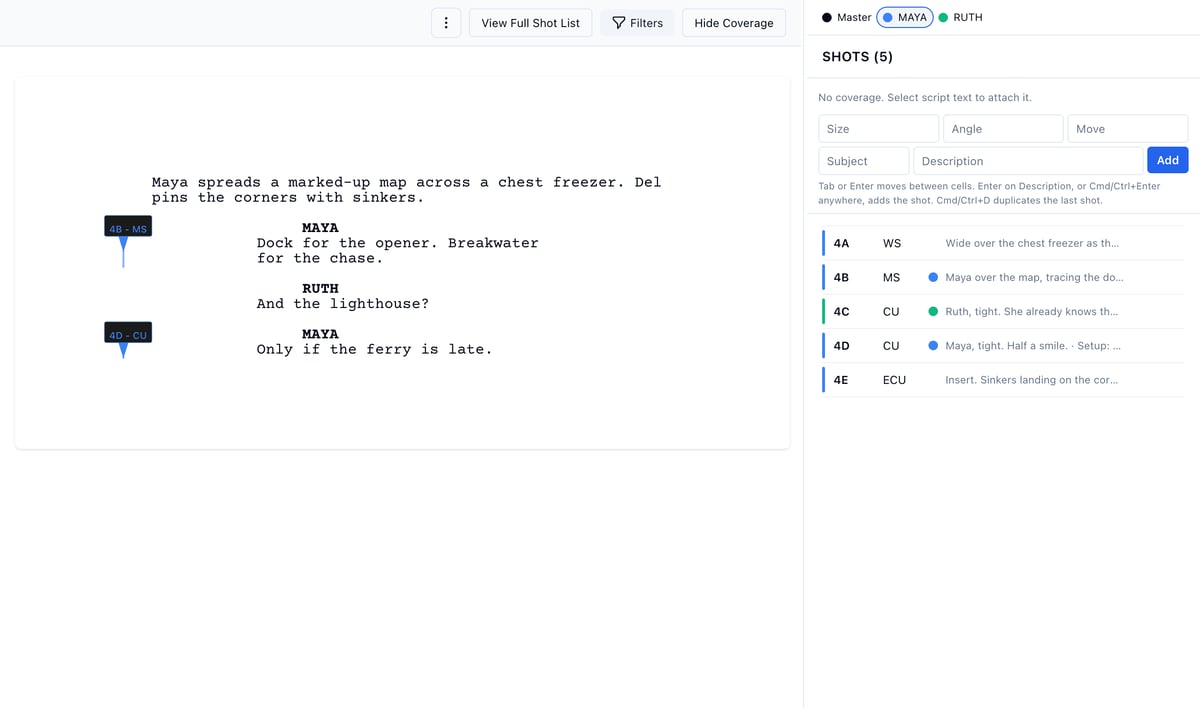
- In the coverage strip above the shot list, click the character’s filled dot.
- The script shows only that character’s coverage lines. Gaps are beats without a dedicated shot.
- Click the dot again to restore your filters.
Check the whole script at once
The coverage report puts every scene and every character on one grid, with the Master column alongside. Use the strip while you build a scene; use the report before you lock the schedule.